

To show seconds in taskbar clock readings on Windows 11, open Settings > Time & language > Date & time. The option to select there is Show seconds in system tray clock (uses more power). Microsoft engineer Raymond Chen reported preliminary Taskbar team measurements showing Explorer consuming 0.417 mW by default and 5.42 mW with seconds enabled.
Build 22621.1776 put the option in the Taskbar behaviors section of Settings > Personalization > Taskbar. Microsoft’s Build 22635.4000 notes later said the setting had moved to Settings > Time & language. A guide that still sends you to Taskbar behaviors describes an older build. Windows 10 uses a registry value instead, and an AI agent prompt near the end checks your PC first.
Before you start: Check your Windows version in Settings > System > About. Windows 11 uses the Settings checkbox below, while Windows 10 needs the registry steps.
Key Takeaways
- With seconds on, Explorer drew 5.42 mW against 0.417 mW in its default configuration, in the Taskbar team’s preliminary measurements.
- Microsoft’s notes for Build 22635.4000 in the Beta Channel, published in July 2024, say the seconds setting moved to Settings > Time & language.
- Build 25247 brought seconds to the system tray clock for the Dev Channel in November 2022, in response to user feedback.
- Early beta taskbar clocks showed seconds, but they were removed because they hurt benchmarks on machines with only 4MB of memory.
- Windows 10 reached the end of support on October 14, 2025, and feature updates are no longer provided.
- The August 29, 2025 preview update KB5064081 brought a larger clock with seconds back to the notification center.
Turn On Seconds in the Windows 11 Taskbar Clock
On Windows 11, the time in the system tray normally doesn’t show seconds. Microsoft’s support page has you select Show seconds in system tray clock (uses more power) under Settings > Time & language > Date & time. That checkbox works when Show time and date in the System tray is set to On.
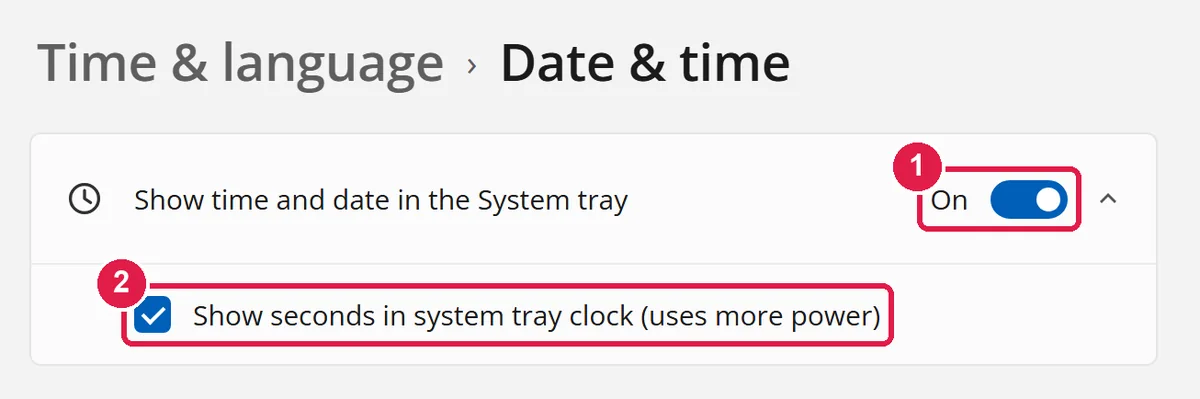
- Right-click the clock on the taskbar and select Adjust date and time. You can also select Start, then Settings > Time & language > Date & time.
- Make sure Show time and date in the System tray is turned On. If the section under that switch is collapsed, expand it.
- Then select the option Show seconds in system tray clock (uses more power). The clock starts ticking seconds right away.
- To hide the seconds again, clear the same checkbox. If there is no seconds box on the page at all, your build may use the older layout covered in the missing-option section below.
How do I show the time on the taskbar?
By default, the date and time are shown in the system tray of the taskbar. If they are hidden, open Settings > Time & language > Date & time and turn Show time and date in the System tray On. With that switch On, you can show seconds alongside hours and minutes by ticking the seconds box.
Show Seconds in Taskbar Clock on Windows 10 With the Registry
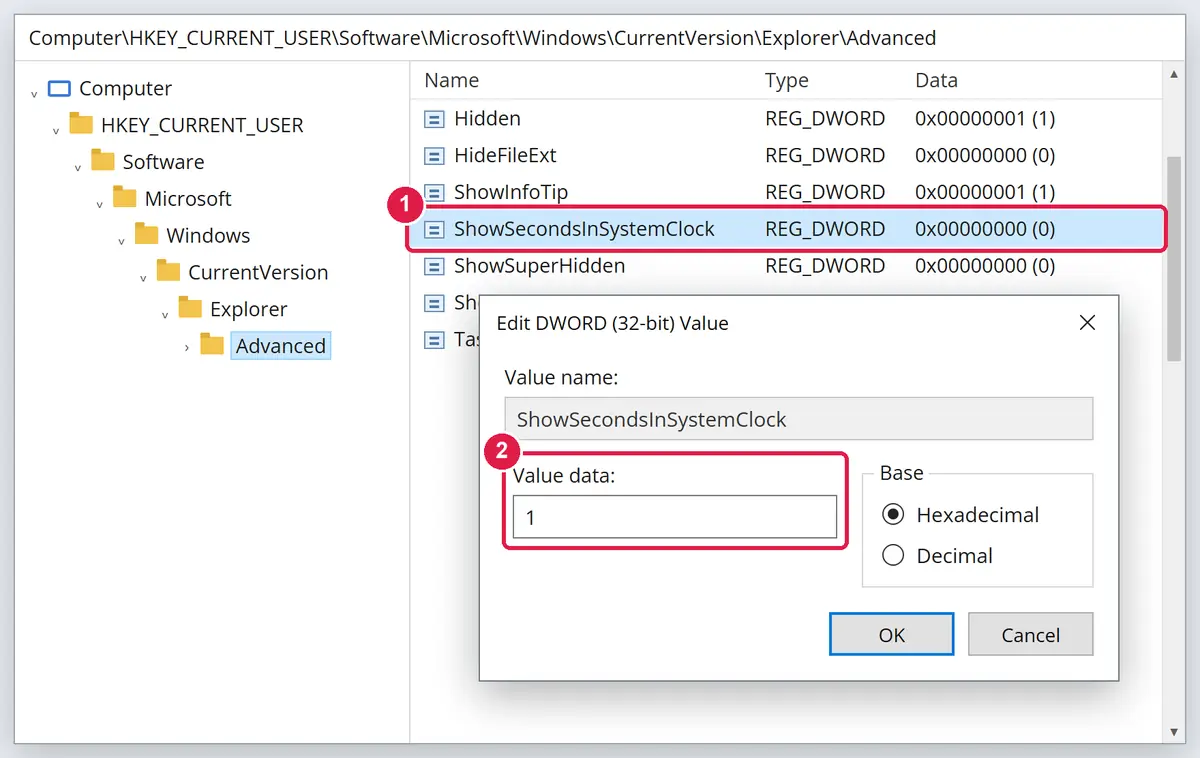
Windows 10 gets seconds from a registry value. You add a DWORD named ShowSecondsInSystemClock, set it to 1 under the Explorer Advanced key, and restart Explorer. Before you edit anything, back up the key, which Microsoft’s registry guide does in Registry Editor with File > Export.
Back up the key before you edit it: In Registry Editor, select the key and choose File > Export. Pick a location and a file name, then select Save. Keep that file until the clock looks right.
- Type regedit.exe in the search box and press Enter. If you are prompted for an administrator password or confirmation, provide it.
- Go to
HKEY_CURRENT_USER\Software\Microsoft\Windows\CurrentVersion\Explorer\Advancedin the left pane. - Export that key with File > Export, as in the warning above, and save the file.
- Right-click an empty spot in the right pane, choose New > DWORD (32-bit) Value, and name it
ShowSecondsInSystemClock. - Double-click the new value, set Value data to 1, and select OK.
- Restart Windows Explorer from Task Manager, or sign out and back in.
- To remove the seconds later, set the value to 0 or delete it, then restart Explorer again.
Windows 10 has reached the end of support on October 14, 2025, and technical assistance, feature updates and security updates are no longer provided. ShowSecondsInSystemClock is a registry value, not a Settings option. Treat it like other Windows tweaks or a context menu customization, and export the key first, since a future update could change it. On Windows 11, the Settings label itself warns that the option uses more power, and there is a number behind it.
How much power does the seconds clock use?
Explorer consumed 0.417 mW of energy in its default configuration, in preliminary Taskbar team measurements. The energy usage went up to 5.42 mW if seconds were enabled on the taskbar. Raymond Chen, reporting the figures on The Old New Thing in April 2025, called that over a factor of ten.
- The option is disabled by default, and it comes with the warning “(uses more power)”.
- The Taskbar team ran power consumption tests to try to convince the energy efficiency team that the extra cost was not exorbitant.
- Periodic activity faster than one minute draws the Windows performance team’s scrutiny, because it prevents the CPU from entering a low-power state.
- Chen notes the recommendation that inessential periodic timers have a minimum period of one minute.
View the data
A desktop on mains power will barely notice a 5.42 mW draw. For a laptop running on battery, it is one more always-on cost to weigh. If the checkbox isn’t where a guide says, the setting has moved.
Seconds Option Missing in Windows 11: Where the Setting Moved
The setting to show seconds in the system tray clock has moved to Settings > Time & language, according to Microsoft’s Build 22635.4000 notes. Microsoft’s current support page lists it under Settings > Time & language > Date & time. Taskbar behaviors is where Build 25247 and Build 22621.1776 kept it, before Build 22635.4000 moved it.
- Build 25247 reached the Dev Channel in November 2022 with the option under Settings > Personalization > Taskbar, in the Taskbar behaviors section.
- Microsoft rolled that change out gradually, so not all Windows Insiders saw it right away.
- Build 22621.1776 reached the Release Preview Channel in May 2023 with the option in the Taskbar behaviors section.
- Build 22635.4000 for the Beta Channel, published in July 2024, moved it to Settings > Time & language > Time & date.
| Build or page | Channel | Date | Where the seconds option sits |
|---|---|---|---|
| Build 25247 | Dev | November 18, 2022 | Settings > Personalization > Taskbar, Taskbar behaviors section |
| Build 22621.1776 | Release Preview | May 11, 2023 | Taskbar behaviors section in Settings > Personalization > Taskbar |
| Build 22635.4000 | Beta | July 26, 2024 | Settings > Time & language > Time & date, under Show time and date in the system tray |
| Microsoft Support page | Current | Checked November 19, 2026 | Settings > Time & language > Date & time |
Source: Microsoft Windows Insider Blog (2022 to 2024), Microsoft Support (2026)
The Insider note says “Time & date” while the support page says “Date & time”; the steps above follow the support page. The checkbox is recent, but the reason it took this long goes back to the Windows 95 era.
Why the Taskbar Clock Hid Seconds for Decades
Raymond Chen wrote in October 2003 that early beta versions of the taskbar clock did display seconds, and even blinked the colon. On machines with only 4MB of memory, the Windows 95 minimum, the constantly updating time was killing benchmark numbers, so it was removed. His summary was blunt: “The fastest code is code that doesn’t run.”
- In April 2022, Chen explained that on Terminal Server systems each user who signs in has their own taskbar clock.
- Updating a hundred clocks once a second would mean a hundred stacks paged in every second.
- For single-user PCs, Chen’s answer was still performance.
- The Taskbar finally added an option to show seconds in 2023, disabled by default, after a Dev Channel preview in November 2022.
View the data
See Seconds Without the Taskbar: Notification Center Clock
Microsoft’s KB5064081 preview update from August 2025 put the larger clock with seconds back in the notification center, above the date and calendar. To turn it on, go to Settings > Time & language > Date & time and turn on Show time in the Notification Center. Then select the taskbar clock to open it.
- KB5064081 shipped as a gradual rollout, and it might not be immediately available to all users.
- Build 27928 for the Canary Channel, published in August 2025, lets you add additional clocks from Settings > Time & language > Date & time.
- Those additional clocks display in Notification Center and in the tooltip when you hover over the taskbar clock.
Opening the clock flyout when you need seconds avoids leaving the per-second taskbar update on all day. An AI agent can also check your setup, then give you the exact Settings path to tick the box yourself on Windows 11, or set the registry value after your yes on Windows 10.
Let an AI Agent Check and Turn On Clock Seconds
A desktop AI agent that can run PowerShell on your own Windows PC can do the whole check for you. Paste the prompt below and fill in the 3 lines under My details: your Windows version, seconds on or off, and laptop or desktop. Then approve each step it proposes.
Goal: check whether my Windows taskbar clock can show seconds, and turn seconds on only if I approve; fix only what I approve.

My details:
Windows version: 11 or 10 (or write "check it")
I want seconds: on or off
This PC is: a laptop on battery or a desktop on mains power

Ground rules:
Measure before you suggest anything. Never guess a value; write "not measured" instead.
Use built-in Windows tools and PowerShell only. Ask before installing anything.
Export the registry key to a .reg file before any change, and tell me where you saved it.
Never touch any registry value other than ShowSecondsInSystemClock.
Never type, save or repeat a password.
Nothing is changed, deleted or restarted without my yes, and that includes restarting Explorer.

Phase 1, Measure (no changes):
1. Report the Windows edition and the full build number.
2. Say whether this build shows the seconds option under Settings, Time & language, Date & time, or under Personalization, Taskbar, Taskbar behaviors. If you cannot see Settings, write "not measured".
3. Read ShowSecondsInSystemClock under HKCU\Software\Microsoft\Windows\CurrentVersion\Explorer\Advanced and report its value, or "not present".
4. Report the active power plan and whether the PC is running on battery.

Phase 2, Report:
Write two sentences on what will turn seconds on for this PC and who does it (me in Settings, or you in the registry). Then give one table with the columns Check, Reading and Verdict, using 🟢 fine, 🟡 could be better, 🔴 problem.

Phase 3, Plan, then wait:
On Windows 11, tell me the exact Settings path and stop; I will tick the box myself.
On Windows 10, propose the export file location, the one DWORD value you would set and the Explorer restart, then stop and ask.

Phase 4, Fix and prove it:
Export the key, record the current value, make the one change, and restart Explorer only after my yes. Read the value back, ask me to confirm the clock shows seconds, and show the before and after readings side by side.
One row might read: Seconds option location, Settings > Time & language > Date & time, 🟢 fine. Run the prompt only on your own PC, and approve each change one at a time. Keep the exported .reg file until the clock looks right, and never paste a password into the chat.
How do I add a 2nd clock in Windows 10?
In Windows 10, open Control Panel and go to Clock and Region, then Date and Time. On the Additional Clocks tab, tick Show this clock, pick a time zone and type a name.
Microsoft is moving more time and language settings from Control Panel to Settings. Build 27928 lets you add additional clocks from Settings > Time & language > Date & time.
Conclusion
Windows 11 keeps Show seconds in system tray clock (uses more power) under Settings > Time & language > Date & time. You can also right-click the clock on the taskbar and select Adjust date and time. Windows 10 does the same job with one registry value, exported first. Explorer went from 0.417 mW to 5.42 mW with seconds on, in the Taskbar team’s preliminary measurements.
Seconds earn their place for anyone timing a sale, a stream or a build to the second. The notification center clock covers the occasional check. Readers rebuilding a Windows 10 look on Windows 11 will find the clock settings on that same Date & time page.
Cite this page
Thakur, T. (2026, November 24). How to Show Seconds in the Taskbar Clock on Windows 11 and 10. XtendedView. https://xtendedview.com/show-seconds-in-taskbar-clock/
Thakur, Tushar. “How to Show Seconds in the Taskbar Clock on Windows 11 and 10.” XtendedView, 24 Nov. 2026, https://xtendedview.com/show-seconds-in-taskbar-clock/.
Thakur, Tushar. “How to Show Seconds in the Taskbar Clock on Windows 11 and 10.” XtendedView, November 24, 2026. https://xtendedview.com/show-seconds-in-taskbar-clock/.
Source: <a href="https://xtendedview.com/show-seconds-in-taskbar-clock/">How to Show Seconds in the Taskbar Clock on Windows 11 and 10</a>, XtendedView
References12 sources from 2 publishers
- Set time, date, and time zone settings in Windows
- Customize the Taskbar in Windows
- Announcing Windows 11 Insider Preview Build 25247
- Releasing Windows 11 Build 22621.1776 to the Release Preview Channel
- Announcing Windows 11 Insider Preview Build 22635.4000 (Beta Channel)
- Why doesn't the clock in the taskbar display seconds?
- Now that computers have more than 4MB of memory, can we get seconds on the taskbar?
- The ongoing story of seconds on the taskbar



Leave a comment no comments yet