


Almost all SD cards and some USB drives come with an in-built feature named Write Protection. If enabled, it will prevent changes being made to the files inside the drive. At times, it’s a wonderful feature because no changes CAN be made to the files.
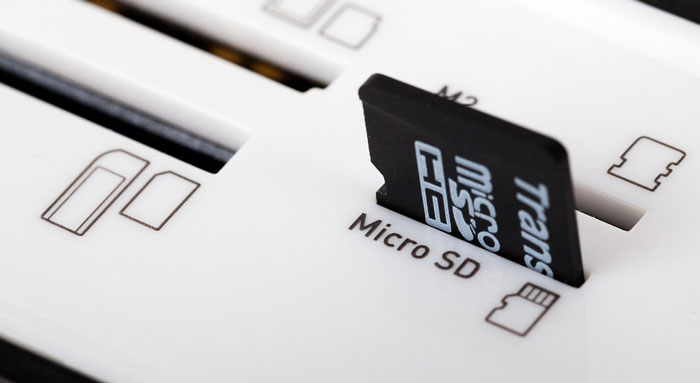
It means that you don’t have to worry about accidental deletions or edits. That is, if Write Protection is active in the SD card you have inserted, you can play the photos or media from it but cannot add newer content. Needless to say, this can be a pain in the ass at certain times, especially if you’re in a rush. That’s why we need to think about how to remove write protection from micro SD card.
Just like everything else, there are a few different ways to remove write protection from any micro SD card. It is because the feature might be enabled via different methods. In this article, we’ve covered four of the best way for Write Protection removal. Shall we get started?
Method #1 – Remove Write Protection by Toggling the Switch on SD Card
Most types of SD Cards, including micro SD cards, come with a physical lock that prevents data writing. If the button has been toggled to the ON position, you won’t be able to make changes to the contents in the drive. So, before you continue reading this article, you should check if the lock is enabled on your SD card. If it is, that’s the reason why you get the ‘Remove Write Protection’ error message.
You probably know the solution for this too. You have to take out the SD card out from the adapter and try to locate the write protection lock. Read the content on the drive and turn the switch into the OFF position. It would have disabled the feature and you should be able to start writing to the SD card in minutes. In most cases, this solution should work and you can test it by inserting it back to the adapter.
So, this is the first step you can follow, but there is no assurance. In some cases, the issue is due to software changes as well. If that’s the case, you can use the following methods to remove write protection from micro SD cards.
Method #2 – Formatting your entire SD Card
Note: This is not recommended if you haven’t backed up the data in the SD card. If you have the files in some other place and want to get the write protection removed, however, you can use this method. We’ve listed the steps for Windows PC, and the steps may vary in Mac. But, the core point is that you are going to format your SD card with the default values. By default, it won’t be write protected.
- Go to your Computer and right-click on the SD Card drive that you want to format
- From the context menu, choose Format
- In the Format window, make sure that you have chosen the default options
- Click on Format to proceed
Depending on the size, you will have the SD Card drive ready in a few seconds. Now, automatically, its write protection will be disabled as well. As mentioned earlier, you will end up losing all your data, which is not an actually practical thing always.
Method #3 – Disable Write Protection Using Windows Registry
Windows Registry is a wonderful piece of Windows utility that you can use to remove write protection from a SD card or a USB drive. The steps are easier than you think and the chances of success are high. Unless it’s hardware failure — something off with the toggle switch —, this method should work well with all devices. Shall we check out the steps?
- You have to open Registry Editor in your Windows PC. To do that, you can search for REGEDIT in the Start menu.
- Once you have launched Windows Registry, it’s recommended to stay a bit conscious. Its impact on your PC is very high and the steps should be taken with care.
- Now that you have opened Windows Registry, you have to locate the following key.
“Computer\HKEY_LOCAL_MACHINE\SYSTEM\CurrentControlSet\Control\StorageDevicePolicies”
It says that you have to navigate through the sidebar menu until you reach the StorageDevicePolicies option in the list.
- Now, you can see a DWORD on the right side of the REGEDIT Window. You have to right click on the DWORD to make changes.
- In the dialogue box that appears, choose the value of 0.
By now, you would have disabled write protection in your PC and you can re-plug the SD card. When you’ve re-plugged, your PC will be able to read and write to the SD card.
Method #4 – Remove Write Protection of Individual Drives using diskpart Utility in Windows
This is another effective method in Windows to remove the write protection of an individual SD card or USB drive for that matter. We are using an in-built Windows utility named diskpart, which is available through a Command Prompt window. Let’s go through the steps and see how this process works to remove all sorts of write protection.
- You have to launch Command Prompt in the PC, from the Start menu or Run menu
- Make sure that you have opened Command Prompt with administrative privileges. Otherwise, it will not be possible to make system-level changes to the drive. To do that, when you open Command Prompt from the Start menu, right-click on it and choose ‘Run as Administrator’
- Type ‘diskpart’ followed by enter key
- Now, type ‘list disk’ into the interface and press the enter key
- Now, you will be able to see the list of the disks that are connected to your PC. You have to identify the USB Drive or SD Card that you are trying to manage here.
- Type ‘select disk #’ where # would be the number of the disk
- Now that you have selected the disk, enter ‘attributes disk clear readonly’ to the interface and press the Enter key.
Now, the PC would have cleared the disk attributes of read-only. It means that you will be able to make any change to the device.
Wrapping Up
These are some of the effective ways on how to remove write protection from micro SD Card. You can use a bunch of the same techniques for removing write protection from USBs as well. By the way, do you think we missed some methods? Do let us know through your comments.





11 Comments
I tried doing format option and it seems now it is working fine. But I faced the issue again then I formatted again.
Glad to hear it helped. I think your memory card is defective. Better to claim warrenty and replace for free.
Tried Diskpart but it wiped the MicroSD card. Any way to recover the data?
You can use any free data recovery software to do that. Ideally, it should never happen.
Is there any software to do the same? These procedures seem complicated.
I will check and let you know.
Diskpart method is effective but only issue is the data loss :/
Is there any easy to use software program for removing the Write protection? I am not proficient with such methods. It’d be helpful if you can suggest some write protection remover software programs.
Hey,
How to identify which one is the right USB drive with Diskpart method? I am seeing the disks as Disk 0, Disk 1, Disk 2, etc.
I tried this and almost all tutorials on the internet but none worked. After some days I came to know that my SD card was damaged.
Ohh.