



Getting a DOS laptop is one of the best ways to save money when you’re purchasing a computer. This way, it won’t be necessary for you to pay the extra cost of the Operating System. Instead, you will be able to install Windows 8.1 or Windows 10 on your own. Unlike the old days, the process is very simple and it won’t take more than a few minutes at maximum.
That having said, you may want to see if the OS is working perfectly on the computer. That is, there should not be any lags or crashes, right? So, purchasing the product key isn’t the best first idea. Won’t that be great if you can install Windows 8.1 or Windows 10 without a product key? This way, you can test the OS for a considerable amount of time and buy the full version only if necessary.
The problem is that Windows installation process has become a bit complex nowadays. Normally, it wouldn’t allow you to install Windows 8.1 without a product key. However, we are going to make some changes to it here. If you follow the guide below, you will be able to know the steps to make this possible. Do not worry, these processes are completely safe and you can have a functional Windows PC in the end.
How to Install Windows 8.1 without a Product Key?
We have already published an guide about removing password from Windows. When compared to Windows 10, Windows 8.1 wants you to go the hard way for installing without a product key. You will have to follow a noticeable number of steps to make sure that your Windows OS is installed in the proper way. In case you are wondering, we will tell you how this process works.
As you can guess, the Windows installer asks for the product key based on the algorithm. This algorithm will be used to decide the version of Windows that needs to be installed on the device. However, we are going to disable this prompt and skip to direct install option. To do that, you have to make some changes in setup files of the Windows ISO file. We will tell you the steps for that.
Step #1
First, you have to create the USB drive or CD drive that you are going to use for Windows installation. This is going to take some time and you have to find the right utility. Don’t worry, you can find hundreds of ISO to USB boot utilities on the internet.
Step #2
Now, you have to open the USB drive and navigate to /Sources. This is where you can find many configuration files for installation.
Step #3
From the list of files, you have to find a file named ei.cfg. In case you cannot find this file, you can easily make a text file and rename it as ei.cfg. Once that’s done, you have to open the abovementioned file using notepad utility. We recommend Notepad++ though.
Step #4
Now, you have to clear whatever that is in the file and paste the following text.
[EditionID]

Professional

[Channel]

Retail

[VL]

0
And, yes, you can make the changes there too. For instance, if you want to install the Home edition, you can change the value below [EditionID] accordingly. You would not want to change the channel and VL though.
Step #5
You can now save the file and return to Windows 8.1 setup. Now that the Setup knows it has to install the Professional version, it would not ask you for the product key.
For a considerable amount of time, you will be able to use Windows 8.1 free of cost. Isn’t this awesome? To let you know, this process is completely legal and does not belong to the ‘hack’ category. You can make these changes with complete confidence.
How to Install Windows 10 without a Product Key?
This is one of the easiest processes in the world of computing, you know.
During the install wizard of Windows 10, you can see the window asking for the product key. However, right below the screen, you can see a link saying, ‘I don’t have a product key’. You can simply click on the button and Windows 10 will be installed normally.
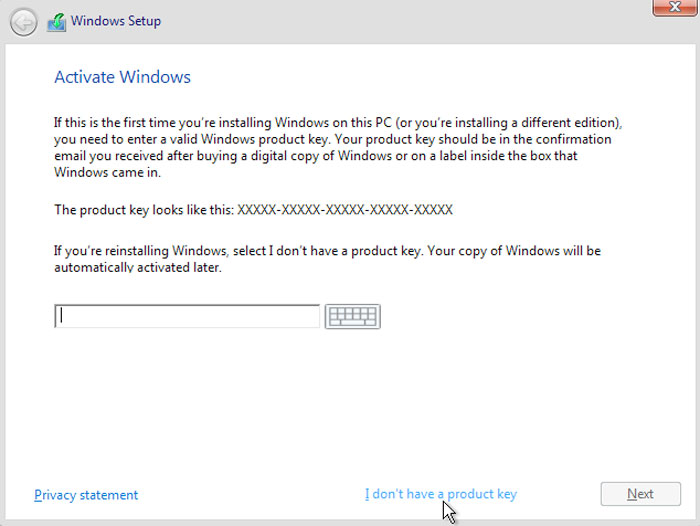
That’s right. You can install Windows 10 on a computer even if you don’t have the product key. There will be an option to upgrade to the paid version anytime, though.
Problems of Installing Windows 10 without Product Key
There aren’t technically any problems due to using Windows 8.1 or Windows 10 without a product key. But there will be some minor inconveniences for a while.
- First of all, Windows will be showing you occasional prompts, asking you to activate Windows. This will eventually show a permanent watermark on the right-bottom part of your Windows screen. It’s a problem eventually, you know.
- Some of the features in Windows 10 may not be available in the non-activated version. For instance, you won’t be able to personalize Windows until you purchase a product key and activate the OS. This may be a problem for some people.
Don’t worry. You will be able to make changes otherwise and use other programs with ease.
The Bottom Line
This is how you install Windows 8.1 or Windows 10 without a product key. As you can see, the process would take just a few minutes, but you get to use the Operating System for a long period of time. Isn’t that awesome for most of us?
Cite this page
Thakur, T. (2024, April 9). Install Windows 8.1 or Windows 10 without a Product Key (Skip Key Input). XtendedView. https://xtendedview.com/install-windows-without-product-key/
Thakur, Tushar. “Install Windows 8.1 or Windows 10 without a Product Key (Skip Key Input).” XtendedView, 9 Apr. 2024, https://xtendedview.com/install-windows-without-product-key/.
Thakur, Tushar. “Install Windows 8.1 or Windows 10 without a Product Key (Skip Key Input).” XtendedView, April 9, 2024. https://xtendedview.com/install-windows-without-product-key/.
Source: <a href="https://xtendedview.com/install-windows-without-product-key/">Install Windows 8.1 or Windows 10 without a Product Key (Skip Key Input)</a>, XtendedView


2 reader comments closed April 9, 2025
RE: Windows 8.1: THIS DOESN’T WORK! The file system resulting from “burning” the ISO file to DVD or USB is READ-ONLY, so you CAN’T edit or add an ei.cfg file.
Have you actually tried to do what you’ve suggested?
can you please tell us the download please?
This thread is closed to new comments.