

Google Translate has been the default answer to “what does this say?” for so long that most people forget how much machinery sits behind it. The mobile app, published under the name Google LLC and filed in the Tools category, covers translation between 103 languages by typing, which is already more languages than most people could name in one sitting.
What makes it interesting from a technical angle is that it stopped being a dictionary lookup years ago. Neural machine translation reads a sentence as a whole and produces output with context carried across clause boundaries, which is why the gap between its English-to-Spanish output and its English-to-Amharic output keeps narrowing.
The numbers in the feature list tell you where that quality is concentrated. Typing covers 103 languages. Offline packs cover 59. Instant camera translation handles 38. Conversation mode, which is the hardest problem in the set, manages 32.
What the app covers
The feature spread is wider than most people use. A short run through the main modes:
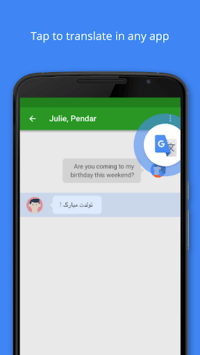
- Tap to Translate, which picks up text you copy in any app and shows the translation in a floating popup
- Offline translation for 59 languages once the language packs are stored locally
- Instant camera translation that overlays translated text live through the viewfinder in 38 languages
- Camera Mode, which takes a still photo for a higher-quality pass in 37 languages
- Conversation Mode, two-way speech translation across 32 languages
- Handwriting input for 93 languages, useful when you have no idea how to type a character
Phrasebook sits on top of all of it. Star a translation and it stays saved for any language pair, which matters more than it sounds if you keep hitting the same twenty phrases.
Where the gaps are
Language coverage is not uniform across modes, and that is the single most useful thing to understand before relying on the app. A language supported for typed text is not automatically supported for camera or speech. Arabic, Armenian, Azerbaijani and Albanian all appear in the typed list, but offline and camera availability varies by language.
So the practical question is never “does Google Translate support this language” but “does it support this language in the mode I need right now”.
Who leans on it
Students working through foreign-language source material make up a large share of use, usually with typed input and Phrasebook doing the heavy lifting. Travelers use Conversation Mode and the camera, often with offline packs because roaming data is unreliable exactly when you need a menu translated.
Then there is the work crowd. Support agents handling multilingual tickets, researchers skimming papers published in another language, developers reading documentation that was never translated. These people tend to be at a desk, working with text that already lives on a screen, and that is where the mobile app’s design starts to feel like a mismatch.
Photographing a laptop screen with a phone to read a PDF is a workflow nobody chose on purpose.
Google Translate on a Windows desktop
Running the Android build inside an emulator gives you the full mobile feature set on a machine with a real keyboard. For anyone doing bulk typed translation, that alone changes the pace of the work, and Phrasebook syncs through your account so starred entries stay consistent between the desktop instance and the phone.
Two features need specific attention on the desktop side. Conversation Mode and voice input need the emulator to pass a working microphone through to the Android container, which is a permission setting rather than a hardware problem, and it is frequently off by default. Instant camera translation similarly expects a camera device, so the emulator has to map your webcam to the virtual camera before the viewfinder shows anything but a black rectangle. If the mic stays dead when you tap the speak button, the fix lives in the emulator’s audio input settings rather than inside the app itself. That’s the first setting worth checking after you download Google Translate for PC, since Conversation Mode depends on it entirely.
BlueStacks is the common starting point and handles webcam and microphone mapping through its settings panel. LDPlayer is the lighter alternative if your machine is older, though you will still want to confirm the mic passthrough before testing speech.
Offline packs on desktop
Downloading the 59 offline language packs inside an emulator eats disk space the same way it does on a phone, and the emulator’s virtual storage is usually smaller than people expect. Pull down only the packs you use often. The full set is rarely the right call on a virtual disk.
Full sentences vs single words
Neural translation is strong on prose and weaker on fragments. A complete sentence with normal punctuation gives the model enough context to resolve ambiguity. A three-word UI label with no surrounding text gives it almost nothing, which is why translated menu items and button labels often come out odd while full paragraphs read cleanly.
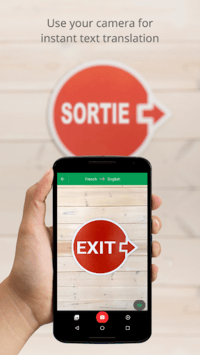
Camera Mode exists for this reason. The live viewfinder overlay is fast but works from a shaky, partial read of the text. Taking an actual photo gives the recognition pass more pixels to work with, and the difference on dense printed text is easy to see.
Handwriting input across 93 languages solves a specific problem rather than a general one. If you are looking at a Chinese character and have no idea of its pronunciation, you cannot type it. Drawing it is the only route in, and on a desktop you can draw with the mouse or a graphics tablet.
Matching the tool to the stakes
Keep expectations tied to the stakes. For understanding a message, reading a sign, or getting the gist of an article, the output is reliable enough that checking it would waste your time. For anything legal, medical or contractual, it is a first draft and nothing more.
The desktop setup pays off most clearly for people doing sustained text work in another language: a support agent clearing a queue of tickets, a student working through source material, a researcher reading papers. Keyboard input, a readable window, and Phrasebook entries that follow you back to the phone make that specific kind of grind noticeably less tedious.
Cite this page
Varner, R. (2026, November 26). Google Translate for Reading, Speaking and Scanning on a Windows PC. XtendedView. https://xtendedview.com/google-translate-windows-pc/
Varner, Ryan. “Google Translate for Reading, Speaking and Scanning on a Windows PC.” XtendedView, 26 Nov. 2026, https://xtendedview.com/google-translate-windows-pc/.
Varner, Ryan. “Google Translate for Reading, Speaking and Scanning on a Windows PC.” XtendedView, November 26, 2026. https://xtendedview.com/google-translate-windows-pc/.
Source: <a href="https://xtendedview.com/google-translate-windows-pc/">Google Translate for Reading, Speaking and Scanning on a Windows PC</a>, XtendedView
Leave a comment no comments yet