Microsoft is about to launch the official Windows 11 build next month. However, those who are keen to try out have already done the same using a leaked beta build. What if you are still sceptical and still want to try it out? That’s when you should go for an online Windows 11 simulator.
We have wandered around the web to give you the perfect option to try out Windows 11 without having to go through a tedious installation process. And guess what, here we are with a Windows emulator that you can run in your web browser.
The Best Online Windows 11 Simulator; No Installation Required
Before going further, we should halt a bit to appreciate the effort of blueedgetechno. He is the one who created the emulator. We all know it isn’t a cakewalk. Moreover, running in a browser leaves it with many limitations. For the same reason, you must not expect full-fledged Windows 11 experience.
We are not going to test your patience. You can just click here to launch Windows 11 in React (that’s what the developer titled the web page). When you first visit the website, it will do the obvious, yeah the password.
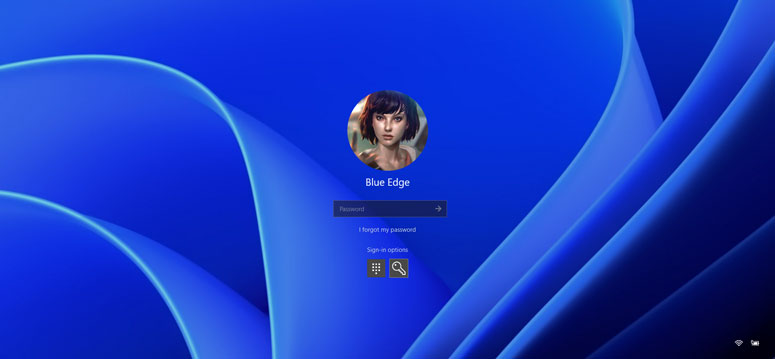
It’s funny how he has integrated the login screen to this Windows 11 simulator in a web browser because typing anything will get you in. Want to click Forgot password? You will laugh out loud as the text then changes to “Not my problem”.
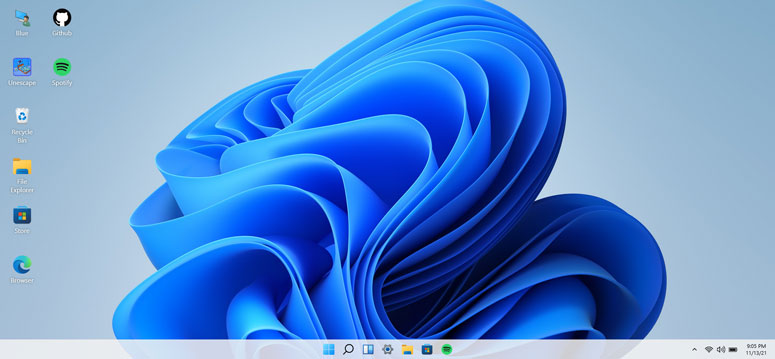
The desktop is a replica of Windows 11. You will see nearly a dozen icons there with a proper taskbar, system tray, and an official wallpaper. It’s quite surprising that even the right-click menu is also there. You can refresh the desktop, change the desktop wallpaper, open Windows Terminal and also pull out more info about the project.
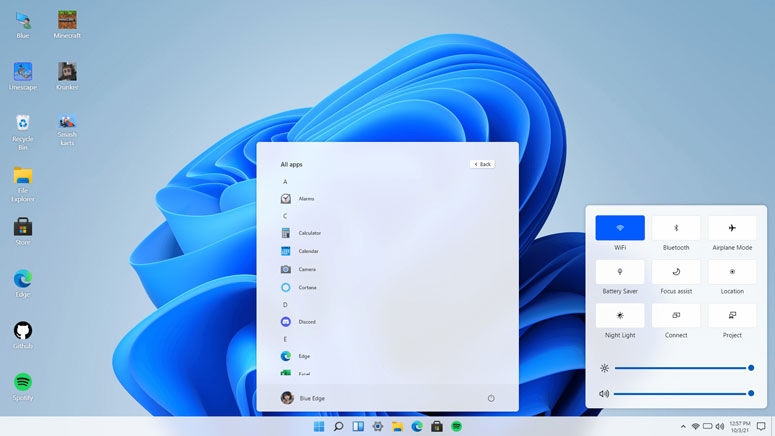
What can You do on this Online Windows 11 Emulator?
We have already told you about the right-click menu. Pretty much everything works there except the Undo delete button. What else is working on it? Let’s check out.
When it comes to the applications, there are Edge, Calculator, Whiteboard, Notepad, Store, Vscode, and Terminal. We have tested each app and they all work. However, you can’t expect the keyboard strokes to act the way they do on the regular Windows 11. We couldn’t use a calculator with the keyboard. Who’s here to complain anyway, right?
On the taskbar (in the middle), you get eight buttons, of which seven of them aren’t for demo. You can launch the start menu, search, calendar view, file explorer, store, Spotify and Edge. The thing is you may have to click multiple times to launch a specific app. The button on the extreme right of the taskbar can be used to see the sidebar.
Of course, you can’t test every subtle nuance in an intricate manner using this browser-based Windows 11 simulator. However, we are sure that this one is quite adequate for those who want to get a hang of the new operating system’s appearance.
Is this Enough to Test out the Whole Operating System?
We have already answered this question. It’s a crime to expect everything an operating system does from a website. We should be grateful to the developer to put in such a huge effort to make it functional to this level.
So, the answer to the question in the heading is, no, this isn’t enough to test out the whole operating system. If you want to dig deep into the features, you will have to go for a virtual machine to use Windows 11 without going for a fresh installation.
Windows 11; Main Features
Now that we have come to the topic, we think it’s time we mentioned some major features of Microsoft’s latest operating system.
● System Requirements
| Processor | 1 gigahertz (GHz) or faster with 2 or more cores on a compatible 64-bit processor or System on a Chip (SoC). |
| RAM | 4 gigabytes (GB). |
| Storage | 64 GB or larger storage device |
| System firmware | UEFI, Secure Boot capable |
| TPM | Trusted Platform Module (TPM) version 2.0 |
| Graphics card | Compatible with DirectX 12 or later with WDDM 2.0 driver. |
| Display | High definition (720p) display that is greater than 9” diagonally, 8 bits per colour channel. |
● New Start Menu
Once you log into Windows 11, the centre-aligned start menu is going to be the first thing you notice. The outlook of the menu has also changed to something refined.
● Microsoft Teams Integration
Are you an avid user of the Microsoft Teams app? In this era of Covid and quarantine, you may be already using it. Windows 11 makes it easier to access Teams.
● Removal of Live Tiles
The live tiles were there right from Windows 8. You will never find them on Windows 11. We were never fans anyway. Instead of the live tiles, you get a neat set of icon grids.
● Support for Android Apps
Android is rich in terms of diversity in applications. Microsoft has decided to extend support for these apps that you will see on the store later this year.
● Extra Gaming Features
Windows 11 is going to be a feast for avid gamers. DirectX 12 Ultimate coupled with Auto HDR brings immersive graphics at higher frame rates and vivid colour ranges.
Conclusion
We have explained almost everything about the online Windows 11 simulator above. Now, it’s your turn to go visit the site. Don’t forget to leave a comment if you find another browser-based emulator.
Cite this page
Thakur, T. (2024, March 19). Best Online Windows 11 Simulator to Try it in Your Browser. XtendedView. https://xtendedview.com/best-online-windows-11-simulator/
Thakur, Tushar. “Best Online Windows 11 Simulator to Try it in Your Browser.” XtendedView, 19 Mar. 2024, https://xtendedview.com/best-online-windows-11-simulator/.
Thakur, Tushar. “Best Online Windows 11 Simulator to Try it in Your Browser.” XtendedView, March 19, 2024. https://xtendedview.com/best-online-windows-11-simulator/.
Source: <a href="https://xtendedview.com/best-online-windows-11-simulator/">Best Online Windows 11 Simulator to Try it in Your Browser</a>, XtendedView