

This article has been updated 3 times. Last updated on
- Replaced the command list with Steam Support's own definitions for 12 launch options, including Valve's note that its common options apply to GoldSrc and Source engine games only.
- Added the DirectX 12 history: the Season 15 beta flag, the move out of beta, and Steam's current DirectX Version 12 requirement.
- Added the October 2024 Linux and Steam Deck block, the EA app steps, and EA's minimum of 75 GB of free space.
Steam sets Apex Legends launch options from your Library: Right click the game, open Properties, and type commands into the Launch Options box. Valve’s own support page adds a limit: Valve says its common launch options apply to GoldSrc and Source engine games only and do not apply to most third party games. Apex Legends is not a Valve game, so treat every Valve-listed command as untested in Apex until you confirm it on your own PC.

The DirectX 12 flag -eac_launcher_settings SettingsDX12.json came from EA’s Season 15 opt-in beta for DirectX 12 on PC. Steam now lists DirectX Version 12 under both the minimum and recommended requirements, so that beta-era flag is worth checking. The steps below cover both launchers, a command list condensed from Valve’s definitions, and the in-game settings that already do most of the work.
Key Takeaways
- According to Steam Support, game launch options take 5 steps to set, with each code separated by a space.
- The Apex DX12 flag dates from the Season 15 opt-in beta, published in 2022.
- An estimated 80 to 90% of players will have better performance in BR matches after switching to DX12, per Respawn’s dev team.
- According to EA, the PC version’s in-game options include Display Mode, V-Sync and an FOV slider from 70 to 110.
- Linux and the Steam Deck on Linux lost access to Apex in 2024, and Steam Deck play now requires Windows.
- EA’s minimum spec asks for 75 GB of free space and a GPU with Feature Level 12_0.
Apex Legends Launch Options Commands List
Steam Support documents the common launch options, from -novid to -refresh, with a one-line definition for each. Valve writes those definitions for GoldSrc and Source engine games and says they do not apply to most third party games. Each of the 12 rows below is condensed from Valve’s definition, so you can see what each command was built to do before you try it.
| Launch option | What Steam Support says it does |
|---|---|
-novid or -novideo | The intro Valve video will not play when the game loads |
-fullscreen | Forces the engine to start in fullscreen mode |
-windowed or -sw | Forces the engine to start in windowed mode |
-w [width] | Forces the engine to start with resolution set to the width given |
-h [height] | Forces the engine to start with resolution set to the height given |
-refresh [rate] | Forces a specific refresh rate |
-autoconfig | Restores video and performance settings to default for the detected hardware |
-dev | Enables developer mode and stops the quit dialog from appearing on exit |
-console | Starts the game with the developer console enabled |
-condebug | Logs all console output into the console.log text file |
-nocrashdialog | Suppresses some memory could not be read errors |
-heapsize [kilobytes] | Specifies the heap size, in kilobytes, the game will use |
Source: Steam Support, Setting Game Launch Options 2026
Valve also notes that many console commands can function as a launch option by adding a “+” in front of the console command, though some cannot be used that way. That rule explains the +fps_max lines on community lists, though we found no Respawn or EA page documenting what Apex does with them. If you try -refresh, set a rate your monitor supports; our gaming monitor refresh-rate data tracks common panel rates.

Step 1: Open Launch Options in Steam
Steam keeps game launch options in your Library, inside the game’s Properties window on the General tab. EA’s own Apex instructions use the same 3-step path: Right click Apex Legends in your library, select Properties, and add the command to Launch Options.
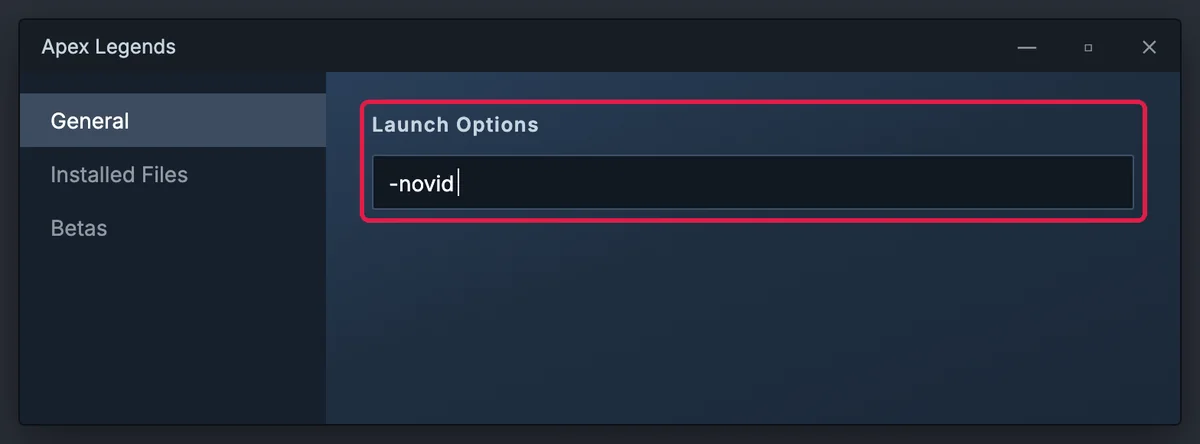
Before you start: Apex Legends on Steam requires an EA Account, which supports linking to a Steam account, and uses Easy Anti-Cheat. Sign in once and confirm the game launches cleanly before you add any command, so you know which change caused a problem.
- Open your Steam Library.
- Right click Apex Legends and select Properties.
- On the General tab, find the Launch Options section.
- Enter the launch options you want, separating each code with a space.
- Close the game’s Properties window and launch the game.
Step 2: Add Launch Options in the EA App
EA’s help page says advanced launch options can help you change the technical settings of how your game launches, and the EA app keeps them behind the three-dot menu on the game tile. EA’s Apex DX12 post gave the same route for Apex in 3 steps, ending with Save and a normal launch. Set options in the launcher you actually start the game from.
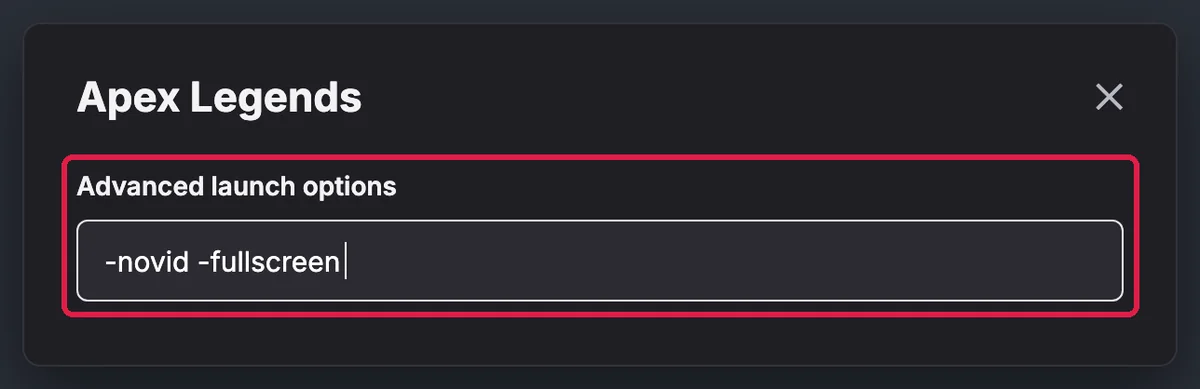
- Click the three dots in the upper right corner of the Apex Legends tile and select View Properties.
- Type your commands in the Advanced launch options text box.
- Then click Save and launch the game normally.
Step 3: Type Commands With the Right Syntax
Steam Support asks you to separate each launch option with a space, and Valve says many console commands can work as a launch option with a “+” in front. A clean line looks like -novid -fullscreen, with a single space between the two codes. Watch for three mistakes:
-novid-fullscreenis not a code either option recognizes, so put a space between every code.- Steam client options such as
-login,-tcpand-silentchange how Steam itself launches, so keep them out of the Apex box. Valve also warns against using-loginon shared computers. - EA told DX12 beta players to return to DX11 by removing the beta command if they ran into issues, so an old line can outlive the reason it was added.
Step 4: Reset or Remove Apex Launch Options
Steam Support describes launch options as a way to supersede a game’s internal settings and recover from incompatible video settings. Start there when the game will not open, and clear the box before you change anything else on the PC.
- Right click Apex Legends in your library and select Properties.
- On the General tab, find the Launch Options section and delete everything in it.
- Close the game’s Properties window and launch the game.
- Add commands back one at a time, launching after each.
Steam Support’s own list runs to 5 steps, and step 4 is where codes go in, each separated by a space.
Valve’s -autoconfig restores video and performance settings to default for the current hardware and ignores settings in .cfg files until the parameter is removed. The in-game video menu is the safer reset in Apex. If the launcher itself refuses to open, work through the steamui.dll error fix before touching launch options.
Launch Options vs In-Game Video Settings
EA’s PC requirements page lists the Apex options PC players get in the menu, including Display Mode, an FOV slider from 70 to 110, V-Sync and an Adaptive Resolution FPS Target. Those settings cover the jobs -fullscreen, -windowed and most FPS tweaks try to do from the launcher, and the game saves them for you.
| In-game setting | Options EA lists for PC |
|---|---|
| Display Mode | Full screen, Windowed, Borderless Window |
| FOV | Slider from 70 to 110 |
| Adaptive Resolution FPS Target | 0 (off) to 100, requires TSAA when enabled |
| V-Sync | Disabled, 3x buffered, Adaptive, Adaptive (1/2 rate) |
| Aspect Ratio | 4:3 and 5:4, 16:9, 16:10, 21:9 |
| Texture streaming budget | None up to 8 GB VRAM |
Source: EA, Apex Legends PC System Requirements 2026
The texture streaming budget runs from None up to 8 GB VRAM, so size it to your card’s memory. Input lag is a separate fight from frame rate, and the mouse lag fixes for Windows handle the operating system side that no Apex setting reaches.
What Happened to the DirectX 12 Launch Option
EA’s Season 15 post introduced DirectX 12 on PC as an opt-in beta, switched on by adding -eac_launcher_settings SettingsDX12.json to Steam’s Launch Options or the EA app’s Advanced Launch Options. The beta required a graphics card with a minimum DirectX Feature Level of 12_0.
To check your card, open the Run dialog with Windows Key+R, type “dxdiag”, and read Feature Levels in the Drivers section of the Display tab. Respawn’s later Dev Team Update said DX12 is no longer in beta as of From the Rift, and that the intention is to make DX12 the default and eventually drop DX11 support.
The same update estimated that 80 to 90% of players will have better performance in BR matches after switching to DX12. Steam’s Apex listing now gives DirectX Version 12 for both the minimum and recommended specs, and EA’s minimum GPU line reads Feature Level 12_0 required.
Leftover DX12 flag: If
-eac_launcher_settings SettingsDX12.jsonis still in your launch box from the beta, check whether you still need it. It was added for the beta, and a leftover launcher argument is worth ruling out when Apex fails to start.
Apex Legends PC Requirements to Check First
EA lists 6GB of RAM, a GPU with 2 GB of GPU RAM and 75 GB of free space as the Apex Legends minimum, and recommends 8GB of RAM and 8GB of GPU RAM for smooth 60fps gameplay. The widest gap is graphics memory, where the recommended tier asks for 4 times the minimum GPU RAM.
View the data
Both tiers call for 64-bit Windows 10 and a minimum of 75 GB of free space. A computer below these lines will not catch up through launch options; lower the texture streaming budget in the video menu instead.
Apex Legends Launch Options on Steam Deck and Linux
Apex’s developers said in the Linux & Anti-Cheat update, published in 2024, that they identified Linux OS as a path for a variety of impactful exploits and cheats and decided to block Linux OS access to the game. No launch option changes that.
Linux is used by default on the Steam Deck, and the post said there is no reliable way to tell a legitimate Steam Deck from a malicious cheat claiming to be one. Playing on the Steam Deck is still possible if the user opts to install Windows, and the change does not impact users who play Apex via Steam on Windows.
Easy Anti-Cheat appears on the store page as kernel level anti-cheat that requires manual removal after the game is uninstalled. The stated reason is cheating, not the size of the Linux player base, and the operating system market share numbers put that desktop base in perspective.
Do launch options increase FPS in Apex Legends?
We found no Respawn or EA figure showing an FPS gain from any Valve-style launch command. EA’s recommended tier is aimed at smooth 60fps gameplay. Hardware and the video menu set the ceiling, not the launch box. The performance estimate the developers did publish concerns the renderer: 80 to 90% of players will have better performance in BR matches after switching to DX12.
Conclusion
Setting launch options still takes 5 steps in Steam, with codes entered at step 4 in the Launch Options section of the General tab, and the EA app keeps the same control under View Properties. What has changed is what belongs in the box: Valve’s commands were written for its own engines, and the DX12 flag dates from a beta that is worth checking.
Windows players gain the most from a short line tested one command at a time, while Steam Deck owners need Windows first. Anyone chasing frame rate should start with the in-game video menu and the hardware tier.
Cite this page
Thakur, T. (2026, November 19). Apex Legends Launch Options and Steam Commands List. XtendedView. https://xtendedview.com/apex-legends-launch-options-commands/
Thakur, Tushar. “Apex Legends Launch Options and Steam Commands List.” XtendedView, 19 Nov. 2026, https://xtendedview.com/apex-legends-launch-options-commands/.
Thakur, Tushar. “Apex Legends Launch Options and Steam Commands List.” XtendedView, November 19, 2026. https://xtendedview.com/apex-legends-launch-options-commands/.
Source: <a href="https://xtendedview.com/apex-legends-launch-options-commands/">Apex Legends Launch Options and Steam Commands List</a>, XtendedView




Leave a comment no comments yet