

Windows 10 is the latest iteration of the legendary operating system from Microsoft. However, we have been hearing about their plans to release the next version for quite some time. What if you want to transform your Windows 10 into Windows 11? You will learn how to transform your Windows 10 or Windows 8.1 or Windows 7 computer to Windows 11 with few tweaks. Also don’t forget to look at this cool Windows 11 online simulator.
Don’t worry! You can do that. We are here with the best Windows 11 themes, skins, and icons for Windows 10. Even if your device doesn’t support the latest version for some reason, you can enjoy the new experience through this method. Don’t forget to check our article about 21 free and best Windows 10 skins and themes.
Check: Beautiful Windows 10 Icon Packs
Best Windows 11 Themes, Skins and Icons for Windows 10
Unlike what happened with the previous iterations, Windows 11 has been leaked. Yeah, you heard it right. A full-blown version of the OS has come out way before Microsoft announced its arrival. So that gave us a clear idea of what’s in the store. Before we jump into the theme section, let’s have a look at the features of Windows 11.
Check our latest guide about how to transform your Windows to Mac with Themes.
Windows 11; What’s Changed?
From the initial impression, we perceive that not many have changed. However, there are some aesthetic changes and design improvements.
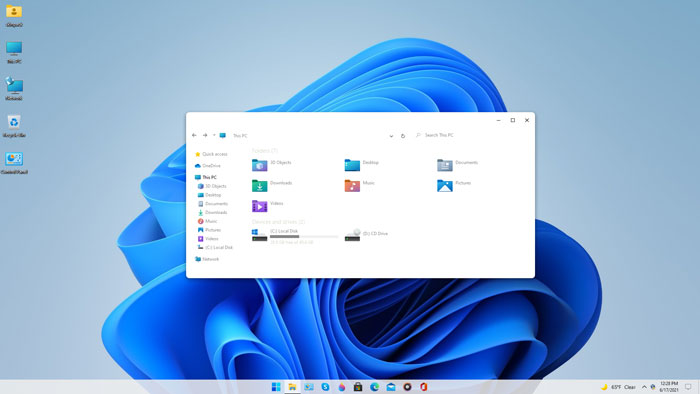
The evident change is the taskbar revamp. Now, the start menu stays at the centre. And, you have the option to align it to the left. The search and start menu have been separated into two sections. Similar to Windows 10, you can still access the search from the start menu.
Well, the live tiles are gone, which we were not a fan of. Hence, no hard feelings there. Are you going to miss it? No, we don’t think so. Looking at the bottom of the start menu, you will realise that there is a new section called Recommended files. Plus, all the windows now have rounded corners.
The file explorer has new icons. Still, nothing else has undergone a transformation per se. Who knows, they may have some surprises when the official build comes out. Other native apps remain the same (Edge browser for example).
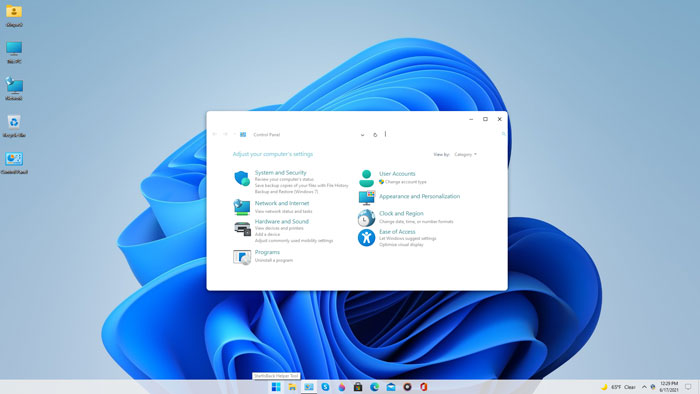
The dark mode is available (sort of mandatory, you know!). Moreover, when you hover over the maximise button, you get different split-view options to work with. Meaning, you don’t have to go through a series of steps to do that now.
Want to turn your PC into Android? Check Our article : Best Android OS for PC : Install Android on PC
How to Make Your Windows 10 Machine Look Like Windows 11?
- Easiest way = Installing ready to install theme pack from SkinPack.
- A bit Harder way => Installing things by yourself (Benefits: customizable)
That’s exactly what we are trying to do here. In case you are interested in trying out the leaked version, you can get the file from the web. It’s now circling all around the internet.
Our recommendation? Don’t do that! Just don’t, especially on your daily driver. Considering it’s an early build, you will come across hiccups and minor issues, which in turn affect your work or maybe, test your patience too.
Below, you can see the step by step method to turn your Windows 10 computer to Windows 11. Don’t expect too much though. On the foundation level, it’s still the previous version. We are only trying to change the outlook.
The Easiest Way:
Caution:- If you think you may mess up the whole process, have a look at this article to create a system restore point as a rescue mission.
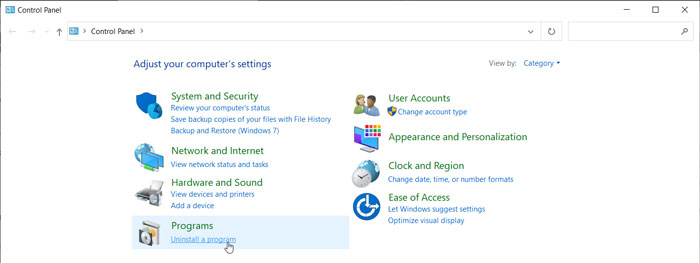
Step 1: First, you have to ensure no other skin pack or theme is present on your device. In case you have, visit the Control panel to uninstall it.
Step 2: Now you need the new pack. Use this link to latch on to it. You will have to go through a couple of pages to finally download the required theme file.
Step 3: What you get is an executable file with the name SkinPack Windows 11.sfx. They have protected the file with a password. So, when you try to open it up for the first time, you have to enter skinpacks.com into the text field.
Step 4: On extracting the archive file, you will get another executable program, which is the final installer. Open it up and get on with the installation. (We hope you are not alien to the standard Windows installation procedure).
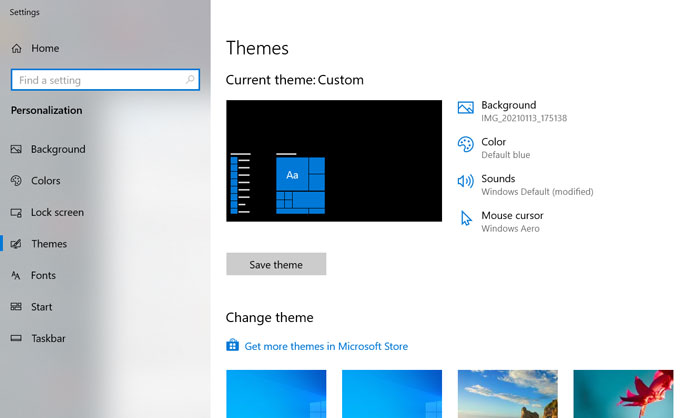
Step 5: By the time you reach this step, you have the theme installed on your computer. In order to apply it, follow Start menu>> Settings>> Personalisation>> Themes and click on the one you just installed.
Step 6: Wondering why the taskbar hasn’t changed? First, pin the programs to the taskbar and hide start button from Taskbarx. Yeah, it’s a third-party application you should download (don’t panic, Taskbarx is a simple app that doesn’t need a learning curve to use).
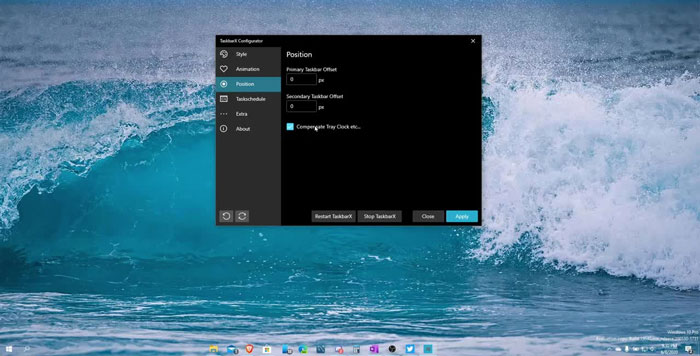
Hooray! You just transformed your Windows 10 into the all-new Windows 11.
Theme not Changed/ Turns to Classic Windows Theme?
Don’t worry! It’s quite common among users to have this issue. When you try to apply a new theme, it doesn’t activate. Or sometimes, the appearance turns to classic Windows theme all of a sudden.
If you find yourself in a similar situation, you need to download a program called UX Theme Patcher. In layman’s terms, it modifies the system configuration to help you activate third-party themes.
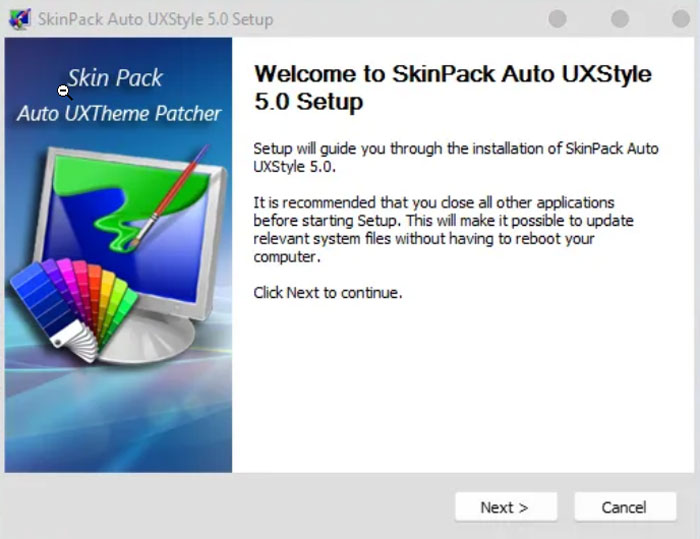
Once you download the file, go on with the installation. Don’t forget to restart the machine and once you do, give it some time to get to the new phase. There you go! And now, you can return to step 5.
Download Windows 11 Wallpapers
As you read in the beginning, Windows 10 initial build is all over the web. People now know what to expect out of it. Moreover, we got to see a few wallpapers as well. Do you want all the wallpapers to fiddle with?

You can use this link to download them in a full suite. The theme along with these wallpapers help you live the true experience of Windows 11.
Manual Way:
Windows 11 has the following things that we need to change:
1) Wallpapers
2) Theme
3) The icons
4) Taskbar
We will change it step by step.
1) Wallpapers: We don’t need to change it right now because themes that we are going to use already have them. Let’s skip this step
2) Theme:
Due to the non-compatibility of Windows 10 to use third party themes we are going to use an app to patch our new themes. There are few tools for that, such as SecureUxThemem, UltraUXThemePatcher etc … We have already seen a tutorial about UltraUXThemePatcher in above section. For this we will use SecureUxThemem.
i) Download SecureUxThemem from here and run it as Administrator in your Windows 10.
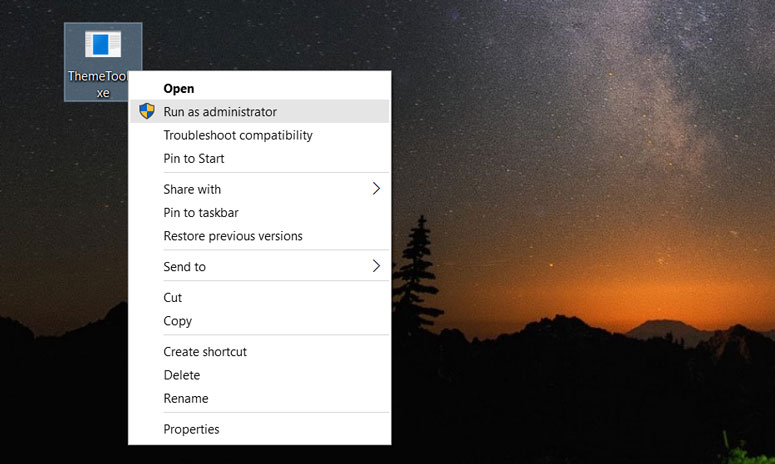
ii) Click yes, if you click on it will open the terms and conditions page. After clicking yes you will get a view like this.
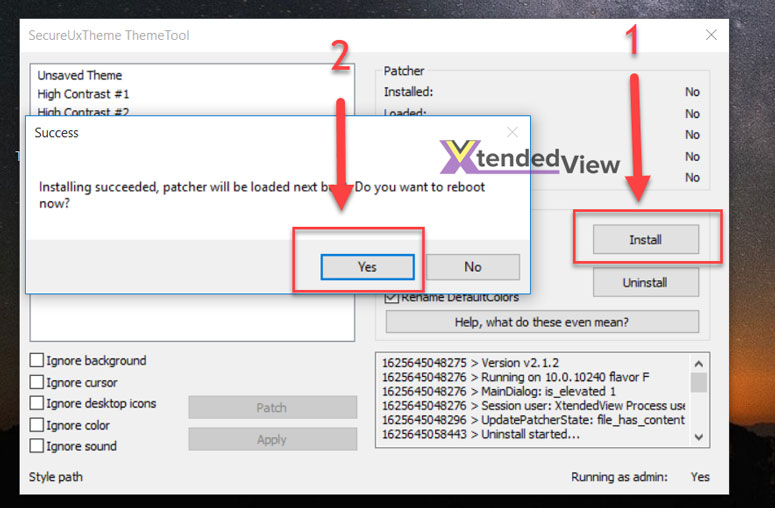
First, click Install and then Yes. After that, your PC will be rebooted.
iii) Now you need to create a free account on deviantart.com and download Windows 11 for Windows 10 and Windows 11 Icon Theme from deviantart.com. You will get the following files and folder when you extract it.
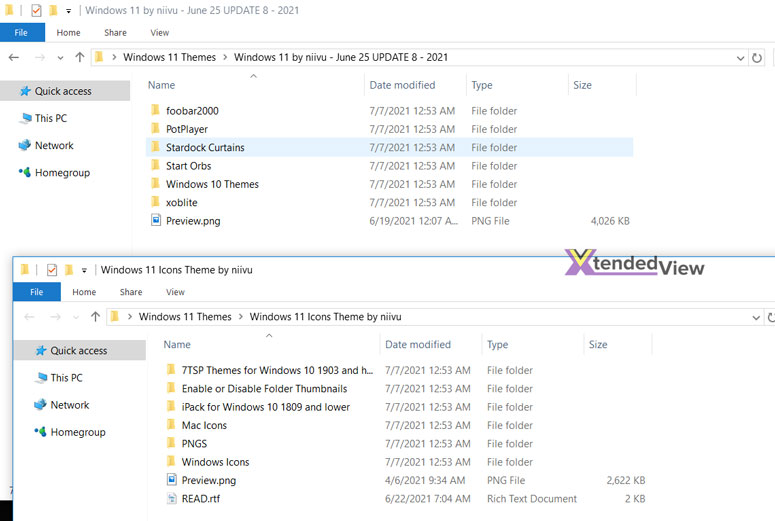
iv) In one of those folders you will find two themes. Regular and thick taskbar. For example, I am showing about the Regular theme.
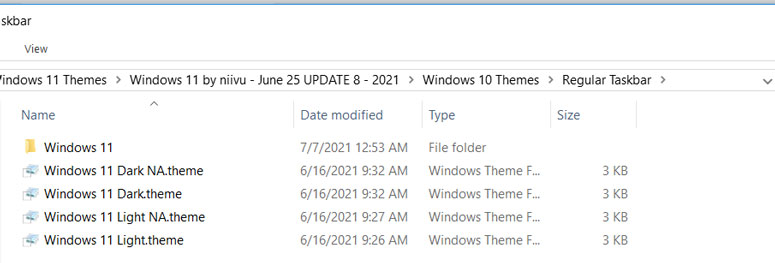
Simply copy all this content to C:\Windows\Resources\Themes
v) Now open SecureUxThemem and run it as administrator. Now you can see the themes that we have pasted in the Themes folder.
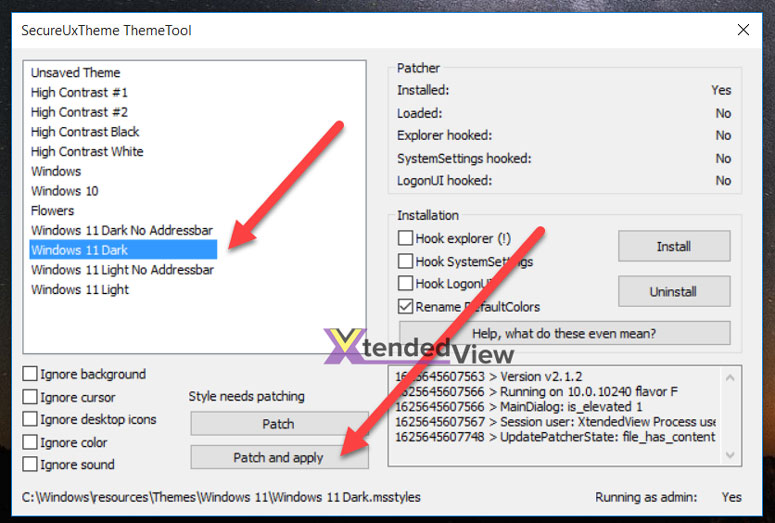
No simply select the theme and click on Patch and Apply.
You will get that theme active. You will get something like the look.
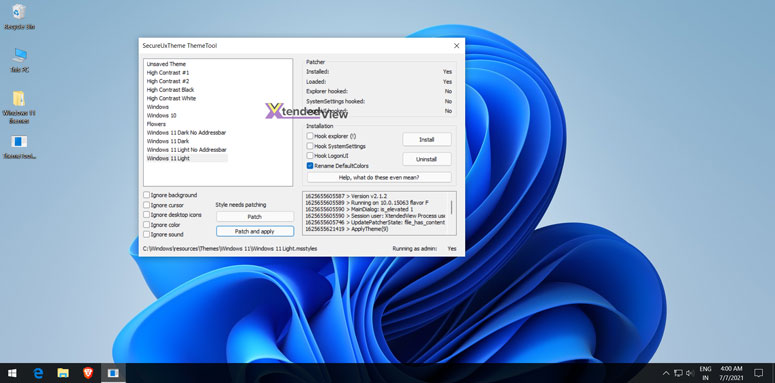
2) The Icons:
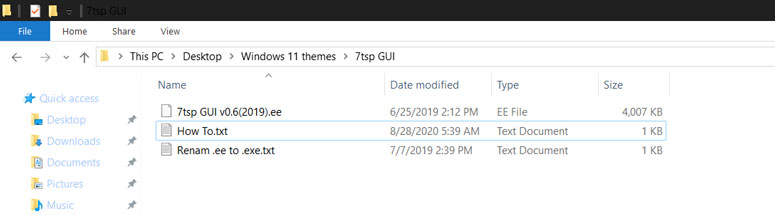
i) Download and install 7TSP (Seven Theme Source Patcher). Due to Deviantart policy they are not allowing to upload direct exe or theme files there. So you need to rename the extracted file to .exe, see the image below.
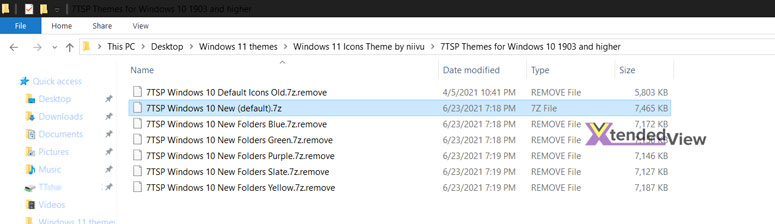
ii) Also rename earlier downloaded and extracted files (Windows 11 Icon Theme from deviantart.com) to .7z see image below to understand it.
iii) Now open 7TSP and select the theme icon file by clicking Add a Custom Pack button. Then click on Start Patching.
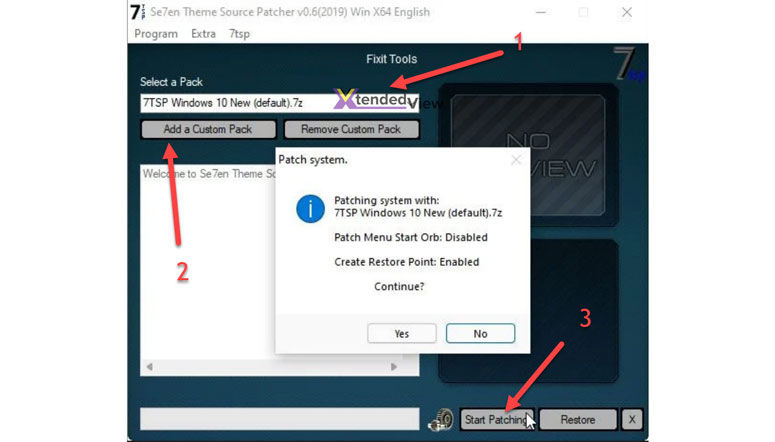
Once this complete, your icons and overall look will change that is very similar to Windows 11.
4) Taskbar:
To change the look of Taskbar i.e. brining it to the centre we will use another app named TaskbarX.
i) Please download the older version 1.6.9.0 of from here. It is a non-installable file.
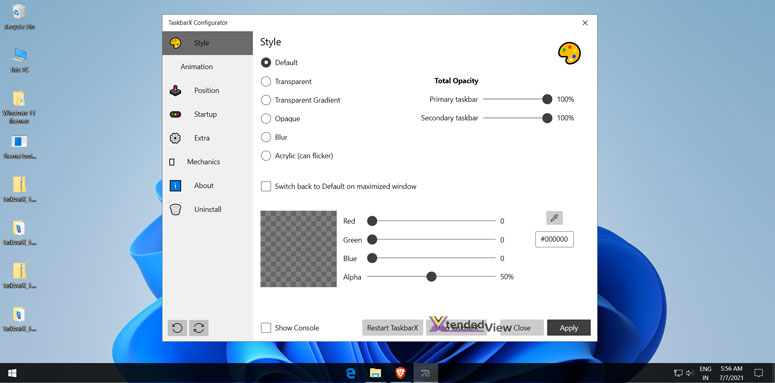
ii) Click on Apply and it will change your task buttons to centre.
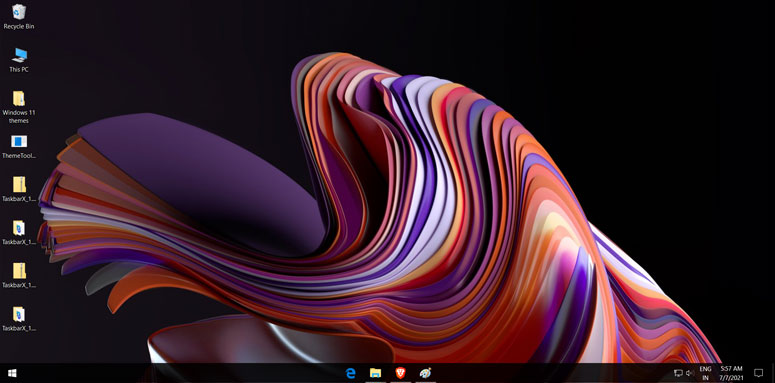
The final look will be something like this:
Can I Get the Leaked ISO File?
Windows operating system is a sole property of Microsoft Corporation. They have an official tool to upgrade to Windows 11. So for obvious reasons, we can’t share the file here. You can upgrade it for free of cost from Windows 10 to Windows 11 if you have a supporting hardware.
Parting Words
Don’t be disappointed to have not got the ISO file. It’s just an early build probably with a few bugs. You should wait for the final release. Better yet, download the Windows 11 theme and wallpapers we shared, to transform your Windows 10 device to look like the latest version. Have you got any other Windows 11 skin pack? Don’t forget to share it with us in the comment section down below.
Cite this page
Thakur, T. (2024, March 21). Best Windows 11 Themes, Skins and Icons for Windows 10 | 8 | 7. XtendedView. https://xtendedview.com/best-windows-11-themes-skins-icons-for-windows-10/
Thakur, Tushar. “Best Windows 11 Themes, Skins and Icons for Windows 10 | 8 | 7.” XtendedView, 21 Mar. 2024, https://xtendedview.com/best-windows-11-themes-skins-icons-for-windows-10/.
Thakur, Tushar. “Best Windows 11 Themes, Skins and Icons for Windows 10 | 8 | 7.” XtendedView, March 21, 2024. https://xtendedview.com/best-windows-11-themes-skins-icons-for-windows-10/.
Source: <a href="https://xtendedview.com/best-windows-11-themes-skins-icons-for-windows-10/">Best Windows 11 Themes, Skins and Icons for Windows 10 | 8 | 7</a>, XtendedView




22 reader comments closed March 21, 2025
Is there any option to get back to the previous view even after the installation of this?
Yes, you can simply uninstall and change the settings to get back.
Why are you not using Windows 11 rather than changing look for your Windows 10 I didn’t get it.
First of all Windows 11 is not yet officially available and second, you can feel the look without affecting your files and programs, also any compatibility issue.
I just hope windows offer a free upgrade to Windows 10 users to Windows 11.
Yes everyone is hoping that Diana.
I had been using a genuine copy of Windows 7 then I got a free upgrade offer to Windows 10. May I know if I am eligible to get Windows 11 OS free?
There is no official announcement yet from the Microsoft regarding this. Rather this Windows 11 OS look and ISO got leaked and not yet officially announced by MS. So we need to wait for that.
Thanks for your comment, Brendan.
Hello,
This is a version stable copy of Windows 11?
No, it is the developer preview.
Should I wait for the Retail version of Windows 11 or go with this developer preview.
Yes. I strongly recommend waiting for a stable version. Never install any OS preview copy on your main system.
Today I have installed this copy of Windows after the announcement from Microsoft. Honestly speaking there are few UI tweaks and nothing much updated from Windows 10 user point.
Yes, Clinton. May geeks are reporting similar about Windows 11. That is why you can just install these themes and icons pack on your Windows 10.
I was searching for this because I don’t want to update my main system with Windows 11.
Glad you found it, Jonathon.
I tried this but I am not able to change icons. Theme change worked.
Thanks for your comment, Michael.
Honestly, I didn’t like the Windows 11 look so far. I am more than happy with my current Windows 10 OS.
Thanks for your honest feedback Frank. I just hope they improve the OS further.
Everything was alright but the wallpaper with the theme was what I didn’t like so I wanted to change it but after changing the whole screen got black. I used Secure UX Theme Patcher and again I have to apply the theme to it to have a background wallpaper. What should I do??
Hi,
Did you create the system restore point as stated in the tutorial? Please restore your system with that.
This thread is closed to new comments.