

Isn’t it frustrating to see a please wait for the GPSVC blue screen on your Windows PC when you try to boot it up? We can relate to your feeling as any error can irritate us.
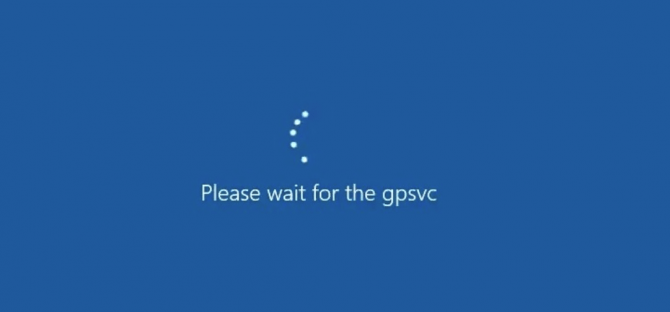
So in this article, we will help you solve this GPSVC error. Before you get to the solutions, we think it’s better to have an overview of GPSVC and the causes of the issue.
How to Fix Please Wait for the GPSVC Error?
You can simply reboot the PC. if that doesn’t fix the trouble, you should restore the necessary DLL file. We will give you more solutions in the coming section.
Also Read:-
- 10 Ways to Fix Steam Failed to Load Steamui.dll Error
- How to Fix a Hacked Android Phone (Easy Ways)?
- Hulu is not Working on Samsung TV? [How to Fix]
- Fix: Razer Synapse Not Opening on Windows 10
What is GPSVC?
Group Policy Service Editor or GPSVC is a process that helps people configure multiple websites from a central location. When you want to set a single wallpaper for a few computers or you want to block access to certain websites on multiple systems, GPSVC comes in handy.
How does it Work?
When the system boots up, GPSVC cross-checks your computer settings with the group policy configurations. After the checking finishes, the system boots up as usual. However, sometimes, this process doesn’t stop, resulting in the blue screen that shows Please Wait for the GPSVC message.
Why does the Error Occur?
Here in this section, we are going to have a look at the probable causes behind the error.
Abrupt Shut down
When your computer turns off all of a sudden, it may create problems with the group policy service editor. In case you don’t have a UPS with your desktop, buy one. Not only do you lose your unsaved data, but you also gamble with the health of the computer.
gpvsc.dll File Missing
A dynamic link library aka DLL file contains information that programs can call upon to do specific processes. If you accidentally deleted gpsvc.dll fie, chances are you see the error message.
Possible Malware
Are you using an antivirus? Well then, it’s time you checked the efficiency of that software. When malware sneaks into your system, it may behave in weird ways like showing error messages.
Problems with the DNS Settings
Domain Name System helps you connect the domain names to IP addresses. Provided GPSVC helps you maintain policy configurations of connected computers through a central one, you may experience issues when DNS settings are broken.
How to Fix Please Wait for the GPSVC Error?
Now that you know the possible causes behind the error, let’s have a look at the solutions. Start from the top and move to the bottom by following all the solutions one after the other.
Restart the Computer
The first error, as we always say, is rebooting the computer. Most errors go away with a simple restart. So before you move to any other solutions, restart your computer first. Press and hold the power button.
Scan for Malware
We have already told you that the presence of malware can be the reason for the GPSVC error. Hence, you should scan the entire computer for malware. In case you don’t have an antivirus, get one right now.
Almost all security tools have the option to scan the whole file system for malware. Do that. Once the scanning finishes, you will see the malware if there is any. Don’t hesitate to delete them right away.
Restore the gpsvc.dll File
DLL files are quite important for a program to work. When it comes to the group policy services editor, your system should have a gpsvc.dll file. You need to open the recycle bin to see if you accidentally deleted the file. Nothing there?

Well, go to C:\\Windows\System64 or C:\\Windows\System32. Search for the file there. Are you sure the file isn’t there too? Then, we are going to download the file.
- First, you have to download the DLL file.
- What you download is a zip file, unzip the same. And, copy gpsvc.dll.
- Go to C:\\Windows\System64 or C:\\Windows\System32 based on your system architecture and paste the file.
- You may see a prompt asking for confirmation about the process. Select Yes.
- Restart the computer.
There you go! See if the issue is still there.
Set GPSVC Startup to Automatic
You know what! You can GPSVC to start automatically. Without doing this, chances are it doesn’t always start, causing the blue error screen to stay forever.
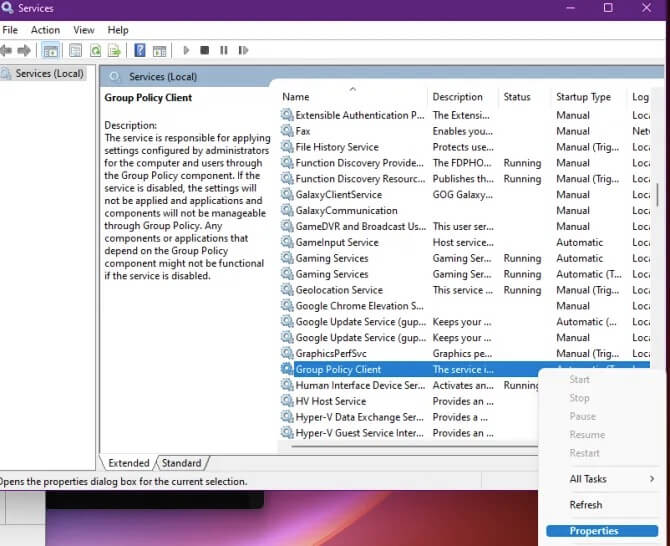
- Press Win key+ R to open the run dialogue box.
- Enter services.msc into the text box.
- Search for Group Policy Editor in the list you get. Once you find that, double-click on it.
- Go to Properties.
- Can you see the Startup type dialogue box? Click on it and choose Automatic.
- Press Apply and then Ok.
That’s it! Now it’s time to restart your computer. Many have tried this method and eliminated please wait for the GPSVC error.
Repair Corrupted Files using SFC Scannow Tool
Do the four methods given above not work? Then, we are going to repair the corrupted files using a CMD tool called SFC scannow. Oops! Can’t you log in? Well, Windows’ advanced startup options will help you launch the command prompt.
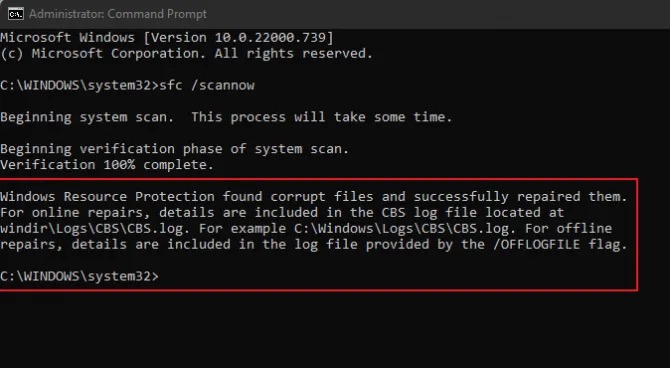
- So the obvious first step is to open the command prompt.
- Type sfc /scannow into the window and press enter.
- You need to wait for the tool to complete the scanning. It may take a few minutes based on the volume of files you have.
- If your computer has any corrupted files, it will repair them and notify you of the same.
Yeah, you don’t have to do anything except for entering the command. Don’t forget to restart the system on completion.
Fix the DNS Settings
Error in DNS settings is a prime reason for most of the connection-related issues. Here, we are going to set custom DNS addresses to your computer to avoid such instances.
- First, press the Win key+ R to open the run dialogue box.
- Enter ncpa.cpl into the textbox.
- You will see a list of networks. Right-click on the active one and select Properties.
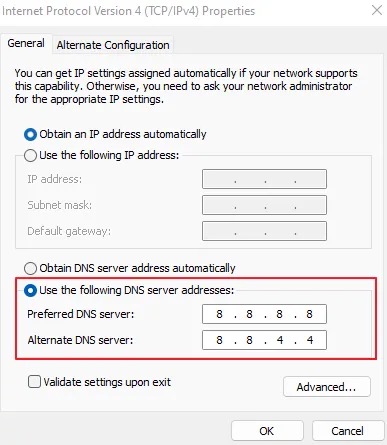
- Now, select Internet Protocol Version 4 (TCP/IPv4). Then, click on the Properties button.
- Leave the first two fields as they are. Enter 8.8.8.8 into the first field and, 8.8.4.4 into the alternative DNS server field.
- Press Ok.
Close all the windows and restart the computer.
Restore Your Computer
Did you start seeing the please wait for the GPSVC error recently? If so, we can restore the system to an earlier state.
- To open the restoring wizard, enter rstrui into the run dialogue box.
- Click Next.
- You will get a list of restore points. Based on when you start seeing the error, choose a point to which you want to bring your system. Hit Next.
- Press Finish to start the restoring process.
That’s it! When the system restarts, you may not see the recently installed programs (because we have brought the computer to an earlier state).
Reinstall the Operating System
If nothing else worked, you should reinstall the operating system. We don’t recommend you do this all by yourself. You can call up a technician. Do not format your partition. Once you do that, you will lose all your data.
Frequently Asked Questions
It means that the group policy service hasn’t started. The system is waiting for that to happen. When your computer is a part of a local network, the process may take some time.
You can just restart your computer. It will automatically restart your GPSVC service. For that, press and hold the power button for a few seconds.
Group Policy Service is a tool that helps administrators set configurations on the computer. They can work from a central device and control others. The tasks include setting a common wallpaper for multiple computers and blocking certain websites, etc.
Also Read:-
- Ways to Fix “This Site Can’t be Reached” Error in Google Chrome
- Elden Ring Controller not Working on PC (Fix Easily)
- Solution: How to Fix Nexus 5X Bootloop Issue
Conclusion
You have got more than half a dozen fixes for please wait for the GPSVC error. Don’t hesitate to go through all of them. Do not jump right into reinstalling the operating system. We are quite sure that restoring will eliminate the issue. Know any other fix? Spend a few seconds jotting it down in the comment section.