You are an avid gamer, aren’t you? What if your favourite game refuses to launch? We know it’s nasty! That’s why we are going to help you evade Dragon Age Inquisition won’t launch issue.
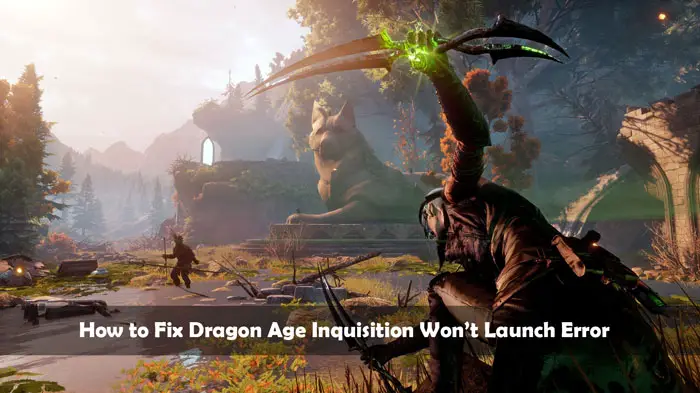
To start with, Dragon Age Inquisition is a role-playing game developed by BioWare. Released in 2014, it gained popularity as a cross-platform title with interesting gameplay. In this article, you are going to read how the error happens and what you can do to eliminate the same.
Origin Dragon Age Inquisition won’t Launch; Possible Reasons
1. Full-Screen Optimisations
Microsoft introduced some optimisations to run games without borders. Sometimes, this blessing may turn out to be a curse. Meaning, those optimisations come in the way of the working of the game.
2. DirectX/VCRedist Version Conflict
When you install the game, it puts both DirectX and VCRedist (Visual C++ Redistribution) into your computer. Chances are the versions of both of them conflicts with the game itself. When it happens, you can’t launch it.
3. Compatibility Troubles
Incompatibility is common among Windows 10 users when trying to run an application that came out before the OS iteration itself. Lucky for you, there’s a compatibility mode.
4. Administrative Rights
You know some applications need administrative privileges to work without any flaws. In case you didn’t grant them the same, double-clicking the icon won’t do anything. We can attribute Dragon Age Inquisition won’t launch Windows 10 issue to this reason as well.
5. Background Services and Processes
Almost all the operating systems keep services in the background be it Android or Windows 10. Have you ever thought of the possibility of one of those processes blocking Dragon Age Inquisition? Yeah, it can happen.
6. Missing or Corrupted Files
Let’s tell you that this is the common reason behind games failing to launch. When you have a .dll file missing or go corrupted, reinstalling the game is the best thing you could do. No one’s going to give you the specific missing file. Even if you get hold of it, we should say pasting that to the game location is more of a gamble than a surety.
Recommended Readings:
- Ways to Fix “This Site Can’t be Reached” Error in Google Chrome
- 10 Ways to Fix Steam Failed to Load Steamui.dll Error
- How to Fix Mouse Lag in Windows 10
How to Solve Dragon Age Inquisition won’t Launch Origin Problem?
Now that you have an idea of why the issue arises, we can now move on to the solutions. Owing to the inability of pointing out the exact reason, we will have to give you multiple fixes, of which one will save your favourite game.
Solution 1: Disable Antivirus or Add Exception
You know what? We have a rigid reason for this to have placed first. Most people try out all the other probable fixes in the world (including a clean installation of the OS) without realising it’s their antivirus software that’s contradicting the game.
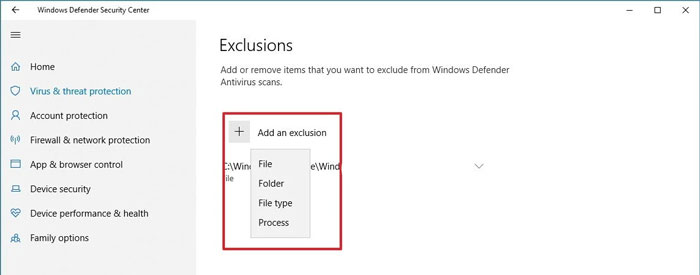
So, let’s find out whether or not you can evade the trouble by disabling the antivirus just before launching the game. To add an exclusion to Windows 10 Security, you can follow the steps given below.
- Go to Start >> Settings >> Update & Security >> Windows Security >> Virus & threat protection.
- Select Management settings from Virus & threat protection settings.
- Now under Exclusions, hit Add. Browse to the folder where Dragon Age Inquisition is stored.
There you go! What if you are using Avast Antivirus? Well, we have got you covered. Have a look at the following small guide.
- Open Avast (you can do that from the system tray, desktop icon or start menu) and click on Menu.
- Go to Settings >> General >> Exceptions.
- Select Add Exception and enter the full path to the executable file of the game. Let’s say you have the game inside Program Files. Then the path would be C:\Program Files (x86)\Origin Games\*
- Don’t forget to repeat the third step for the Origin folder too.
Or you need to do the same for any other antivirus that you might be using.
Voila! You have done your part. Try to launch the app now. Wait, what? Does the issue persist? Look at the next fix.
Solution 2: Check the Configuration of Your Computer
As with any game, Dragon Age Inquisition also has some minimum system requirements. So, you can’t run it on a computer that doesn’t comply with the demand. The following are the requirements.
- CPU Speed: AMD Hexa-core CPU @ 3.2 GHz, Intel quad-core CPU @ 3.0 GHz
- RAM: 8 GB
- OS: Windows 7 or higher
- Video Card: 2 GB, AMD Radeon HD 7870 or R9 270, NVIDIA GeForce GTX 660
- Free Disk Space: 26 GB
How do you check what’s inside your system?
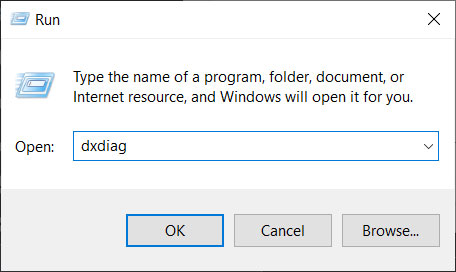
- Press Win key+ R and enter DxDiag into the dialogue box.
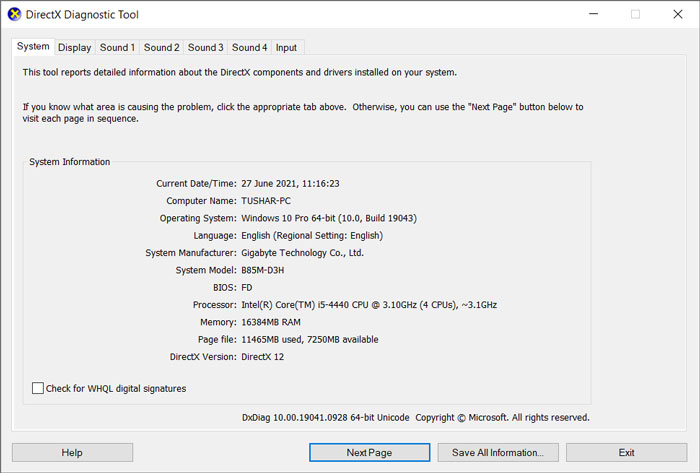
- On the window that appears, check below the System tab. From the operating system to the DirectX version, you will see all there.
- Just compare what’s there with the requirements given above.
Pro Tip:- Do you suspect the graphic card isn’t working? Go to the Display tab to check that out.
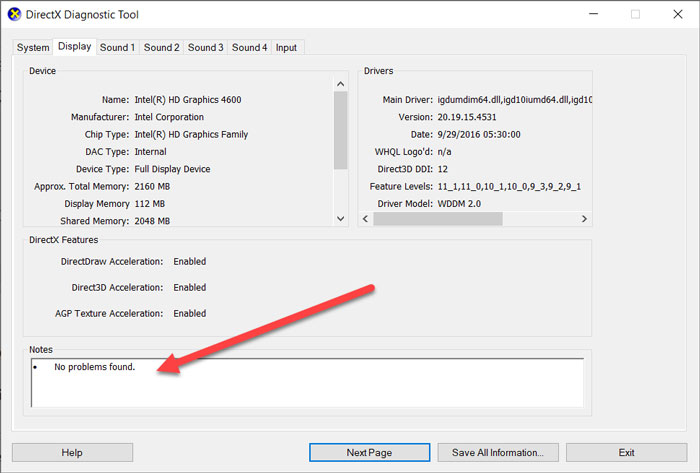
Is your RAM below 8 GB? Or do you have a graphics card with only 1 GB of memory? You now know why the game isn’t launching!
Solution 3: Grant Administrative Privileges
Consider yourself lucky if it works out. You don’t have to go through a series of fixes. Let us tell you how you can provide Dragon Age Inquisition with the privileges it needs.
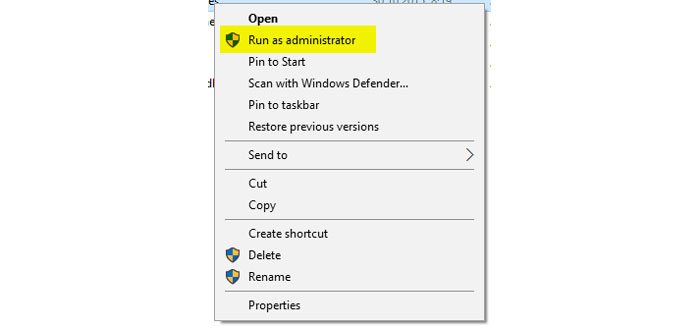
Right-click on the game icon and choose Run as administrator. Hit Yes when prompted. That’s it!
Pro Tip:- Do you want to get over the right-click menu hassle every time you want to open the game? Select the game icon, hit Alt+Enter, go to Compatibility and check the “Run as Administrator” option there. And then, hit Apply.
Solution 4: Reinstall DirectX and VCRedistro
Here, you will have to run different installers given there are two programs to be reinstalled. First, visit C:\Program Files (x86)\Origin Games\Dragon Age Inquisition\__Installer\directx\redist from File Explorer. And, open DXSetup.exe. Don’t forget to replace the previous version with the new one.
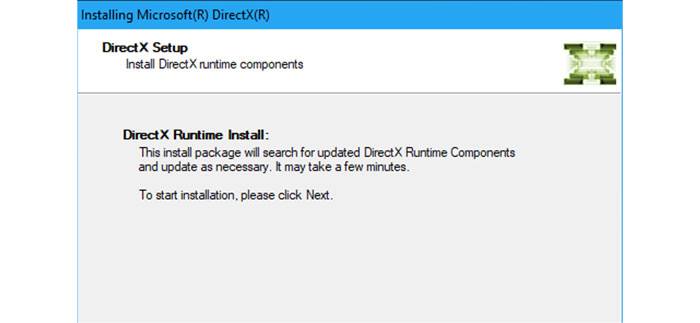
Now, run VCRedist.exe from C:\Program Files (x86)\Origin Games\Dragon Age Inquisition\__Installer\vc. For the changes to take effect, restart the computer.
Solution 5: Disable Fullscreen Optimisations
If you read the probable reasons at the beginning of this article, you know fullscreen optimisations can be a culprit behind Dragon Age Inquisition won’t launch on Windows 10 error. How can you solve it?
- Locate the game folder. Most of the time, you can find it inside Program Files in the system drive.
- Once you are there, right-click on DragonAgeInquisition.exe. And now, select Properties. Keyboard maestros can hit Alt+ Enter after selecting the file to get the properties window.
- You will see half a dozen tabs, of which Compatibility is the one you should go with.
- Send your eyes to the bottom. Can’t you see Disable fullscreen optimisations there? Tick the checkbox. Hit Ok.
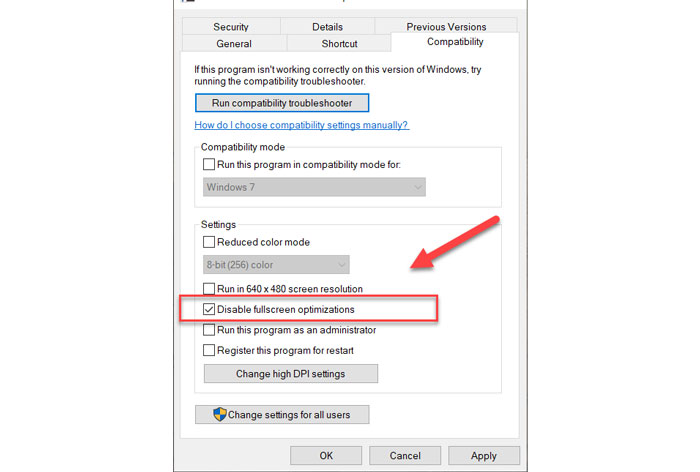
Now you can try opening the game to check if the issue still is there.
Solution 6: Run the Game in Compatibility Mode
When a game doesn’t support the operating system your computer runs on, it will create incompatibility issues. So here, you are going to learn how to launch a game in Compatibility mode.
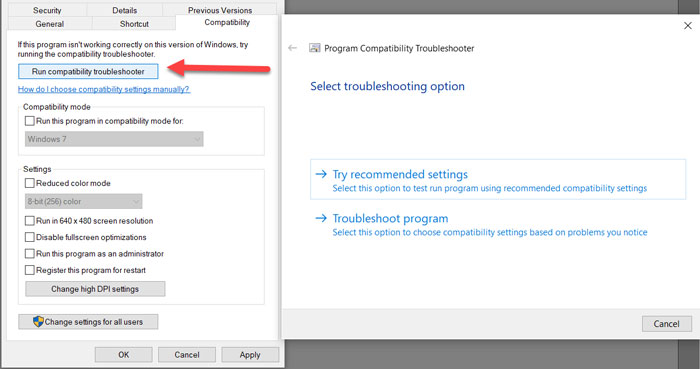
- Follow all three steps from the previous solution. Once you do that, you will find yourself on the Compatibility tab.
- Click on the button that says Run Compatibility Troubleshooter.
- MS Windows will do everything to figure out the best configurations and versions to run the game. All you have to do is, following Try Recommended Settings>> Test. Don’t forget to Apply the changes though.
- Come back and launch the game now.
Solution 7: Repair Game Files
When an important file goes corrupted or missing from the game folder, the title refuses to start, giving you a perennial headache. By following the steps given below, you can repair issues arising from corrupted files.
Caution:- For this to work, you need an active Origin account.

- Open the Origin client and log into your account.
- On the left pane, you will see a few options. Choose My Game Library there.
- Right-click on Dragon Age Inquisition and go with the Repair Game.
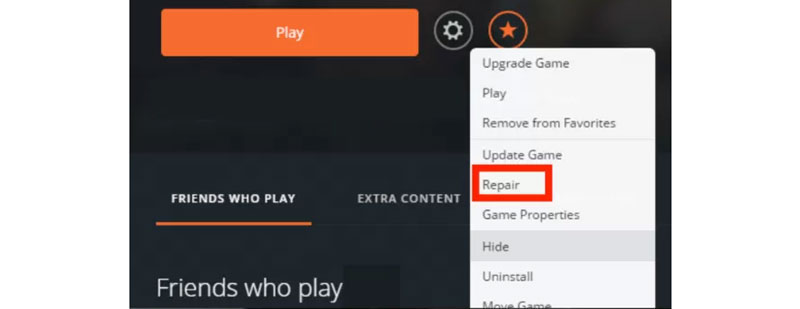
It will check for any missing file by itself. On finding any corrupted ones, the client will redownload them. Once the process finishes up, open the game to check whether you’re on the right track.
Solution 8: Perform a Clean Reboot
Sometimes third-party programs hinder the way games operate. By performing a clean boot, you ignore those background services.
Caution:- Ensure you are running your computer as an administrator. A regular user or a guest can’t go on with this process.
- Hit Win key+ R and enter msconfig.
- Now go to the Services tab and tick the Hide all the Microsoft Services option (it will reduce the risks of you messing up the system processes).
- On the right, you will see a Disable all button. Click it to deactivate all the third-party processes.
- Open Task Manager (press Ctrl+ Shift+ Esc) and go to Startup. Disable all of them one by one (you can do it from the right-click menu or the button at the bottom-right corner).
- Restart your computer. Once you come back, you will have zero third-party processes running in the background. So, launch the game.
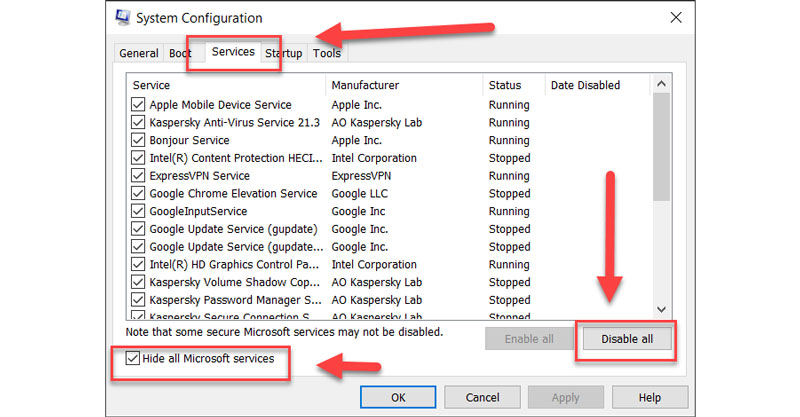
Most of the time, you will see the game running without any issues if a third-party program was the villain.
Solution 9: Clear Dragon Age Inquisition Cache
Caches do support the faster loading of any program. If they botch up, you will sacrifice usability too. Here, we are going to clear the Dragon Age Inquisition cache to check whether the issue disappears or not.
- Close the game and end all the game-related processes from the Task Manager.
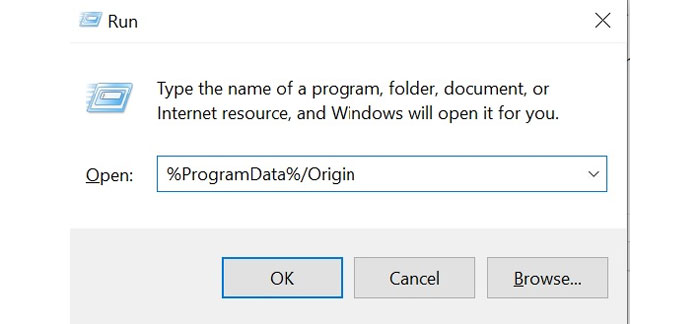
- Hit Win key+ R to open the Run dialogue box and enter %ProgramData%/Origin.
- Delete everything that’s there.
- Now, open the Run box again and this time, type %AppData% into it.
- Locate the Origin folder and delete it.
Solution 10: Update Graphics Driver
An outdated graphics driver is a menace. You can update the driver in two different ways. The first one is, downloading from the respective manufacturer website. You can do that. Or else, follow the steps given below.
- Open the run dialogue box (Win key+ R) and enter devmgmt.msc.
- Select your graphics card under Display. Right-click and then select Properties.
- Follow Driver tab>> Update driver>> Search automatically for updated driver software. Then, follow the on-screen instructions. There you go!
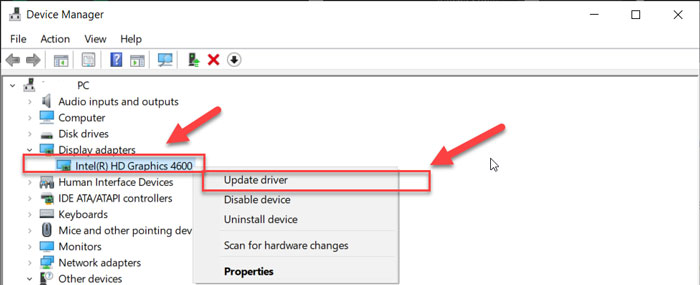
In case these steps fail to update the driver, you can lean onto the manual process.
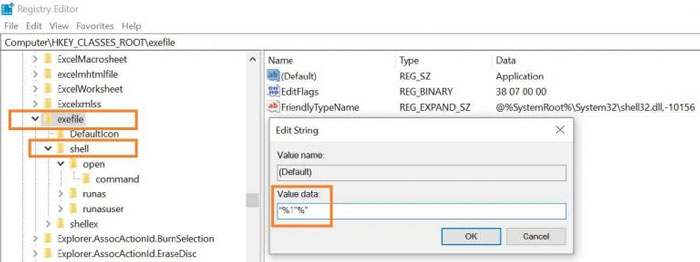
Solution 11: Fix Windows Registry
Dragon Age Inquisition won’t launch if the .exe file values are wrong in the Windows registry. We are trying to give it the correct values here.
- Enter regedit.msc into the Run dialogue box.
- Locate the .exe folder from HKEY_CLASSES_ROOT.
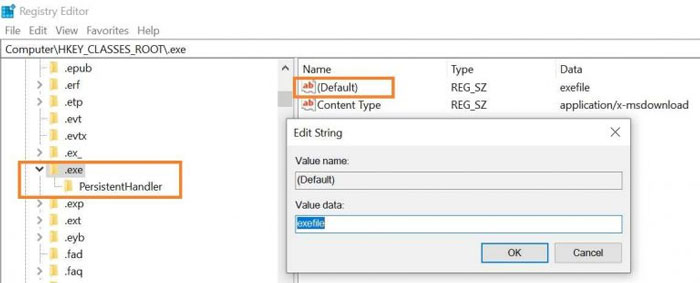
- From the left pane, double-click on Default. Ensure the value there is exefiles.
- Now, search for exefile folder on the left pane. Open the Default key and put the value as “%1”%”. Hit Ok to save the changes.
- Click the exefile folder again and follow Shell>> Default. Here too, insert the value as “%1”%”. Don’t forget to press Ok.
- To be on the safe side, you can restart the computer.
Final Resort: Reinstall the Game
First, you have to uninstall the game. Use a third-party program like Recuva Uninstaller to remove all the remnants from the computer. Then, install the game as if the computer were fresh. For most of the times (if your computer used to run Dragon Age Inquisition well), this should do the trick.
Final Verdict
What do you think? We have included all the possible fixes to Origin Dragon Age Inquisition not working on Windows 10 error and it is quite sure that one of these will end your trouble. We are open to suggestions. So, don’t hesitate to comment if you know a much easier solution to the problem.
Cite this page
Thakur, T. (2024, March 21). How to Fix Dragon Age Inquisition Won’t Launch Error {11 Solutions inside}. XtendedView. https://xtendedview.com/dragon-age-inquisition-wont-launch/
Thakur, Tushar. “How to Fix Dragon Age Inquisition Won’t Launch Error {11 Solutions inside}.” XtendedView, 21 Mar. 2024, https://xtendedview.com/dragon-age-inquisition-wont-launch/.
Thakur, Tushar. “How to Fix Dragon Age Inquisition Won’t Launch Error {11 Solutions inside}.” XtendedView, March 21, 2024. https://xtendedview.com/dragon-age-inquisition-wont-launch/.
Source: <a href="https://xtendedview.com/dragon-age-inquisition-wont-launch/">How to Fix Dragon Age Inquisition Won’t Launch Error {11 Solutions inside}</a>, XtendedView