

The wp-config.php file holds the most sensitive settings of a self-hosted WordPress site: the database name, username and password, the database host, and the authentication keys and salts that protect logins. WordPress creates it during installation and places it in the main WordPress folder, which on most shared hosts is public_html.

Moving that file out of the public web folder is one of the simplest hardening steps you can take. This guide explains why it helps, the easiest way to do it, and a second method for setups where the easy way does not apply.
Why move wp-config.php at all?
When PHP works normally, a visitor who opens yourdomain.com/wp-config.php sees a blank page, because the server runs the file instead of displaying it. The risk appears when something goes wrong:
- A server misconfiguration or a PHP update stops
.phpfiles from being processed, so the raw file is sent to the browser. - A copy such as
wp-config.php.bak,wp-config.oldor an editor backup is left in the folder. Those files are not run as PHP and can be downloaded as plain text.
That password is the key to everything. With it, someone can connect to your database and add their own administrator account, delete or rewrite posts, insert spam links, or redirect every page of your site somewhere else.
A file that sits outside the web root cannot be requested over the web at all, so these mistakes no longer expose your database password. Moving it helps reduce risk; it does not protect you if an attacker already has access to your files through a vulnerable plugin or a stolen hosting login, so keep WordPress, plugins and themes updated as well.
Before You Start
- Take a full backup of your site files and database.
- Have access to your hosting file manager (cPanel, hPanel or similar) or to the server over SFTP.
- Note where WordPress is installed. The steps below assume it sits directly in
public_html.
Method 1: Move wp-config.php One Level Up (Simplest)
WordPress already supports this without any code changes. When it starts, it looks for wp-config.php in its own folder first. If the file is not there, it checks the folder one level above, as long as that parent folder does not contain its own WordPress installation (WordPress checks for a wp-settings.php file there).
- Open your file manager and go to
public_html. - Move
wp-config.phpto the folder above it, usually your home directory, for example/home/yourusername/. - Load your site and log in to the dashboard to confirm everything works.
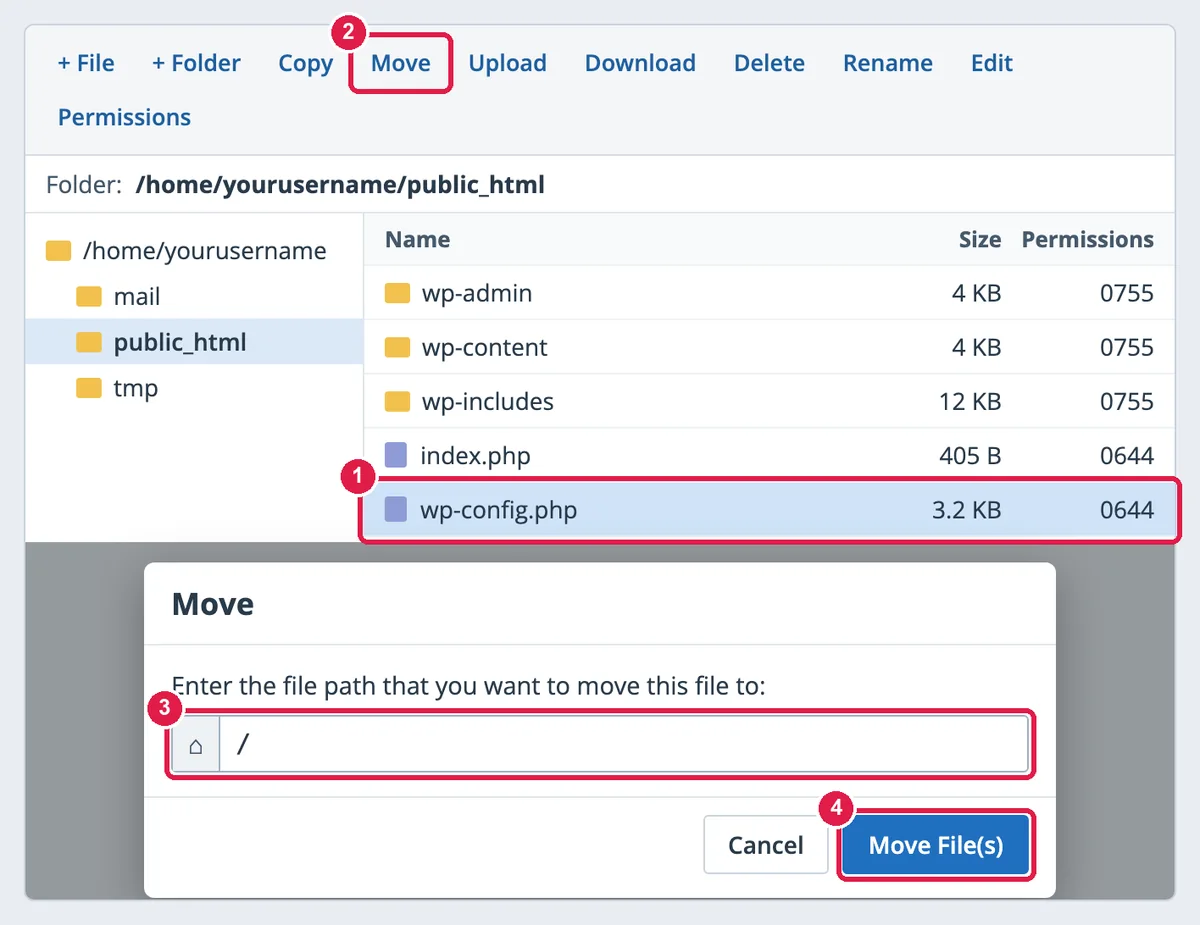
That is the whole change. The file now lives outside the public folder, and WordPress still finds it on its own.
When this does not help: if WordPress is installed in a subfolder such as public_html/blog, the folder one level up is public_html, which is still public. Use Method 2 in that case.
Method 2: Keep a Small Loader File and Store the Real File in a Private Folder
This method lets you put the real configuration file in any private folder you choose.
- In your home directory (outside
public_html), create a new folder, for examplewp-private. - Move your original
wp-config.phpinto that folder.
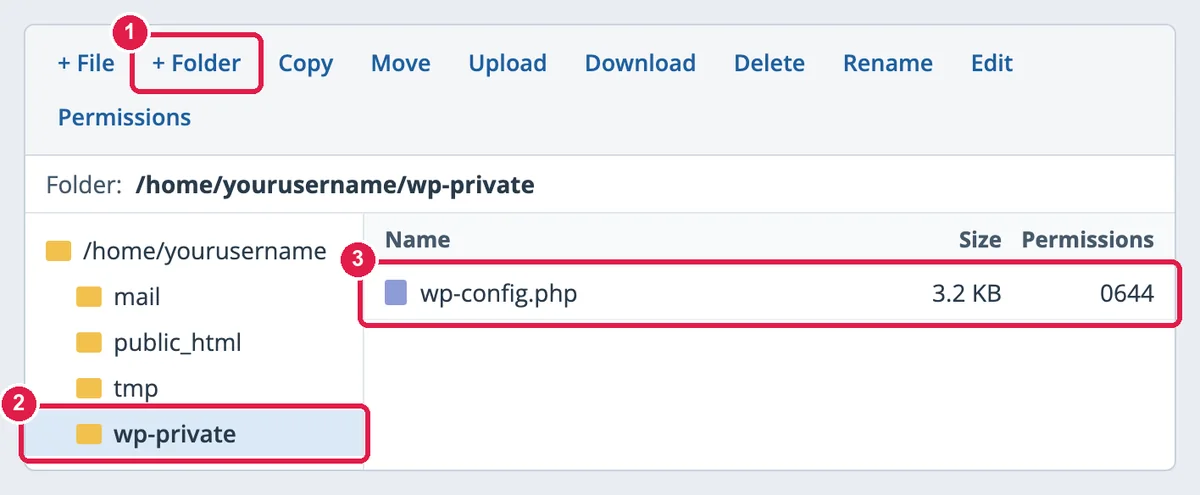
- In
public_html, where the original file used to be, create a new file namedwp-config.phpwith only this code:
<?php
define( 'ABSPATH', __DIR__ . '/' );
require_once '/home/yourusername/wp-private/wp-config.php';
Replace yourusername and wp-private with your real home folder and folder name. Your hosting control panel usually shows the full home path in the file manager.
The ABSPATH line matters. The standard wp-config.php sets ABSPATH to the folder the file sits in and then loads wp-settings.php from there. After the move, that folder is wp-private, which has no WordPress files, so the site would fail to load. Defining ABSPATH in the loader first points WordPress back to public_html.
- Reload your site and log in to the dashboard to confirm it works.
Extra Hardening for wp-config.php
- File permissions: the WordPress hardening guide suggests 440 or 400 for
wp-config.php, so only the owner can read it. If your host runs PHP as a different user and the site stops loading, set it back to 640 or 644, the usual default for WordPress files. Editing a file in the file manager can sometimes reset its permissions, so check them again after any edit.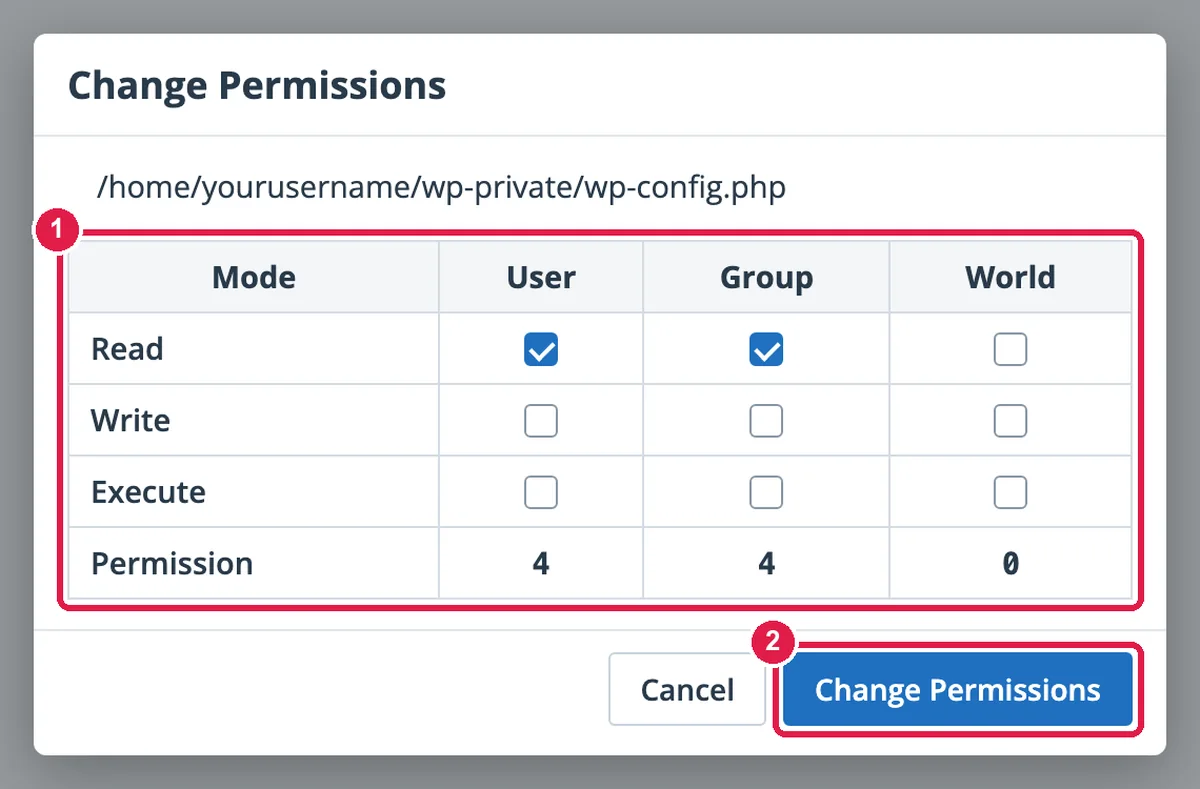
Select wp-config.php, click Permissions, tick Read for User and Group only so the value reads 440, then click Change Permissions. - Block direct access on Apache or LiteSpeed: if the file stays in
public_html, add this to the.htaccessfile in that folder:
On an older Apache 2.2 server, use<Files wp-config.php> Require all denied </Files>Order allow,denyandDeny from allinside the same block instead ofRequire all denied. - Remove stray copies: delete any
wp-config.php.bak,.old,.saveor~files from the web folder. - Use unique keys and salts: the eight
AUTH_KEYtoNONCE_SALTlines in the file sign your login cookies. Get a fresh set from the official WordPress generator and paste it over the old lines. Doing this logs everyone out, which is what you want if you think the file was ever exposed. Change the database password at the same time.
Common Errors and Fixes
- The WordPress setup screen appears (“There doesn’t seem to be a wp-config.php file”): WordPress cannot find the file. With Method 1, make sure the file is exactly one level above the WordPress folder. With Method 2, make sure the loader file is in
public_html. - “Failed opening required” or a fatal error naming your private folder: the path in the loader file is wrong. Check the home folder name, the folder name and the spelling of
wp-config.php. - A fatal error about wp-settings.php: the
ABSPATHline is missing from the loader file, or it comes after therequire_onceline. - A plugin cannot save a setting to wp-config.php: some plugins edit the file automatically and may expect it in the WordPress folder. Add the setting they need to the real file by hand.
If you are stuck, restore the original file to public_html from your backup and the site will work as before.
Cite this page
Thakur, T. (2026, November 14). Simplest way to move your wp-config.php file to another location in WordPress for security. XtendedView. https://xtendedview.com/simplest-way-to-move-your-wp-config-php-file-to-another-location-in-wordpress-for-security/
Thakur, Tushar. “Simplest way to move your wp-config.php file to another location in WordPress for security.” XtendedView, 14 Nov. 2026, https://xtendedview.com/simplest-way-to-move-your-wp-config-php-file-to-another-location-in-wordpress-for-security/.
Thakur, Tushar. “Simplest way to move your wp-config.php file to another location in WordPress for security.” XtendedView, Last modified November 14, 2026. https://xtendedview.com/simplest-way-to-move-your-wp-config-php-file-to-another-location-in-wordpress-for-security/.
Source: <a href="https://xtendedview.com/simplest-way-to-move-your-wp-config-php-file-to-another-location-in-wordpress-for-security/">Simplest way to move your wp-config.php file to another location in WordPress for security</a>, XtendedView






3 reader comments commenting closed
Hi there,
A great basic way of keeping out the automatic hacker bots, is by changing the WordPress table prefix.
The WordPress table prefix is wp_ by default. You can change this prior to installing WordPress by changing the $table_prefix value in your wp-config.php file.
If a hacker is able to exploit your website using SQL Injection, this will make it harder for them to guess your table names and quite possibly keep them from doing SQL Injection at all. SQL Injection happens when a developer accepts user input that is directly placed into a SQL Statement and doesn’t properly filter out dangerous characters.
This can allow an attacker to not only steal data from your database, but also modify and delete it. Make sure you take a good backup before doing this though, and perform it at your own risk.
Thanks.
Norbert
Thanks for your valuable suggestion Norbert .. 🙂
instead of using the ‘home/username/conff/wp-config.php’ that reveals the username
use ‘../conff/wp-config.php’
This thread is closed to new comments.