
Isn’t it boring to do the same task over and over again on your computer? Have you ever wished for a magic wand that does it without you having to break a sweat? Don’t worry! Keyboard macros for windows are here for your rescue.


Microsoft defines macros as sequences of events (such as keystrokes, mouse clicks, and delays) that can be played back to help with repetitive tasks. So yeah, that’s what we are going to deal with in this article.
How to Make Keyboard Macros on Windows 10 & 11?
You can assign a shortcut key without downloading third-party applications to launch a program. If you want to carry out activities like more than one keystroke and mouse click, you will have to seek the help of a macro recorder for Windows.
Also Read:-
- How to Fix Mouse Lag in Windows 10
- How to Format text on Telegram Desktop using Keyboard Shortcuts
- Main Useful Apps For Writing
- HyperTerminal Alternatives for Windows 10/11: Install Just like Windows XP
How to Make a Keyboard Macro? (without Third-Party Apps)
In this segment, we are going to assign a set of keystrokes to launch an app. Just follow the steps here for that. Creating keyboard macros in Windows 11 and 10 involves similar steps.
- First, we need to ensure the program for which you want the macro has a shortcut on the desktop. If it doesn’t, press the Win key and search for CMD.
- Right-click on the command prompt and select Run as an administrator.
- Enter the following command (or you can simply copy-paste).
explorer shell: AppsFolder
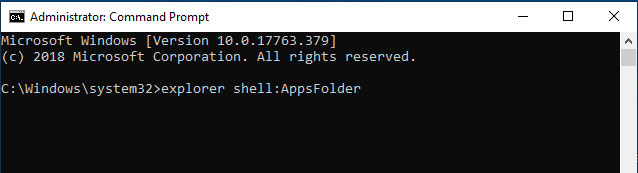
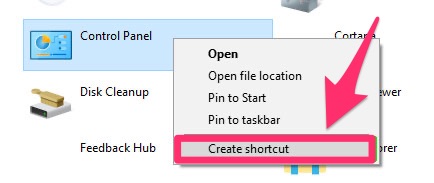
- You will see a new window displaying all the apps loaded on the computer. Right-click on your app of choice and opt for Create shortcut.
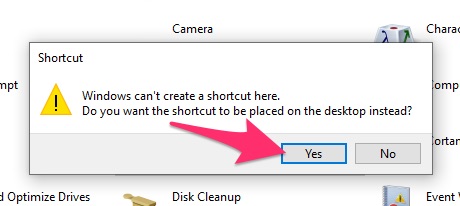
- Now, you will see a prompt with the question “Windows can’t create a shortcut here, would you like to create a shortcut on the desktop?”. Hit Yes.
- You can see the shortcut on the desktop, can’t you? Right-click on that and click on Properties (alternatively, you can select the shortcut and hit Alt+ Enter).
- Go to the Shortcuts tab. Click on the field next to the Shortcut key, and press a key on the keyboard. No matter what key you press, the shortcut will start with Ctrl+ Alt.

- Hit Ok.
There you go. Whenever you hit Ctrl+ Alt+ (your chosen key), the app will open.
How to Create Keyboard Macros? (with Microsoft Mouse and Keyboard Center)
Before venturing into third-party apps, you had better try Microsoft Mouse and Keyboard Center. It’s a tool to help you work with macros.
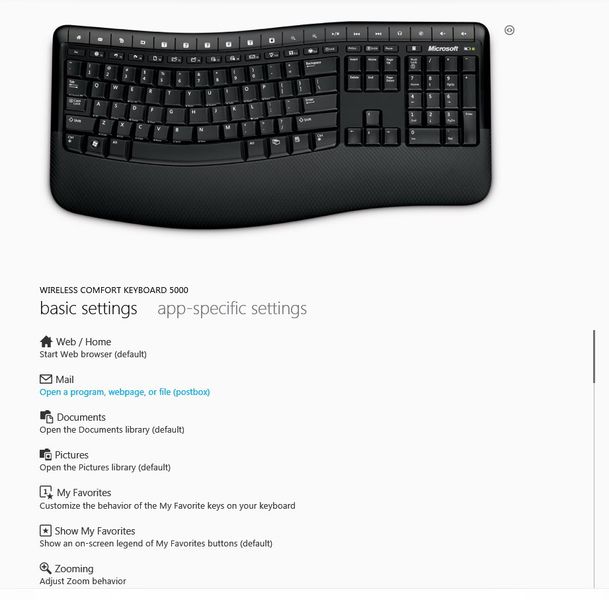
- The first step, as expected, is downloading. Use this link.
- Make sure you have the hardware keyboard connected to the computer.
- Now, install the software using the setup file you got from the link given above.
- Launch the app (use the start menu).
- Go to the Hotkeys tab. Click on Create/add new hotkey.
- You can edit the already assigned hotkeys or create new ones. For creating, first, select the hotkey.
- Then, choose the command from the list that appears.
- Hit Ok to finish the process.
That’s it. You should fiddle with the program to get a grip on it. Let’s just show you another Windows macro recorder.
How to Make Macros for Windows? (using a Third-Party App)
Here, we are going to give you a step-by-step tutorial on macro creation using Pulover’s Macro Creator. You can go for any third-party app. We just chose this one because we’ve had successful past experiences.
The software has a ton of useful features. You don’t have to jump into using all of them in a hush. Once you are used to the program, you can try out different configurations. Here, we are going to show you how to record a macro and use the same in the future.
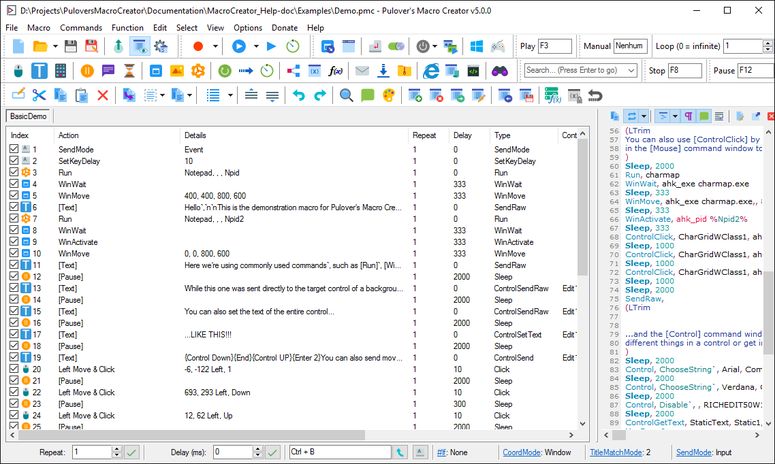
- Click here to download Pulover’s Macro Creator.
- Go through the installation process (same as any other software installation).
- Open the program (you can use the Start menu or the desktop icon).
- On the toolbar, you can see a red circle (record button). Press on the same. Or else, you can just hit Ctrl+ R to begin the macro recording process. Then, hit the record hotkey (default is F9).
- It’s time to do the steps (keyboard strokes, mouse clicks, and delays) you want in the macro. The macro creator will record all of them.
- To stop the recording, hit the record hotkey once again.

There you go! You can press the playback hotkey (default is F3) to see your macro in action. Don’t forget to save the macro. Whenever you want to do this specific task, just open the saved macro.
Frequently Asked Questions
Keyboard macros are of two types; hardware and software. Hardware macros are a set of keys, which when pressed, do a task or a sequence of tasks. On the other hand, software macros are created with the help of a third-party app to perform a process that involves keystrokes and delays.
No, there isn’t! Windows 10 doesn’t come with a default macro recorder. They have a Mouse and Keyboard Center. You have to download that too.
No, but Microsoft has one. You can download the setup file from the official site. For most simple macros, that’s enough.
Right-click on the application shortcut. Choose Properties and go to the Shortcuts tab. Enter a key beside the Shortcuts key. That’s it. When you press Ctrl+ Alt+ the key you just entered, your preferred app will open.
Also Read:- How to Make your Existing PC to Run on Windows 10 smoothlys
Conclusion
You have got everything you wanted, haven’t you? Keyboard macros on Windows 10 and 11 are easy to create. Whether you use a third-party program or not depends on the facilities you need. For a process that involves keystrokes, mouse clicks, and delays, we recommend you go with a third-party piece of software.
Cite this page
Thakur, T. (2022, December 24). How to Create and Record Keyboard Macros in Windows 10 & 11. XtendedView. https://xtendedview.com/record-keyboard-macros-windows/
Thakur, Tushar. “How to Create and Record Keyboard Macros in Windows 10 & 11.” XtendedView, 24 Dec. 2022, https://xtendedview.com/record-keyboard-macros-windows/.
Thakur, Tushar. “How to Create and Record Keyboard Macros in Windows 10 & 11.” XtendedView, December 24, 2022. https://xtendedview.com/record-keyboard-macros-windows/.
Source: <a href="https://xtendedview.com/record-keyboard-macros-windows/">How to Create and Record Keyboard Macros in Windows 10 & 11</a>, XtendedView