


There are several tips you can follow to improve battery life of your notebook or Netbook. Among these, turning off the screen of device, when you are not using it, stands in pivotal position. Suppose you are leaving for a smaller time but will return quite soon, you can just turn off LCD/LED screen of your laptop without shutting it down. Turning off the screen has some practical advantages. Suppose if you are doing some activity such as listening to music/audio book or downloading huge files from internet, which do not require the screen to be ON, this activity makes enough sense.
 Regardless, as you might know, Windows does have no special feature to turn off laptop screen immediately; despite you can set the screen to turn off after a specific time-period. In this situation, you can use some special software to turn off the laptop screen manually. In that sense, preferably, it is good to use one of these tools to turn off screen immediately and hence to keep up battery life of the device!
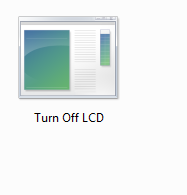
1- Turn Off LCD – Simple as the Name
Just as the name of the tool says, Turn off LCD can help you turn off the LCD screen of your laptop manually. Taimur Asad developed this application to switch off LCD screen of his laptop manually, as his device lacked a special key for that purpose. This tool, developed in C#, requires single click to turn off the screen. If you want to use the tool, you have to download the ZIP file from the following link. Open the ZIP file and you can see a Turn-Off-LCD.exe file that weighs 69KB. You can keep this file (or shortcut to file) in your desktop or somewhere else. When there is a situation to turn off the screen and just go, you can double-click on the tool. In a few seconds, screen of your laptop would be turned off. To turn it on, you have to press any key. You can download Turn off LCD from Here. Perhaps, it is simplest tool you can get for the purpose.
2- MonitorES – Save Energy
MonitorES also known as Monitor Energy Saver is another utility, which can help you prolong battery of notebook by turning off the monitor manually. You can download this free tool from the following link, and working is like a piece of cake. In the lite version of this tool, you have almost nothing to do but to press the Ctrl+F2 when you want to turn off the screen whereas in the standard version, you have options to customize working of tool. Additional features of MonitorES ranges from pausing the media players, setting IM status to away etc when you turn your screen off. So, this tool is something great and productive, especially while considering additional features we mentioned above. As both of these versions – lite and standard – weigh less than 50KB, you can download these in matter of seconds, and use it in your laptop.
3- BlackTop
Resembling the case of Turn Off LCD, BlackTop is a single-click tool to turn off the laptop screen manually! However, in this tool, you can keep the shortcut in the taskbar. When do you want to turn off the screen, you have to just use the hotkey – Ctrl+Alt+B – and the screen will be turned off in seconds. Also, when do you want to resume your work, you can hit any of keys or use touchpad to turn on the screen.
4- Sleeper – Just let Laptop Screen Sleep
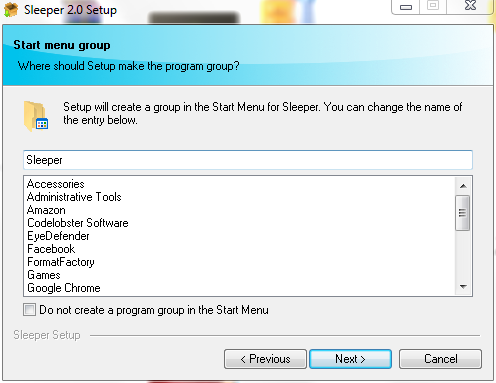
When you want to let the notebook screen sleep, Sleeper is one the simplest tools you can get. This tool, developed by freeware developer, TheFreeWindows, weighs around 790KB. However, the action of the tool is similar to that of Turn Off LCD. Just as you did in the case of Turn Off LCD, you can extract and double-click on the .exe file to turn off screen of the device, and hence to save money. Despite having no additional features to confuse you, Sleeper would be an ideal tool to use! You can download as well as know more about Sleeper from TheFreeWindows from here.
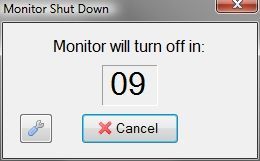
Rather than turning off the screen, this tool offers several additional features. You can use several options such as to set the hotkey to activate screensaver, set up customized hotkey to turn off the screen, select whether you want the tool to start in Windows startup, etc. In addition, unlike other tools we have mentioned, Monitor off utility is having an option to set monitor turn off delay. If you have set this delay to 10 seconds, you can see a countdown of seconds before the screen turns off. If your system has .NET framework 2.0 or later, you can install this software and simplify the process of turning off the laptop screen whenever you want to.
Note: As you have seen, in some of these tools, we can assign customized hotkeys to turn off and turn on the screen. However, you should be careful while assigning these keys, because it should not make a conflict between default hotkeys of Windows such as Ctrl+C or Ctrl+V. So, choose a unique shortcut for those.
Conclusion
We hope these tools would be quite useful for all of you, who would like to prolong battery life of your notebook. As we said, even though not high, you can feel a notable effect on battery life of your device. Do you use any other tool to turn off the screen? Do let us know about those tools if they have some unique features.


18 Comments
Unlike other tools, BlackTop does not consume a lot of RAM resources. My honest observation about the utility. It suits for my needs.
Thanks for your input Anthony.
I have a 12-Year-old Dell Laptop. Will these apps work with that laptop?
Yes, they should work.
How can I turn OFF The display of my laptop when I have external monitor attached?
You can use the same app.
Sadly, Windows doesn’t support Zero brightness for laptops. But in Linux, we can reduce the brightness to Zero, that effectively turns OFF the display.
Glad it helped you Milo.
Interesting and useful information. Thanks it worked for me.
But after fiddling around the settings, I found that when I connect the external display, I can use that display and turn OFF the laptop display. that was an exciting discovery for me.
Thanks a lot.
That is great to hear.
Monitor OFF utility looks great. I wanted something with the timer . This utility has the timer that shows when the display is turning OFF. very useful if someone newbie like me wanted to start working again can cancel the timer and start using the laptop again.
Thanks a lot Tushar for this information.
Is there any tool that has a hotkey to wake up the screen? I don’t want it to wake up by pressing any random key
Hey, Tushar Nice article.
Can you tell me how many minutes it will take to turn off the computer automatically after I turn of the Screen?
This won’t turn off your computer but the only screen. Your computer auto-sleep or shut down time depends on your power setting.
Will it affect my computer performance?
It won’t Brian. Don’t worry.
Any way to do this without using any third part apps?
No, you can’t do that as per my knowledge. Still, I will look for any method that may can do this. I will update you, Brendan. THanks for your comment.