
Close Menu
    Facebook X (Twitter) Instagram
    Facebook X (Twitter) Pinterest LinkedIn
    XtendedViewXtendedView
    • Home
    • Technology
      • Computer
      • Artificial Intelligence
    • Internet
      • Cybersecurity
    • Gadgets
      • Gaming
    • About
      • Our Team
    • Contact us
    XtendedViewXtendedView
    Home»Computer»How to find the MAC (Physical) Address in Windows 8.1 or 10

    How to find the MAC (Physical) Address in Windows 8.1 or 10

    Tushar ThakurBy Tushar ThakurApril 14, 2024 Computer
    Facebook Twitter Pinterest LinkedIn Telegram Tumblr
    Diagram of a MAC address split into organizationally unique identifier and device parts
    Share
    Facebook Twitter LinkedIn Pinterest

    MAC address is a term that you would have come across if you’ve been in the world of networking. Unlike IP address, which is dynamically allotted depending on the network your device is in, MAC address is definite and unchangeable. So, it becomes the easiest way to recognize your unique device from the list of many in a network. If you like to manage the devices in your network, you will have to find the MAC address of your device — some time or other.
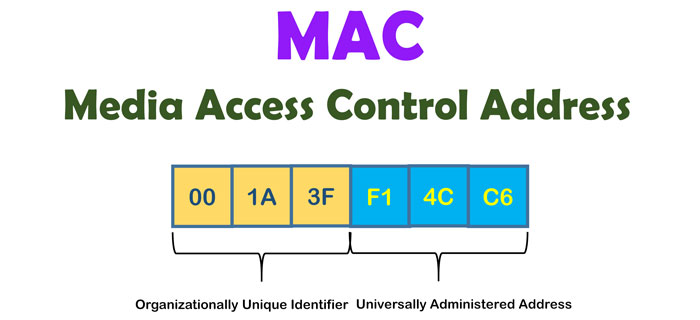
    Media Access Control address diagram showing the OUI and device-specific halves

    Earlier, in Windows 7 and the versions before, this was a tough task. You had to open so many windows and sub-sections to find the MAC address of a device in the list. With Windows 8.1 and 10, however, things have changed a lot. In short, if you want to find the MAC address in Windows 8.1 or Windows 10, it’s one of the easiest tasks ever. In this article, however, we have created a simple guide on how to do that. As it happens, there are two major paths to do this:

    #1 Using the Modern Windows Interface

    As you know, the modern UI is one of the best things about Windows 8.1 and Windows 10 when compared to the previous versions. You can use this User Interface to easily find the MAC address of your device when necessary. You just have to follow the simple steps we have detailed below.

    1. You have to open the Start menu (Start search on Windows 8.1) and search for ‘Network Connection’ in the area.
    2. Now, you will be able to see a bunch of results and you have to choose ‘Network connection settings’ from the options you can see.

    Windows network connection settings

    1. In the upcoming window, you will be able to see the connections available in the device. Now, choose the connection that you want to find the MAC address of and double click on it.
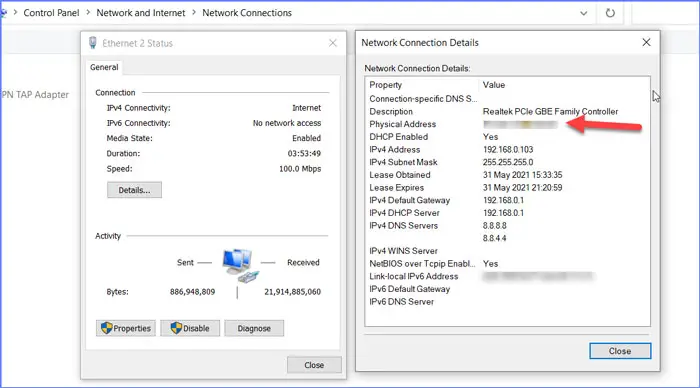
    windows 10 mac address view

    1. Have a look at the Properties section of the network and you will be able to spot the MAC address. Do note that MAC address is dubbed as Physical Address here.

    You can either note down the MAC address or simply copy it to your clipboard for later use. This is the best and easiest method if you don’t want to get into the specifics of networking and stuff.

    #2 Using Command Prompt

    In case you did not know, Command Prompt is one of the most versatile things in Windows OS. You can use the Command Prompt to find the MAC address of available connection adaptors. To do this, you have some easy steps to follow.

    1. You have to open Command Prompt by searching cmd on the Start search.
    2. Once the CMD is open, you have to type the following command and press Enter.
    Ipconfig/all
    1. Now, CMD would be displaying the list of network adaptors in the device.
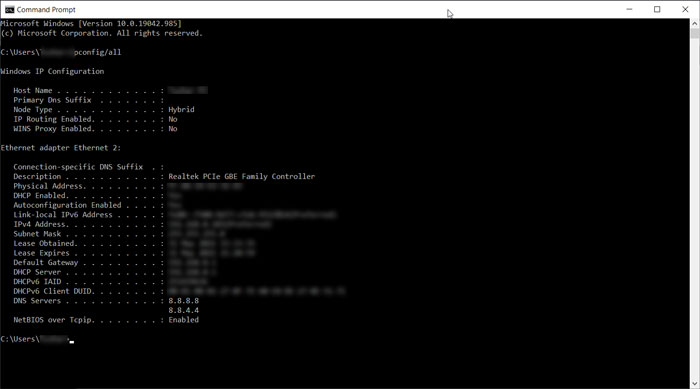
    CMD

    1. Find the network adaptor that you are looking for and the MAC address would be shown right nearby that.
    2. Just note down the address as per your needs.

    This is the best method if you want more details regarding the network connection. However, this may not be as convenient as the first method.

    The Bottom Line

    You can use the abovementioned methods to find the MAC address of a Windows 8.1 or Windows 10 device with ease. While both methods are useful and easy, the first one is the best for convenience. By the way, if you are connected to the Internet, you can go to Connection Properties and find the MAC address from that window as well. As we always say, you can choose the best method as per your needs.

    Share. Facebook Twitter Pinterest LinkedIn Tumblr
    Tushar Thakur
    Tushar Thakur
    • Website
    • Facebook
    • X (Twitter)
    • LinkedIn

    Tushar Thakur founded XtendedView in 2011 while studying Electronics and Instrumentation Engineering in Mumbai, and in 2013 IndiBlogger named it the best blog in its gadgets category. He has spent more than a decade building tech blogs and working on search optimisation and online marketing, and co-founded the agency WebGeeksMedia. He sets XtendedView's editorial direction and writes about Windows customisation, Android tweaks and the gadgets he tests himself.

    Related Posts

    Diagram of a MAC address split into organizationally unique identifier and device parts

    How To Change MAC Address Of Android With or Without Rooting

    July 12, 2025
    Illustration of a white computer mouse with a curved cable

    How to Fix Mouse Lag in Windows 10

    July 12, 2025
    Best SpeedFan Alternatives

    8 Best SpeedFan Alternatives for Computers for Windows and Mac

    September 4, 2024
    Illustration of a laptop with a stopwatch and rising arrow showing improved speed

    How to Make your Existing PC to Run on Windows 10 smoothly

    September 2, 2024
    Smartphone surrounded by colorful app icons

    10 Best Android Apps to Scan Documents from your Mobile (Free and Paid)

    September 1, 2024
    Micro SD card inserted into the Micro SD slot of a card reader

    How to Remove Write Protection From Micro SD Card

    April 15, 2024
    View 2 Comments

    2 Comments

    1. Armando
      Armando on June 2, 2021 12:38 pm

      I am a non-techie and I have no idea what is this. LOL.

      • Tushar Thakur
        Tushar Thakur on June 2, 2021 12:39 pm

        LOL.

    Stay In Touch
    • Facebook
    • Twitter
    • Pinterest
    • LinkedIn
    Real Estate Social Media Statistics Platforms and Leads

    Real Estate Social Media Statistics 2026: Platforms and Leads

    October 16, 2026
    Amazon Echo Vs Google Nest Statistics

    Amazon Echo vs Google Nest Statistics 2026: Key Trends & Surprising Insights

    September 26, 2026
    Youtube Influencer Marketing Statistics

    YouTube Influencer Marketing Statistics 2026: ROI, Trends & Growth

    September 22, 2026
    Adobe Creative Cloud Statistics

    Adobe Creative Cloud Statistics 2026: Key Trends, Growth & Insights

    September 20, 2026
    Recent Posts
    Real Estate Social Media Statistics Platforms and Leads

    Real Estate Social Media Statistics 2026: Platforms and Leads

    October 16, 2026
    Amazon Echo Vs Google Nest Statistics

    Amazon Echo vs Google Nest Statistics 2026: Key Trends & Surprising Insights

    September 26, 2026
    Youtube Influencer Marketing Statistics

    YouTube Influencer Marketing Statistics 2026: ROI, Trends & Growth

    September 22, 2026

    Subscribe to Updates

    Get the latest creative news from FooBar about art, design and business.

    About

    At Xtendedview, we simplify tech and blogging for everyday users. Our goal is to share real, practical tips, while helping you avoid the mistakes we’ve already made. From gadgets to blogging hacks and money-making strategies, every article is written to actually help. Whether you're just starting out or looking to grow, we’re here to support your journey online.

    Facebook X (Twitter) Pinterest LinkedIn
    • All Articles
    • About
    • Our Team
    • Contact us
    • Fact-Check Policy
    • Editorial Policy
    • Statistics Methodology
    © 2011 - 2026 XtendedView. All rights reserved. | Privacy Policy | Terms of Use | Disclaimer | Site Map

    Type above and press Enter to search. Press Esc to cancel.