


Compared to the previous versions of Windows OS that we have seen from Microsoft, Windows 10 is surely the best when it comes to resource management. Due to this factor alone, even low-configuration desktops and laptops can run Windows 10 smoothly. However, this may not be the case if you have a PC with decades-old hardware. We aren’t saying you can’t run Windows 10, though.

It’s just that you may need to take some precautionary steps and follow some extra tips to ensure the best Windows 10 user experience. Here, in this article, we wanted to share some of those steps with you. So, even if you have a PC that Microsoft considers the best to run Windows 10, you can make some tweaks. Of course, you may have to spend a little more, but it’s way more cost-effective than purchasing a new PC.
Step #1 Regular Restarts
If you are someone who keeps your Windows 10 PC running for days, it’s time to rethink that decision. You’d have to develop the habit of restarting your computer once in a while. Restarting a computer is like letting it sleep for a while, and you know how important sleep is in our life. Therefore, by allowing the computer to restart, you can get rid of a variety of temporary files, cache, and junk files. Contrary to popular opinion, clearing these unwanted elements has a crucial impact on how smoothly your PC runs. From now on, select the Shut Down button instead of Sleep.
Step #2 Check for Updates
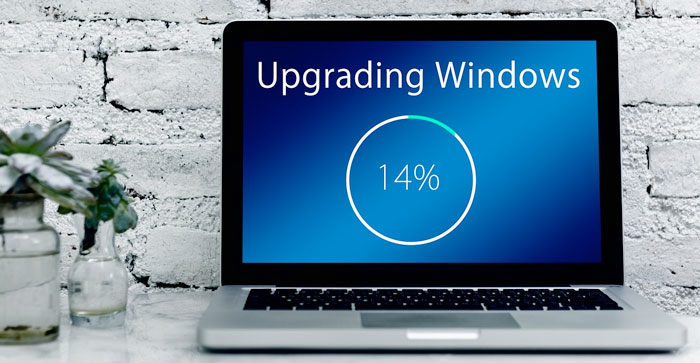
Windows Updates still is a matter of debate from the performance point of view. Here is the thing. Starting with Windows 10, Microsoft has turned these updates into a carrier of bug fixes and brand-new features and core changes. At the same time, the computer gets to have some updates that address a wide variety of performance-related bugs and issues. Unless you bought your existing PC before Facebook became a thing of everyday life, you might choose not to install these updates. Otherwise, to boost the speed, security, and other essential items, you have to install Windows updates so often.
Step #3 Control Features
Did you know that every Windows Update today adds new features to your computer? Given the old nature of the computer, you may not need many of these features. For instance, not many people want to see app-based notifications on the lock screen or elsewhere, right? There are also many features, such as those Windows suggestions that use internet resources in the background. Turning off these features will reduce internet data consumption and allow the PC to use the resources to address the elephant in the room: your tasks that matter.
Step #4 Keep an Eye on Sync
The prime perpetrator among apps that consume a considerable amount of resources is the set of applications that synchronize information between your computer and a web-based service. OneDrive, the Microsoft service, has some integration level with Windows 10, but there may be more. You should make an effort to point out these applications and remove them if possible. Even if you think the app is necessary, you can keep the syncing process to a minimum. For instance, you can set up the app to sync once a week only. This would keep your system hardware from handling overburdened activities.
Step #5 Get an SSD for your PC
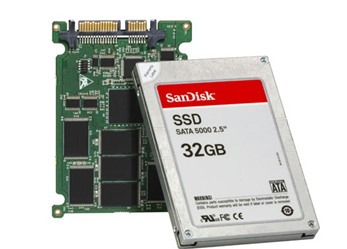
If you did buy your computer 10 years before, you might not have had the privilege of having one Solid State Drive inside. Compared to the traditional HDDs, SSDs have improved transfer speed, and they help so much in enhancing the booting time of your Windows 10 PC. So, given that you have a reasonably upgradeable PC, you should spend a bit and get an SSD for the computer. You may have to pay a couple of hundred bucks for the device, but it’s a worthy investment on any day. Even if you have an old PC, you can find adaptors that help you install the SSDs inside.
Step #6 Upgrade RAM
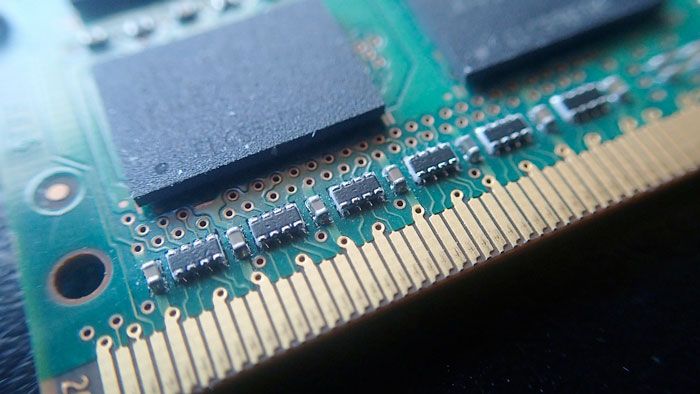
Since everyone cannot think about upgrading the processor, the next best option would be upgrading RAM on the system. If you have a computer that is running 2GB or 4GB, you should think about upgrading for an uninterrupted Windows 10 experience. As of now, 8GB of RAM is considered the gold standard from a speed point of view. With that much RAM, you can handle multiple Chrome tabs and heavy tasks like Photoshop instantly. Once again, you should consider what you are expecting from the computer. For instance, if you’re someone who uses the PC for casual browsing and reading PDFs, 4GB is still enough for you.
Step #7 Disable Startup Apps
Startup apps are applications that have been allowed to run when you start your computer. So, it does not matter whether you quit the app before shutting down the computer; these apps would be active when you restart. Disabling these startup applications will help you reduce startup time and increase your computer’s overall speed. Here is the problem. Most people don’t know these apps are running, and they keep using CPU and network resources until a detrimental point. You can either use the built-in options in Windows 10 or get third-party maintenance tools to recognize and disable these apps.
Step #8 Run System Maintenance
Following up on the last point from the previous step, we have to talk about system maintenance software. Just like every other machine, your Windows 10 PC also needs timely maintenance to work correctly. This is where system maintenance tools come in. These are well-designed tools that can diagnose and fix a variety of issues on your computer. For instance, it can find junk files and superfluous language files and free up a lot of space. All these tasks, regardless of how tiny they look and feel, will impact the total speedand performance of your system, especially when running an OS like Windows 10.
The Bottom Line
We hope these steps help you get a faster, improved, and more secure Windows 10 experience from your existing PC. Considering the excellent job Microsoft has done in building the code for this version, you are likely to see a better jump in smoothness than a system running Windows 8 or 8.1. To give you the basic idea here, a simple upgradation of SSD and RAM can make noticeable changes even if you have an Intel Core processor that is generations behind.




6 Comments
Don’t you think Updating the Windows usually Reduces the overall performance? That’s the case with most of the recent Windows 10 Updates.
No Patrick it won’t. Sometimes it increase the performance.
Purchased the Samsung EVO SSD for my laptop. Heard a lot from my friends about SSD performance. Thanks for helping me to confirm my decision of buying the SSD. Let’s see how much performance I can get.
Thanks again.
Yup SSD really makes a difference.
Just Realized I haven’t restarted my computer for 13 Days. Just got the information from Task Manager. Rebooted the System and it’s working just fine. Enjoying the slight performance boost.
Glad it helped you Linda.