
Close Menu
    Facebook X (Twitter) Instagram
    Facebook X (Twitter) Pinterest LinkedIn
    XtendedViewXtendedView
    • Home
    • Technology
      • Computer
      • Artificial Intelligence
    • Internet
      • Cybersecurity
    • Gadgets
      • Gaming
    • About
      • Our Team
    • Contact us
    XtendedViewXtendedView
    Home»Internet»Reverse Video Search: How to Search on Google Using Image or Video File

    Reverse Video Search: How to Search on Google Using Image or Video File

    Tushar ThakurBy Tushar ThakurMarch 29, 2024 Internet
    Facebook Twitter Pinterest LinkedIn Telegram Tumblr
    Boy at a desk typing on a lit keyboard with a video call open on the monitor
    Share
    Facebook Twitter LinkedIn Pinterest

    You see a small clip and you like it so much that you want to see the entire video. Sounds familiar? In the world of 30-second statuses and 1-minute YouTube Shorts, how can we not go through such a situation? Well, Reverse Video Search is what you want here.

    Boy at a desk typing on a lit keyboard with a video call open on the monitor

    You will learn how to pull out the original video from whatever you have. Don’t worry, it’s not rocket science. Anyone who knows how to use a computer or a mobile can get the job done.

    Reverse Video Search; How can You do that?

    Let us ask you one thing. Do you know how to go on Google and reverse-search an image? That’s the Swiss Army Knife you should grab first.

    How to Reverse Search on Google with an Image on Mobile?

    Google hasn’t given this option on their mobile app. That means, we need to use a third-party application.

    Note:- Don’t forget to get your source image ready.

    Step 1: First, as you read above, you need an app. You don’t want to wander around on the Play Store, do you? So, just get this one.

    Step 2: Given that you have installed the app, open it up and click Add Image.
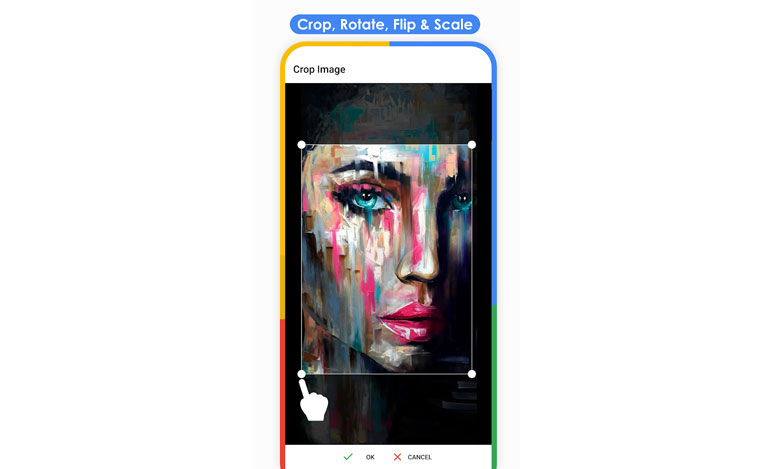
    Reverse Image Search

    Step 3: Now, select the image you want to go on with the reverse search. And, hit Search. There you go!
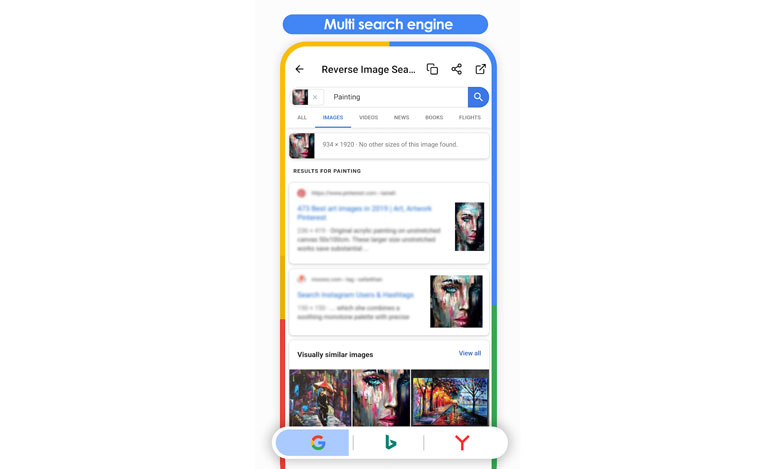
    Reverse Image Search Page result

    You can see many images similar to the one that you just put in. In case Google doesn’t give satisfying results, you can switch over to another search engine from the app settings.

    What if you want to search on a PC, not on a mobile device?

    1) Go to https://images.google.com.

    Google image search

    2) Right next to the text field, you will get a camera button. Click on it.

    3) It will give you two options; Paste Image URL and Upload an Image. For the first one, you need to have the URL to an image available on the web. If you have the image file with you, go on with the second choice.
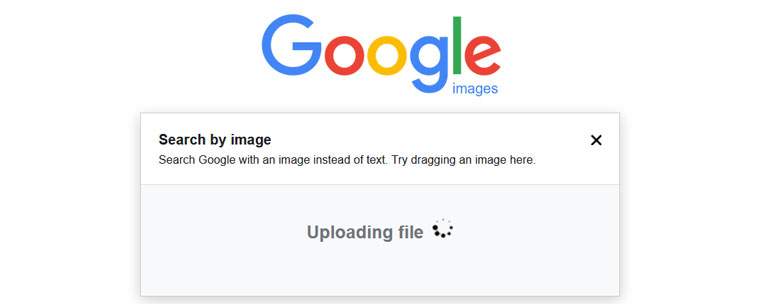
    Google image search Upload Image

    4) Hit Choose File, browse to the image and boom! You will see images alike in a fraction of a second.
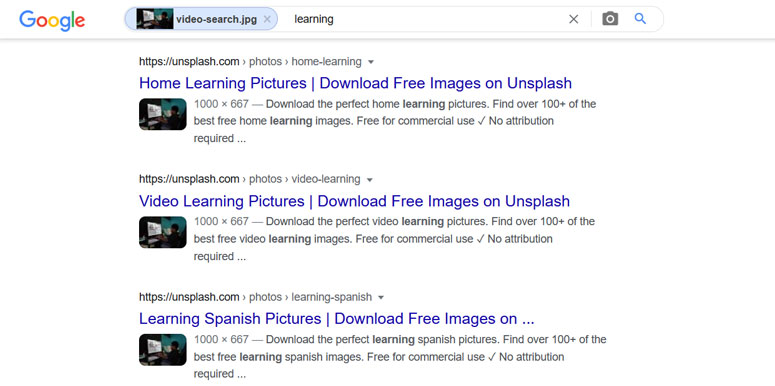
    Google image search Result page

    You may be thinking. “I know reverse image search. I came here for the damned reverse video search and these guys are bluffing”. No, we are not. See the next part.

    Also Read: How to Play YouTube Videos in the Background on Android and iPhone

    Reverse Video Search; How to Use Google to Find the Original Clip?

    Before landing here, you might have tried opening Google on your computer or mobile phone. How did it go? Have you found an option to upload a video so that you can trace it back to the original clip?

    We know you haven’t. They don’t offer such a feature. So, how do you do that? Lend us your ears. We will bring you through a series of steps to use Google as a reverse video search engine.

    Step 1: Play the video you have and switch over to full-screen mode (we recommend doing this on the computer, but you can try it on mobile as well).

    For example, I am using this video from Pexels. (It is a copyright-free video and many websites uploaded it)
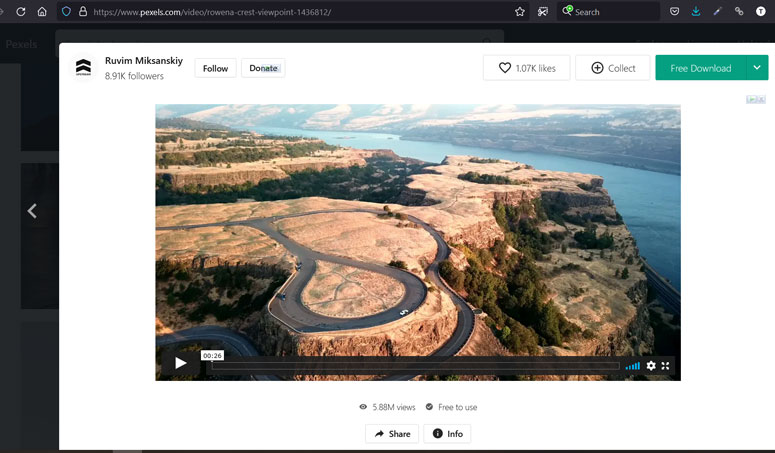
    Pexels video page showing an aerial clip of a winding road above a river with the Free Download button

    Step 2: Take screenshots of different scenes from the clip. You can use any programs (for example, Snipping tool for Windows) or even use shortcuts (Command+ Shift+ 4 on macOS and three-finger swipe down or power button+ volume down on Android).

    Frame from the aerial video showing a looped road on a cliff above a wide river
    Screenshot of the video used for search

    Step 3: You might have figured out where we are going with it. Yeah, now we will use Google Images. Either use the reverse search app or open up the website depending on the device you are using.

    Step 4: Upload the screenshot. Most of the time, you will see links to the corresponding YouTube videos on the next screen.
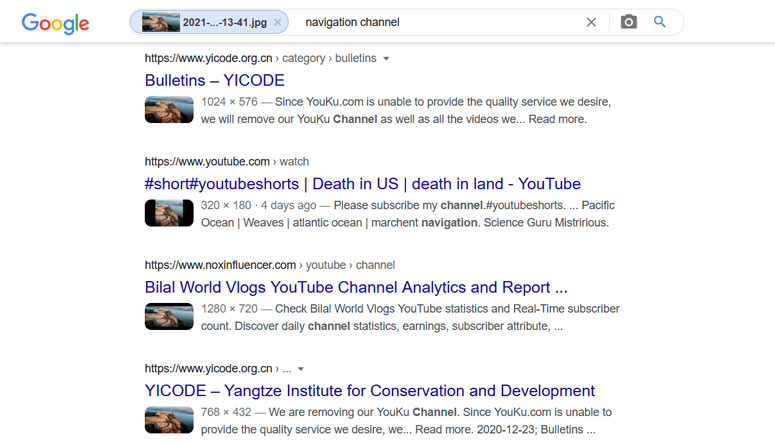
    Google reverse image search results for navigation channel with a video frame as the search image

    What if you won’t? There’s a small workaround!

    Step 5: Provided you couldn’t stumble upon the original video clip, click on More below the search box.
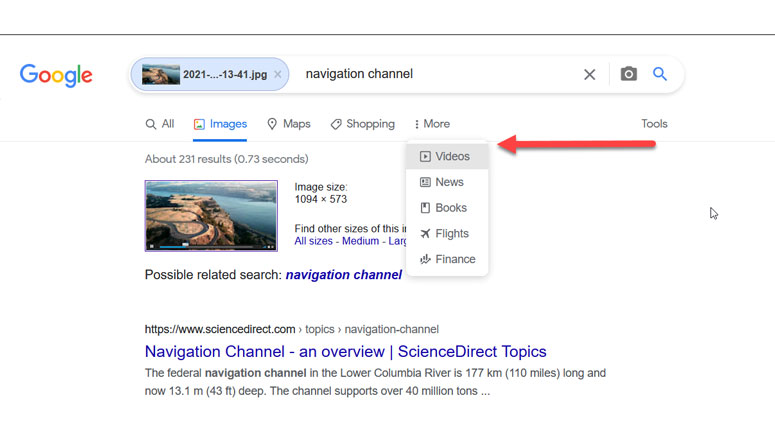
    Google image search results with the More menu open and an arrow pointing to Videos

    Step 6: You will now have a few more options. Voila, did you see it? There’s a Video option.

    Clicking the same will get you almost all the similar videos related to the screenshot you just uploaded, not just from YouTube but from all over the web. The only step left for you to do is cherry-picking them.

    Tip:- You should repeat the same process with different screenshots. The results may vary from image to image

    Some people don’t like to use Google. They have their reasons. In case you are the same, we have got some alternatives. Keep in mind that the first two steps apply here as well and for the third step, instead of Google Images, you can use these services.

    Google Reverse Video Search Alternatives

    ●  Berify

    berify video search

    When you decide to not use Google for reverse search, throw away your confusion and pick this one right here. The chances of finding the original video are a bit low because they have no option to choose videos (remember the workaround we talked about above?).

    ●  TinEye

    tineye video search

    TinEye is a cutting-edge tool tailored to serve your purpose. They flaunt to have pattern recognition, computer vision, machine learning, and neural networks under the hood.

    Note:- Of course, there are more. We didn’t include more than two because the many of you prefer Google itself. Gave away these two for the remaining small percent.

    Parting Words

    So yeah, right from the basics to the tricky workaround, you have got them all. What do you think? How did your reverse video searching go? Don’t forget to share your experience with us in the comment section below.


    Share. Facebook Twitter Pinterest LinkedIn Tumblr
    Tushar Thakur
    Tushar Thakur
    • Website
    • Facebook
    • X (Twitter)
    • LinkedIn

    Tushar Thakur founded XtendedView in 2011 while studying Electronics and Instrumentation Engineering in Mumbai, and in 2013 IndiBlogger named it the best blog in its gadgets category. He has spent more than a decade building tech blogs and working on search optimisation and online marketing, and co-founded the agency WebGeeksMedia. He sets XtendedView's editorial direction and writes about Windows customisation, Android tweaks and the gadgets he tests himself.

    Related Posts

    Real Estate Social Media Statistics Platforms and Leads

    Real Estate Social Media Statistics 2026: Platforms and Leads

    October 16, 2026
    Amazon Echo Vs Google Nest Statistics

    Amazon Echo vs Google Nest Statistics 2026: Key Trends & Surprising Insights

    September 26, 2026
    Youtube Influencer Marketing Statistics

    YouTube Influencer Marketing Statistics 2026: ROI, Trends & Growth

    September 22, 2026
    Adobe Creative Cloud Statistics

    Adobe Creative Cloud Statistics 2026: Key Trends, Growth & Insights

    September 20, 2026
    Microsoft Onenote Statistics

    Microsoft OneNote Statistics 2026: Powerful Trends

    September 18, 2026
    Substack Windows Guide

    Substack on Windows: Reading, Listening, and Following Independent Writers

    September 16, 2026
    Add A Comment

    Comments are closed.

    Stay In Touch
    • Facebook
    • Twitter
    • Pinterest
    • LinkedIn
    Mobile Accessories Statistics 2026: Earbuds, Chargers and USB-C Data

    Mobile Accessories Statistics 2026: Earbuds, Chargers and USB-C Data

    October 22, 2026
    AI in HR and Recruiting Statistics 2026: Use, Trust and Rules

    AI in HR and Recruiting Statistics 2026: Use, Trust and Rules

    October 20, 2026
    Real Estate Social Media Statistics Platforms and Leads

    Real Estate Social Media Statistics 2026: Platforms and Leads

    October 16, 2026
    Amazon Echo Vs Google Nest Statistics

    Amazon Echo vs Google Nest Statistics 2026: Key Trends & Surprising Insights

    September 26, 2026
    Recent Posts
    Mobile Accessories Statistics 2026: Earbuds, Chargers and USB-C Data

    Mobile Accessories Statistics 2026: Earbuds, Chargers and USB-C Data

    October 22, 2026
    AI in HR and Recruiting Statistics 2026: Use, Trust and Rules

    AI in HR and Recruiting Statistics 2026: Use, Trust and Rules

    October 20, 2026
    Real Estate Social Media Statistics Platforms and Leads

    Real Estate Social Media Statistics 2026: Platforms and Leads

    October 16, 2026

    Subscribe to Updates

    Get the latest creative news from FooBar about art, design and business.

    About

    At Xtendedview, we simplify tech and blogging for everyday users. Our goal is to share real, practical tips, while helping you avoid the mistakes we’ve already made. From gadgets to blogging hacks and money-making strategies, every article is written to actually help. Whether you're just starting out or looking to grow, we’re here to support your journey online.

    Facebook X (Twitter) Pinterest LinkedIn
    • All Articles
    • About
    • Our Team
    • Contact us
    • Fact-Check Policy
    • Editorial Policy
    • Statistics Methodology
    © 2011 - 2026 XtendedView. All rights reserved. | Privacy Policy | Terms of Use | Disclaimer | Site Map

    Type above and press Enter to search. Press Esc to cancel.