

Accidentally deleting files from SD cards or formatting the entire card is something almost all of us would do and I’m no exception. To be frank, people have been doing it for years too. However, when we compare the old days with todays, there is a striking difference – whether you can get those files back. As it happens, it is now possible to recover files from formatted SD card with ease.
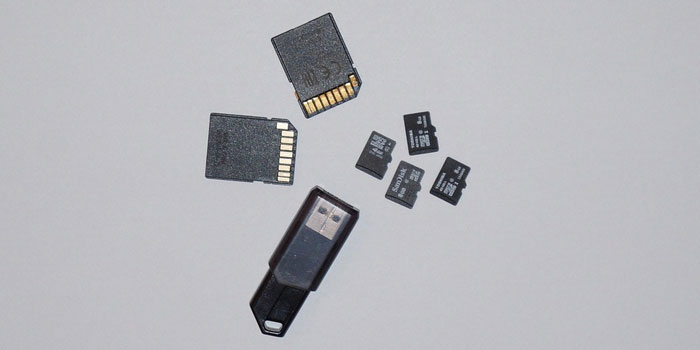
This is not to say that you couldn’t recover files before. Even before decades, file recovery was possible but that was a geek-only thing. You needed to know top-notch command-line prompts and other data to simply try out data recovery. Now, however, things have changed, and you have easy-to-use tools for recovering all types of data you lost from an SD card.
In this article, we will give you a step-by-step tutorial on how you can recover files from an SD card that you just formatted. Before that, we should introduce the tool we are going to choose.
EaseUS Data Recovery – Tool to Recover Data from SD Cards and More
So, EaseUS Data Recovery is a free tool that allows you to recover data that you’ve lost while formatting an SD card. In fact, it will help you recover data from a wide variety of devices, but today, we are using it for SD cards only. Despite being a free tool, there are a few features worth noting in EaseUS Data Recovery.
First of all, EaseUS Data Recovery is incredibly easy to use. Even if you have zero experience in dealing with formatted SD cards or data recovery, EaseUS Data Recovery will still be usable. In addition to this, there is a Deep Scan feature that analyzes the drive for long-lost files. So, this tool may find files that you had deleted a long while back. That is definitely an advantage if you ask us.
In short, EaseUS Data Recovery is your best shot at recovery deleted files from a formatted SD card. As we’d said, however, it’s a free tool and you can have advanced features if you’re ready to pay.
Data Recovery Process – Things to Know
There are a few things you should know about data recovery.
- No data recovery software can offer you 100% recoverability rates. It means there is always a simple possibility that you may get your data back. However, there are some conditions upon which these things work.
- For instance, data recovery would work smoothly if you had just formatted the SD card. This means the drive still contains metadata for reconstructing the files. However, if you had copied some other files to the drive, recovery may not be that flawless.
- The results also depend on the type of formatting you have done. For instance, Quick Format is cool, and you will be able to recover data. However, if you had done Deep Formatting, the metadata may have got deleted, and recovery process will be tougher.
- Last but not least, always go for Deep Scan if you are looking for better results.
With these things in mind, we can proceed.
How To Recover Files from Formatted SD Card?
Let’s get to the steps quickly.
Step #1
You have to download EaseUS Data Recovery from the official website and install it on your computer.
If you are downloading the free version, there are some limitations to note. For instance, you cannot recover files that are larger than 2GB. If you want to recover bigger files, you may want to use the paid version.
Once you are clear with this, install EaseUS Data Recovery and proceed.
Step #2
Post the installation, you can open EaseUS Data Recovery and proceed with the Scan option.
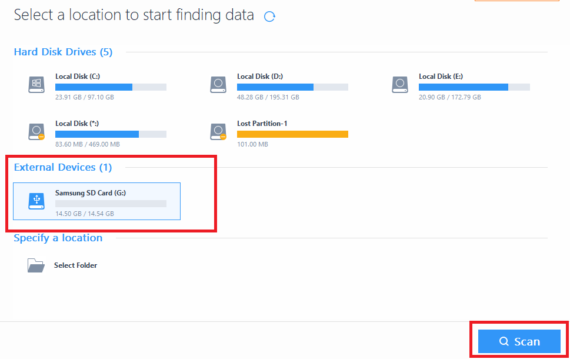
Now, you will be able to see a list of devices connected to your computer. You have to choose the formatted SD card from the list.
Hit the Scan button to proceed with normal scanning of the SD card.
Step #3
In this step, EaseUS Data Recovery will show you the list of files that can be recovered. As we said earlier, it depends on a number of factors.
If you cannot find the files you’re looking for, you may have to run Deep Scan, which will take more time but it incredibly effective.
In any case, you would have the list of recoverable files at the end.
Step #4
In this step, you have to select the files you want to recover and hit the Recover button.
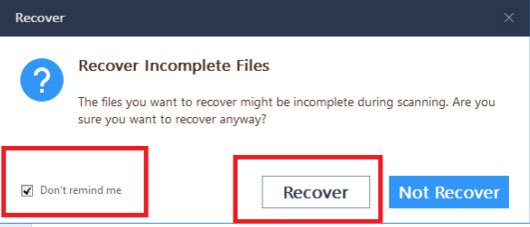
That’s right: EaseUS Data Recovery allows you to selectively recover content. This is a great way to ensure that you’re getting what you want.
You may see a prompt asking you whether you want to recover Incomplete files. Say yes and proceed.
Step #5
Here, you have to select the Destination folder where the recovered files would be stored.
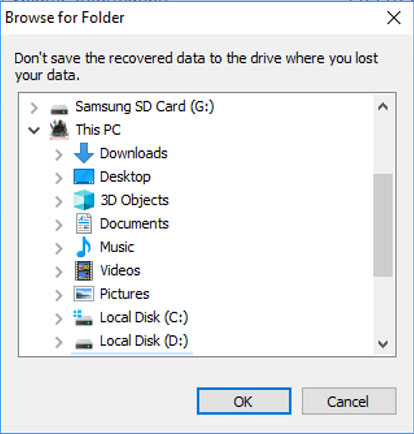
In a few seconds or minutes, EaseUS Data Recovery would finalize the recovery process and save the files to the drive.
Awesome, huh?
The Bottom Line
As things turn out, recovering data from a formatted SD card is a matter of easiness. You don’t have to be the techiest person in the room to make this possible. Instead, you just need an easy-to-use data recovery tool like EaseUS Data Recovery. As we’ve mentioned earlier, this process does not ensure you results on any case.
For instance, whether you can recover files from an SD card depends on when you formatted it. Perhaps, in more importance, it matters whether you have copied some other files to the SD card. In that worst case, a space in the SD would be overwritten, which is not really great for data recovery. However, the maximum you can do is hope for the best and proceed.
Good luck with recovery, folks.
Cite this page
Thakur, T. (2019, June 28). How to Recover Files from Formatted SD Card (Memory Card). XtendedView. https://xtendedview.com/recover-files-from-formatted-sd-card/
Thakur, Tushar. “How to Recover Files from Formatted SD Card (Memory Card).” XtendedView, 28 Jun. 2019, https://xtendedview.com/recover-files-from-formatted-sd-card/.
Thakur, Tushar. “How to Recover Files from Formatted SD Card (Memory Card).” XtendedView, June 28, 2019. https://xtendedview.com/recover-files-from-formatted-sd-card/.
Source: <a href="https://xtendedview.com/recover-files-from-formatted-sd-card/">How to Recover Files from Formatted SD Card (Memory Card)</a>, XtendedView