

You were an avid user of HyperTerminal on Windows XP and you can’t resist missing its features after updating the operating system. Is that the case? It’s true that Microsoft has discontinued the tool once and for all. Still, is there a way to get HyperTerminal for Windows 10? Let’s see.

In this article, not only you are going to get HyperTerminal, but a few alternatives also. So, you will not be going to feel left out in the new OS ecosystem.
How to Get HyperTerminal for Windows 10?
Before we jump straight into the meat of this post, we think it’s better to explain a bit about what this piece of software is. If you think you don’t want that, you are free to skip to the next section.
What Exactly is HyperTerminal?
Gone are the days when there was no graphical user interface. Hence, users had to type in long commands to get things done on the computer. HyperTerminal is such a terminal emulation software. You can communicate with other computers in the form of text. It is used to help people to connect with remote computers, COM ports, BBS chat systems, and Telnet websites.
Why was HyperTerminal Discontinued?
Was that a mistake? Actually, no! Microsoft had some solid reasons to remove HyperTerminal from their post- Windows XP versions, the first one being the conversion of shell access. Microsoft brought them into Windows Remote Shell command and Windows PowerShell.
One of the main uses of HyperTerminal was modem troubleshooting. From Windows 7 onwards, anyone can do the same from the Phone and Modem option in the Control Panel.
When it comes to Telnet, you can enable the same from the Turn Windows features on or off option on the control panel. So yeah, almost all the features of HyperTerminal have alternatives. So, Microsoft thought it could be better to bid adieu.
Is it Possible to Install HyperTerminal on Windows 10?
If you are looking for the same old program on Windows XP, you won’t have to install anything. Provided you have access to a computer with XP installed or a Windows XP disc, you can get the exact version here. If you don’t have either of them, you will have to quench your thirst with one of the alternatives given in the next section.
How do you get HyperTerminal for Windows 10? Well, follow the steps given below.
- Open File Explorer and go to C:\Program Files\Windows NT\ (on Windows XP).
- Copy hypertrm.exe into a flash drive or any other media.
- Now, go to C:\WINDOWS\system32\ and copy the dynamic link library file, hypertrm.dll.

- You have to get back to the computer on which you want HyperTerminal and create a new folder.
- Paste both the files into the same folder you just created.
- When you want to open HyperTerminal, double click on the hypertrm.exe.
Note:- What if you don’t have access to a Windows XP computer, but a disc. Well, go to the i386 directory and you will find both the files there. In case you don’t have that too, the only option available right now is to look on the web. Be aware of the risks when you download from the internet. Only go for authentic websites.
HyperTerminal Alternatives for Windows 10, 11, 8, 8.1, and 7
We hope you got an idea about getting the same old HyperTerminal on Windows 7 and later. Here we are going to have a look at the alternatives. You can use any of the given tools to connect your computer to any remote system (the main purpose of HyperTerminal.
1. PuTTY
Developed by Simon Tatham, PuTTY is an open-source platform, developers use to manage their servers. You can use this for doing the same thing HyperTerminal does. You get both Telnet capabilities and SSH abilities.

In order to reap the benefit of this software, your computer needs a COM port. The developer has put enough care into designing a user-friendly interface. Moreover, you don’t need to be a geek to get the most out of PuTTY.
2. HyperTerminal Private Edition
Are you ready to spend $64.99? If you are, you can get the software optimised for Windows 7 and later from the original developers. Oops, we forgot to tell you that Microsoft didn’t develop HyperTerminal even though they used the tool in their operating systems.

You can use the link given above to purchase the tool. They also have an advanced version named HyperAccess. If you want a HyperTerminal with advanced features, this should be the one you must go for.
3. Tera Term
You might have skipped the previous offering simply because it’s paid. Here we present another free and open-source application. Tera Term packs in all the features you need. Apart from the basic functionalities, it has plugin support as well.
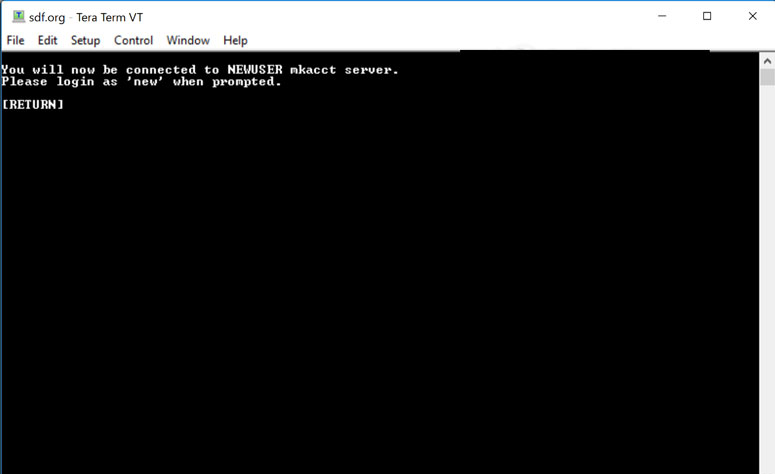
You can configure Tera Term for the installation of CygTerm, TTSSH, TTLEdit, TTProxy, LogMeTT, etc. When you configure something, the setup can be saved as a .ini file for future use. Irrespective of the OS architecture (32 or 64-bit), you can use this piece of software.
Caution:- The support isn’t available most of the time. So, you might want to look for a paid solution if you want the tool for business.
4. SmarTTY
Do you think Windows 10’s native SSH option isn’t powerful enough? What about another user-friendly tool for your heavy SSH uses. Introducing SmarTTY, which is free to use, but isn’t open-source.

Though we don’t know what’s inside the source code, it’s an awesome graphical, multi-tab SSH tool you can use for Telnet and serial port functions.
5. KiTTY
Many people think PuTTY is the best for SSH usage. However, there are some people who don’t like it. A group of them forayed into developing KiTTY. Most of the source code is the same.

However, the developers’ attention is more around KiTTY than around PuTTY. So, the advanced features will come quite often on the former than on the latter. The best thing about KiTTY is the availability of a portable version. Meaning, you can always carry the software around in a flash drive. Moreover, it does support transparent windows and background images.
Caution:- Don’t think KiTTY to be as light as PuTTY.
Final Verdict
What do you think? We have given you five HyperTerminal Alternatives for Windows 10. And, you now know a simple method to get the same software as well. Now, it’s your turn to decide what you want. All the options we have described have their own merits and some have minor flaws too. Don’t forget to mention your choice and the reason why you went for it in the comment section down below.
Cite this page
Thakur, T. (2024, March 19). HyperTerminal Alternatives for Windows 10/11: Install Just like Windows XP. XtendedView. https://xtendedview.com/hyperterminal-alternatives/
Thakur, Tushar. “HyperTerminal Alternatives for Windows 10/11: Install Just like Windows XP.” XtendedView, 19 Mar. 2024, https://xtendedview.com/hyperterminal-alternatives/.
Thakur, Tushar. “HyperTerminal Alternatives for Windows 10/11: Install Just like Windows XP.” XtendedView, March 19, 2024. https://xtendedview.com/hyperterminal-alternatives/.
Source: <a href="https://xtendedview.com/hyperterminal-alternatives/">HyperTerminal Alternatives for Windows 10/11: Install Just like Windows XP</a>, XtendedView