

You know Discord is a social platform specially designed for gamers. You can automate different tasks by simply adding bots to your server. So, how do you add or remove bots to Discord server?
That’s what we are going to deal with in this article. Discord alone has so many features. By incorporating bots, you will enhance the specs. Without further ado, let’s get into the business.
How to Add or Remove Bots to Discord Server?
Adding a bot to your Discord server includes several steps like selecting the bot, logging into your account, and adding permissions. However, removing doesn’t involves these many processes.
Also Read:-
- How to Stream Netflix on Discord With No Black Screen?
- Rabbit Alternatives: 25 Sites Like Rabb.it to Watch Videos with Friends
- Can you Connect Airpods to Nintendo Switch – Here is How
- 4 Ways: How to Run Android Apps and Games in Windows 10 | 8
How to Add Bots to Discord Server?
You can just follow the steps given below. Do not add a bot that always spams the server and makes your community members leave.
- First, you have to visit bots.discord.pw. You will see many free bots there. Choose one.
- Once you decide on a bot and click on it, you get three options, out of which the second one should be our pick (Invite).

- The following web page will ask you to enter your Discord credentials. Just do that.
- At this step, you have to authorize the bot to enter your server. You will see the name of your server there. In case you have more than one, choose the one from the dropdown menu.
- Here, you have to be careful. You are going to choose the permissions for the bot. Based on the nature of working, you can do that. Then, click on the Authorize button.
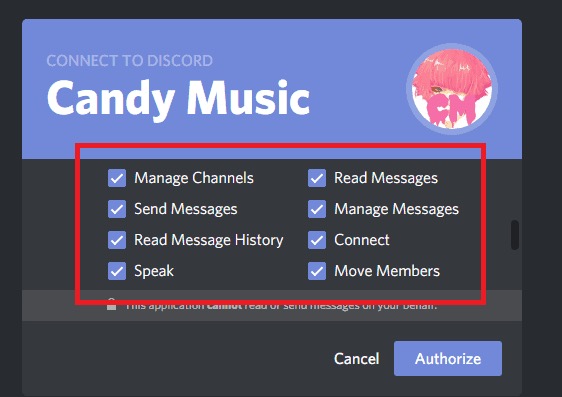
Have you done everything right? If so, you will see a tickmark. Close the tab and log into Discord. When you open the server, you will see a notification on the bottom about the addition of a new bot.
Caution:- Without managerial permissions, you can’t add a bot to a server. So, ask the owner of the server to give you Manage Server privilege.
How to Get Rid of Discord Bots?
Now that you know how to get bots to a Discord server, it’s significant to know the removal process as well.
- Log into Discord and select the server, from where you want to remove a bot.
- From the text or voice section, right-click on the bot name.
- You will see two red options. The first one is Kick. That’s it. Clicking on that will eliminate the specific bot from your server.
There’s another way for removing a bot.
- Open the server after logging into your Discord account.
- Get the list of all the members by clicking on Show Member List option.
- You will see all the bots present on that particular server there. Choose the one you want to remove.
- Click on the bot to get a new menu. Select the Kick option for removal.
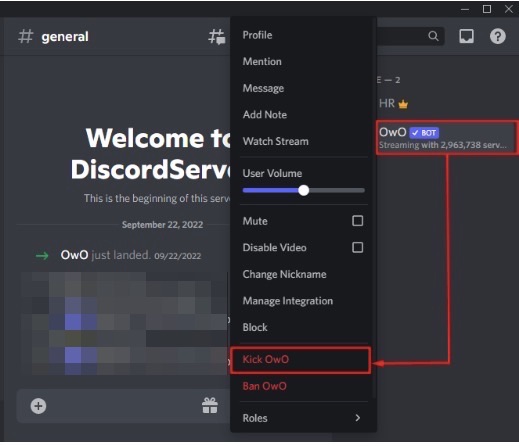
Caution:- If you have privileges lower than the bot, you can’t kick the bot out of the server.
How to Know the Commands of a New Bot?
When you add a new bot, you may not be able to know the functioning commands. Hence, we are going to help you get those so that you can master working with that specific bot.
- Open Discord and go to the server where you have added the bot.
- Type @BotName. Replace BotName with the name of the bot you just added.
- You will get a help command. Note the same and enter that in the chat field.
- Once you do that, you can see a long list of all commands and probably a guide on how to use the bot.
There you go! Now, it’s a matter of entering those commands and finding out what they yield.
Best Discord Bots to Try
Are you confused? Don’t you know which bots to try first? Let’s give you a list.
Anthbot
Anthbot commands help you increase user interactions on your server. And, it entertains the members. Plus, you will see notifications about the joining and leaving of people.
Candy Music
Add this bot to your Discord server and it can play YouTube videos in MP3 format. After adding, you need to select a song. It’s as simple as that.
Nightbot
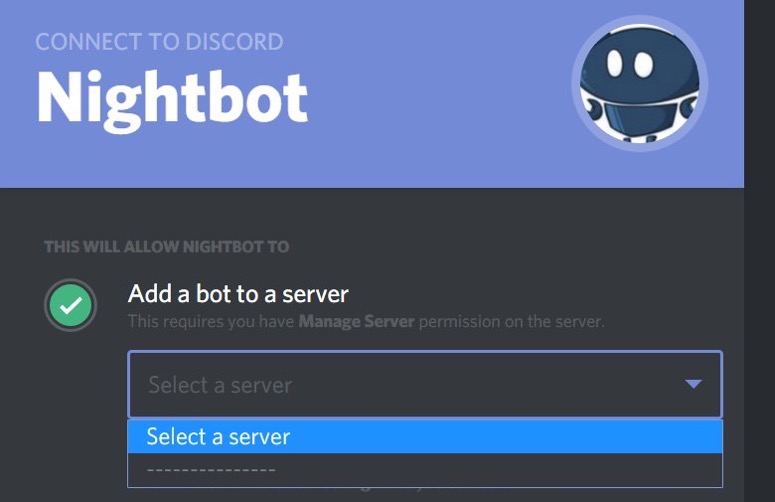
Are you running a server with so many unknown members? Do you think the discussion goes overboard sometimes? Nightbot is what you need. It has useful auto-moderation features like filtering words, suppressing spam, etc.
GameStats
The name says it all. Discord is a gamer-centric social media messaging platform. GameStats enhances the functionality by giving you a chance to boast about your scores from major games like PUBG, World of Worships, etc.
FreeStuff
You know the premium games, for a short time, come available for free. The worst thing about these deals is you may miss them. FreeStuff helps you get updates about such hot deals.
Sesh
Do you want to manage your work calendar on Discord? Well, Sesh helps you do that. Without having to go through a learning curve, you can create and manage all your events or tasks within Sesh. It is possible to integrate your Google Calendar into this bot.
EPIC RPG
You can play games directly on Discord! Yeah, you read it right. With the help of EPIC RPG bot, playing text-based RPG games is possible. Do not expect high-definition graphics, though.
Frequently Asked Questions
Adding bots to a Discord server is not a brain-racking task. You need to select a bot, press the invite button (or a corresponding button), log into Discord, select the permissions, and finally press the Authorize button.
For that, open Discord and go to User Settings>> Authorized Apps. Can you see an unfamiliar bot there? Move the cursor over that. Choose Deauthorize. That’s it.
Discord bots are least likely to be a virus. However, some bots can spread malware by sharing malicious links. So, do not trust every bot you see out there.
Yes and no. Add only those bots you trust. With a Google search, you can get a list of popular Discord bots. Do not jump into adding those with a comparatively low number of users.
There is no command to add or remove bots to Discord server. On the other hand, you have to visit a website that offers bots and then add your favourite ones from there.
Also Read:-
- 5 Online Games are Easy to Teach to Anyone
- 5 Best Offline Solitaire Games
- Best Casino Games to Play on PC
Conclusion
So, we hope you know how to add or remove bots to Discord server now. And, you have got a few bots to start with. They will increase the functionalities of your server. Happen to know an awesome bot that’s not present here? Share it with us in the comment section down below.