

Forgetting your PIN, pattern or password is one of the most frustrating things that can happen with an Android phone. Too many wrong attempts lock you out, and there is no simple “forgot pattern” button on current versions of Android. If you cannot remember the code, the way back in is a factory reset: it erases the phone and returns it to the state it was in when it left the store.
This guide covers the two ways to reset a locked Android phone, what the reset erases, and what you need to set the phone up again afterward.
Before You Reset: What You Will Lose and What You Need
- A factory reset erases everything stored on the phone: apps, photos, messages and settings. Anything backed up to your Google Account (or your phone maker’s cloud) can be restored after the reset. Anything not backed up is gone.
- You will need the Google Account email and password that was on the phone. After a reset, Android’s Factory Reset Protection asks for that account before the phone can be used again. This stops a thief from simply resetting a stolen phone, so make sure you know the account details first.
- Charge the phone to at least half, so it does not switch off during the reset.
Method 1: Erase the Phone Remotely With Find Hub
If the locked phone is signed in to a Google Account, connected to Wi-Fi or mobile data, and has Find Hub (formerly Find My Device) turned on, you can erase it from another phone or a computer:
- Go to google.com/android/find and sign in with the Google Account on the locked phone.
- Select the locked phone from the list, then select Settings.
- Select Factory reset, confirm, and sign in again if asked.
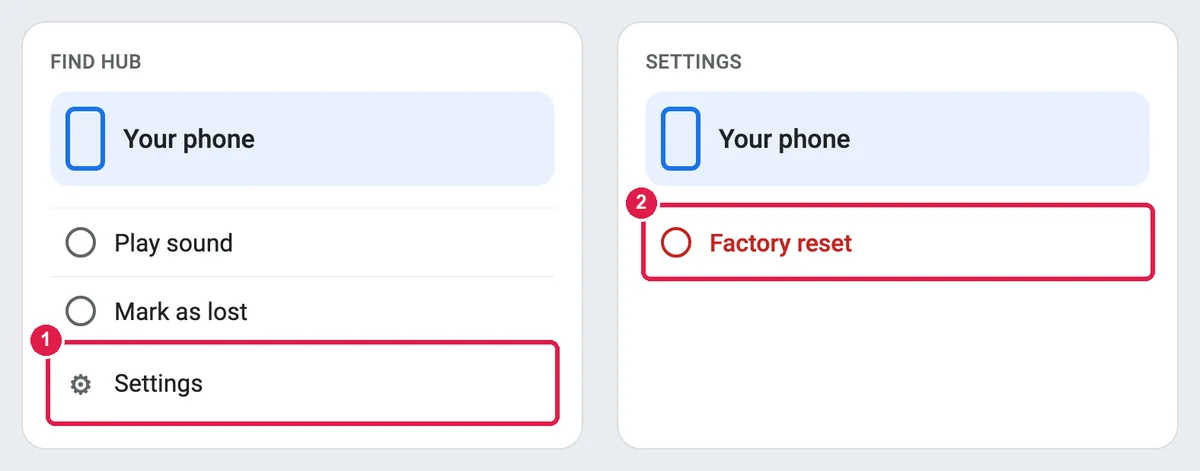
The phone is erased the next time it is online. Samsung phones also offer a remote reset through Samsung’s own Find My Mobile service if you signed in with a Samsung account.
Method 2: Factory Reset From Recovery Mode
When the phone is offline or Find Hub was never turned on, use the phone’s built-in recovery mode. The touchscreen does not work there: you move with the volume buttons and select with the power (side) button.
Google Pixel
- Turn the phone off. If it does not respond, hold the power button for about 30 seconds.
- Hold Power and Volume Down together until the bootloader (Fastboot Mode) screen appears.
- Press Volume Down until Recovery mode is shown, then press Power to select it.
- When you see “No command”, hold Power and press Volume Up once, then release both.
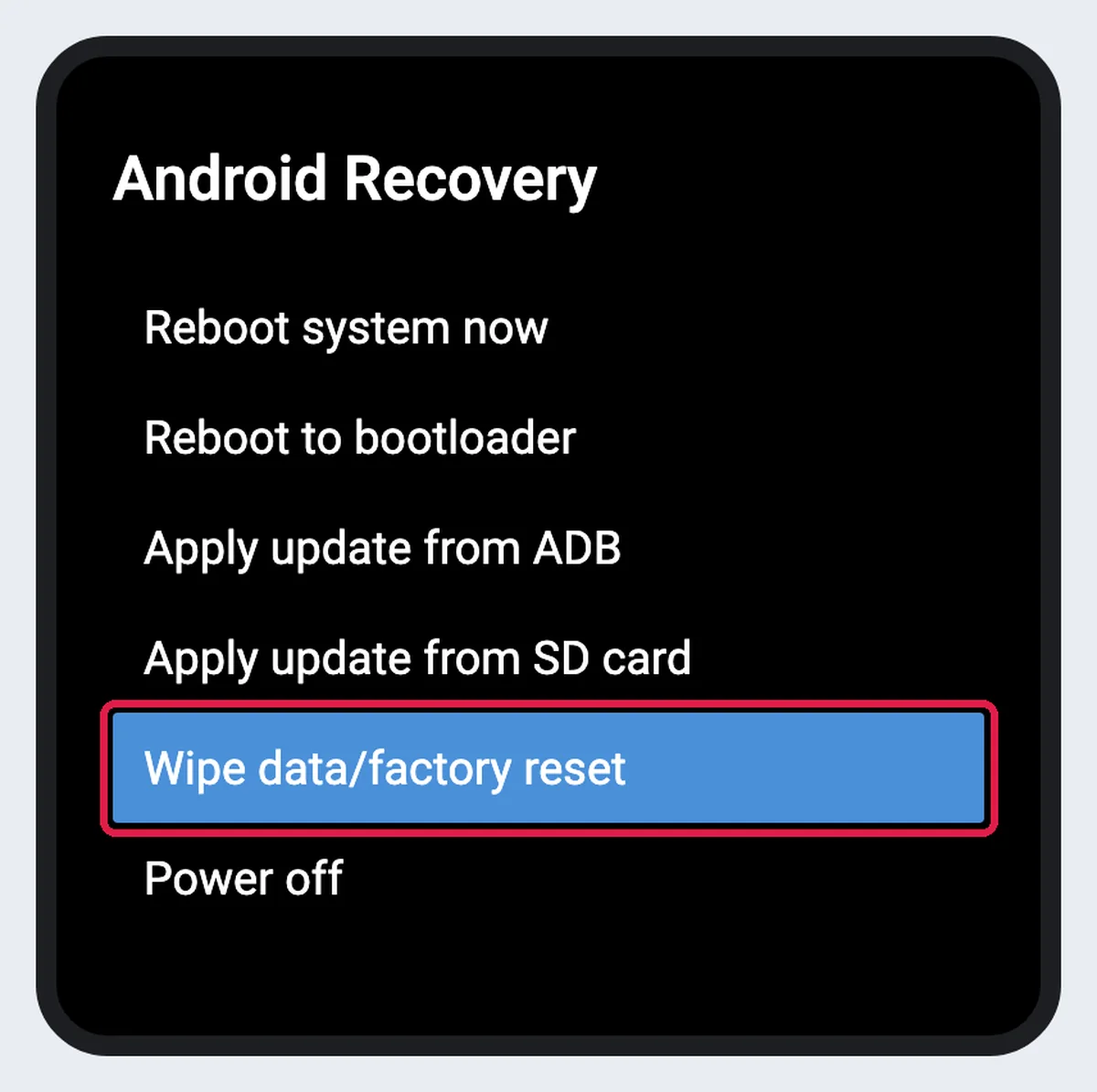
- Use the volume buttons to highlight Wipe data/factory reset and press Power. Confirm with Factory data reset.
- When the reset finishes, select Reboot system now.
Samsung Galaxy
- Turn the phone off.
- Hold Volume Up and the Side key together until the phone vibrates and the recovery screen appears. On some recent Galaxy models, recovery mode only opens while the phone is connected by USB cable to a computer or charger.
- Use the volume buttons to highlight Wipe data/factory reset and press the Side key. Confirm with Factory data reset.
- Select Reboot system now.
Other Android Phones
Most other brands use Power plus Volume Up or Power plus Volume Down to enter recovery mode, but the exact keys differ by model. Check your phone maker’s support page for your model before you start, because holding the wrong combination usually just restarts the phone.
After the Reset
- The phone starts the setup screens as if it were new. Connect to Wi-Fi and sign in with the same Google Account that was on it before (Factory Reset Protection requires this).
- Choose to restore from your backup to bring back your apps, contacts and settings.
- Set a new screen lock you will remember, and consider adding a fingerprint or face unlock so you rarely need to type it.
If You Do Not Know the Google Account
If you bought the phone second-hand or cannot remember the account, try recovering it through Google’s account recovery page. If that fails, contact the phone maker or the seller with your proof of purchase. Avoid “FRP bypass” tools and services: they are unsafe, often break the maker’s terms, and can install malware.
Cite this page
Thakur, T. (2026, November 14). How to Factory Reset an Android Phone When It Is Locked. XtendedView. https://xtendedview.com/factory-reset-locked-android/
Thakur, Tushar. “How to Factory Reset an Android Phone When It Is Locked.” XtendedView, 14 Nov. 2026, https://xtendedview.com/factory-reset-locked-android/.
Thakur, Tushar. “How to Factory Reset an Android Phone When It Is Locked.” XtendedView, Last modified November 14, 2026. https://xtendedview.com/factory-reset-locked-android/.
Source: <a href="https://xtendedview.com/factory-reset-locked-android/">How to Factory Reset an Android Phone When It Is Locked</a>, XtendedView




5 reader comments commenting closed
i was searching for this. the manufacturer of my phone is sony. can i use this method.
Yes it will work for sure.
Great for this. However, it is incredibly easy to get personal information from an android phone even had a factory reset.
So if you want to sell your android phone, you must erase everything on it permanently to keep your personal data safety.
http://www.youtube.com/watch?v=RQcwLBctwI0
Thanks a lot for the link and additional info.
I have an verizon droid. Trying to port a sprint number to it. According to verizon i need original gmail acxount to sign in. I tried to factory reset. It still remains locked. Any ideas?
This thread is closed to new comments.