
Close Menu
    Facebook X (Twitter) Instagram
    Facebook X (Twitter) Pinterest LinkedIn
    XtendedViewXtendedView
    • Home
    • Technology
      • Computer
      • Artificial Intelligence
    • Internet
      • Cybersecurity
    • Gadgets
      • Gaming
    • About
      • Our Team
    • Contact us
    XtendedViewXtendedView
    Home»Computer»How to write in Hindi, Marathi, Arabic, Greek, Telugu or any language in Microsoft word

    How to write in Hindi, Marathi, Arabic, Greek, Telugu or any language in Microsoft word

    Tushar ThakurBy Tushar ThakurMarch 14, 2012 Computer
    Facebook Twitter Pinterest LinkedIn Telegram Tumblr
    Share
    Facebook Twitter LinkedIn Pinterest

    English is primary language of all computer operations. But still we all need to type or write in our native languages. Like mine Marathi (India). Likewise you may find some solutions for make your regional language typing easier. This post will describe a simplest way to write in your regional language by using your English US standard keyboard.
    microsoft office logo

    This tutorial is based on the free software developed by Google and we can use it to write different 22 languages just by typing English word. The thing is that we should know the pronunciation of the language that you want to write. It is enough to write in that language.

    How it works?

    The Google translation IME has large database which converts English word to the respective regional language by considering their pronunciation. It is very easy to write here or explain about its working but in practice very hard to create such a complex database.

    See the video for quick guide:

    [youtube]http://www.youtube.com/watch?v=uUDn2yxeuRw[/youtube]

    How to download the software and install:

    ·         Go to this URL = http://www.google.com/ime/transliteration/

    And select the desired language (Here I selected Hindi)
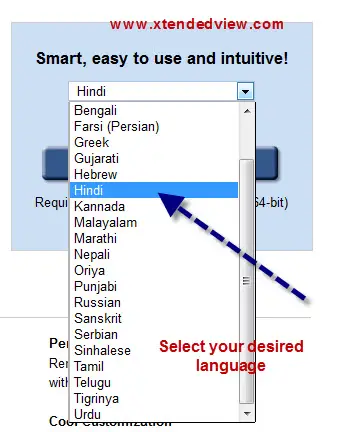
    how to write hindi i microsft word

    ·         Then tick the desired operating system i.e. 32bit or 64bit and finally click on the download button. To determine bit of your operating systems please refer the video.
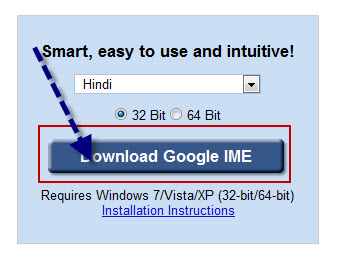
    click on download Google IME

    ·         Now the browser will ask you to open or save the exe file, select open because this file is not complete setup. The complete setup will be downloaded after you double click on the download file. After completion of the download and installation the software automatically creates a language selection button on you taskbar (nearer to right side).

    ·         If you are using Windows XP and facing problem in configuration then see this official Google guide. No need to do any configuration on Windows Vista, 7 and 8.

    ·         Now the installation is completed and to use it just open the Microsoft Word or any word processing program like WordPad where you want to write or type in regional language. Select the language from that button from taskbar.
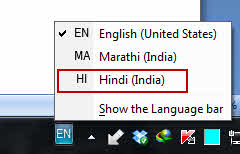
    language change button

    Now you can type in the selected language.

    See the image I written some words in Hindi language:
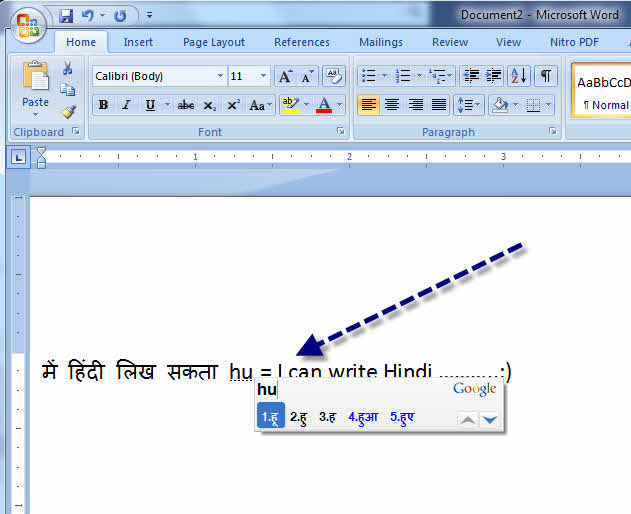
    write in hindi microsoft word

     In this way you can write or type in other 22 regional languages just by typing the words from your English keyboard. If you have any problem while installing the software or any font related issue then you are free to comment here.


    Share. Facebook Twitter Pinterest LinkedIn Tumblr
    Tushar Thakur
    Tushar Thakur
    • Website
    • Facebook
    • X (Twitter)
    • LinkedIn

    Tushar Thakur founded XtendedView in 2011 while studying Electronics and Instrumentation Engineering in Mumbai, and in 2013 IndiBlogger named it the best blog in its gadgets category. He has spent more than a decade building tech blogs and working on search optimisation and online marketing, and co-founded the agency WebGeeksMedia. He sets XtendedView's editorial direction and writes about Windows customisation, Android tweaks and the gadgets he tests himself.

    Related Posts

    Illustration of a white computer mouse with a curved cable

    How to Fix Mouse Lag in Windows 10

    July 12, 2025
    Best SpeedFan Alternatives

    8 Best SpeedFan Alternatives for Computers for Windows and Mac

    September 4, 2024
    Illustration of a laptop with a stopwatch and rising arrow showing improved speed

    How to Make your Existing PC to Run on Windows 10 smoothly

    September 2, 2024
    Micro SD card inserted into the Micro SD slot of a card reader

    How to Remove Write Protection From Micro SD Card

    April 15, 2024
    Diagram of a MAC address split into organizationally unique identifier and device parts

    How to find the MAC (Physical) Address in Windows 8.1 or 10

    April 14, 2024
    Avast Free Vs Paid Comparison

    Avast Free Vs Paid Comparison: Is it Worth Upgrading to Premium?

    April 13, 2024
    Add A Comment

    Comments are closed.

    Stay In Touch
    • Facebook
    • Twitter
    • Pinterest
    • LinkedIn
    Real Estate Social Media Statistics Platforms and Leads

    Real Estate Social Media Statistics 2026: Platforms and Leads

    October 16, 2026
    Amazon Echo Vs Google Nest Statistics

    Amazon Echo vs Google Nest Statistics 2026: Key Trends & Surprising Insights

    September 26, 2026
    Youtube Influencer Marketing Statistics

    YouTube Influencer Marketing Statistics 2026: ROI, Trends & Growth

    September 22, 2026
    Adobe Creative Cloud Statistics

    Adobe Creative Cloud Statistics 2026: Key Trends, Growth & Insights

    September 20, 2026
    Recent Posts
    Real Estate Social Media Statistics Platforms and Leads

    Real Estate Social Media Statistics 2026: Platforms and Leads

    October 16, 2026
    Amazon Echo Vs Google Nest Statistics

    Amazon Echo vs Google Nest Statistics 2026: Key Trends & Surprising Insights

    September 26, 2026
    Youtube Influencer Marketing Statistics

    YouTube Influencer Marketing Statistics 2026: ROI, Trends & Growth

    September 22, 2026

    Subscribe to Updates

    Get the latest creative news from FooBar about art, design and business.

    About

    At Xtendedview, we simplify tech and blogging for everyday users. Our goal is to share real, practical tips, while helping you avoid the mistakes we’ve already made. From gadgets to blogging hacks and money-making strategies, every article is written to actually help. Whether you're just starting out or looking to grow, we’re here to support your journey online.

    Facebook X (Twitter) Pinterest LinkedIn
    • All Articles
    • About
    • Our Team
    • Contact us
    • Fact-Check Policy
    • Editorial Policy
    • Statistics Methodology
    © 2011 - 2026 XtendedView. All rights reserved. | Privacy Policy | Terms of Use | Disclaimer | Site Map

    Type above and press Enter to search. Press Esc to cancel.