


Windows Defender is the default antivirus program comes with the Windows 8even it was with the Widows 7 too. That is very good antivirus and no doubt it can stop almost every virus. But if you want to install any other antivirus or internet securities like Kaspersky Internet Security then why not disable the default one?
Read: Disable and Completely Uninstall the Windows Defender in Windows 10
Need of disabling and uninstalling Windows Defender in Windows 8:
In every how to tutorial present on xtendedview, I try to provide the need of that. Because the doing tweaks unnecessarily is useless and waste of time. So the need is Windows is specialized in developing operating systems not antivirus. Many new viruses ad threads created daily and to defend them powerful database requires and that should be updated daily. So if you think to install any other antivirus on your computer or might already install one then you are just running two antiviruses on single system. And it is totally wastage of your computer resources. So this is the main reason that you should disable any one from them.
How to disable and completely uninstall Windows 8 Defender?
The procedure is extremely simple. As you are using Windows 8 it is easier.
Step 1:
Press Windows key and start typing word “Defender”

You will get link to Windows defender antivirus. Click on it to open it.
Step 2:
Go to Setting >> Administrator and uncheck the option Turn on Windows Defender.
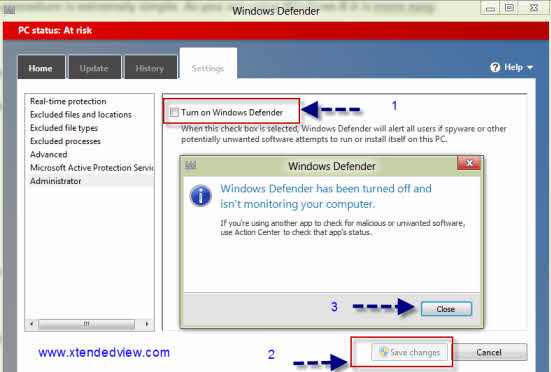
This is not enough to uninstall it. You will need to stop the program from being open at next start of Windows 8.
Step 3:
Now open Start menu (Metro UI) by pressing Windows Key and type “Services” without quotes. Click on it and you will get such a window.
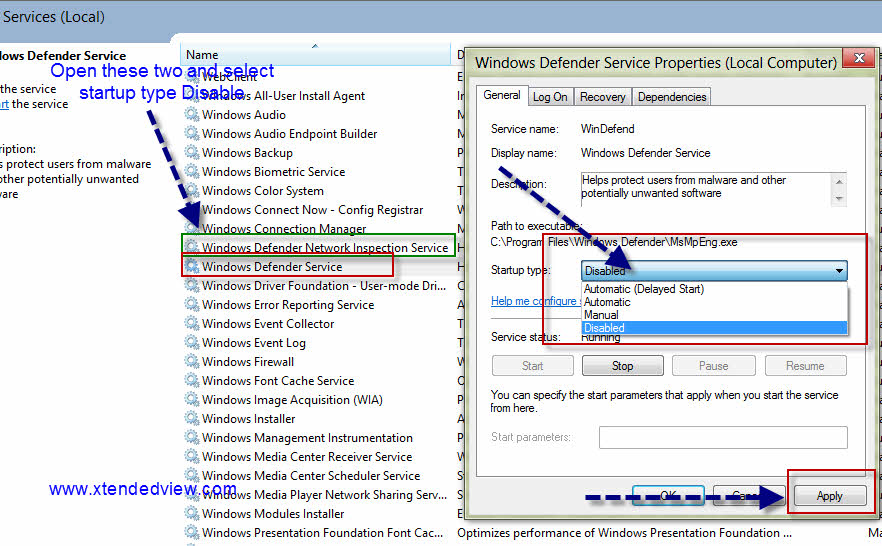
In this windows find two services named “Windows Defender Service” and Windows “Defender Network Inspection service” Right click on it and select “Properties” and select Start up Type : “Disabled” and finally press apply.
Step 4:
Final step is going to C: >Program Files >> Windows Defender folder and rename the folder to any name like “Windows Defender old” so that in any case the exe files can not start executing.
Read: Disable Windows Defender in Windows 10
Now your Windows 8 Defender never starts and save important computer resources assuming that you are running any other antivirus program.




19 Comments
I just can’t wait to install Windows 8 on my computer too! 🙂
Thank you for all the info on win 8. It has make my life a lot better. So far you have changed my “hate” of win 8 to “dislike” of win 8.
your tutorial is helpful. i disabled defender on my PC. windows defender is an extremely pathetic tool from Microsoft. I don’t know how labs rate it. It’s protecting only its files but not my work. if there is a single virus in a folder, it’s removing the entire folder without notice irrespective of the data it contained. It has no ability to heal the file like Norton or Avast. so, i replaced it with Avast. but you need to install Avast first and disable the Defender later. Otherwise, your Avast may not be accepted. (I don’t know why is it so, but i faced such problem.)
Why can’t I delete the Defender program that is in the c drive? What would happen? Thanks
There are other entries in the computer apart from the folder so it will not completely disable the program.
Thanks for this info. I didn’t want to give up on Avast and didn’t know all the steps to stop Windows Defender from interfering with using it. I’ve installed Avast about 15 times in the last week. Every time I rebooted it failed to boot to Windows 8 and required to restore to a point before Avast was installed. I had disabled Windows Defender but didn’t know the bugger was still running until I followed your directions to completely disable. Avast is now my defender of choice. Thanks.
I spoke too soon. As soon as I rebooted, I had the same problem. Windows can’t load and needs to reset or restore and can’t repair the problem. Grrrrrr. I even followed someone’s instructions to use the app store to locate a virus program, which offered Avast free. I noticed the download was 109mb instead of the one I had which was 107mb so I thought it may be specifically for Windows 8 with some kind of bug fix. That one failed too. Back to square one.
Major issues since Windows update 2 days ago. Internet would not work, conflict with Norton and Defender. Had to delete and reinstall everything! Found your details by accident today and he machine is still not working 100%. Defender was turned off, but made extra sure by renaming it!! Lets see!! Installed a new antivirus software as I have had problems with Norton on my previous laptop (this one is only 4 months old!!) AVG – free version/trial… Lets see if this helps!!
Thanks for the info!!
Wendy
You are welcome and glad to know that it help you. 🙂
LoVE this tip !! thank you soooo much
I have been struggling to disable this password like so many others and it worked !!
might I suggest for others who this may not have worked for, check to see that you have not activated the laptop security software.
I had to Uninstall this software as well as disable the windows password.
😀
I thought I hit the jackpot after finding this post, but I can’t do what you are telling me to do. Previously to finding this, I have spent hours on the phone with HP trying to figure out why I keep getting the message of a dump when the computer restarts. Removed Kaspersky, and I have not had the problem. So now I believe it is the Defender that is causing my problems. When I start with your instructions, I already have the defender turned off. Next step, I find the Windows Defender Service but the Defender Network Inspection Service is not there. What to do now?
Hoping you can help me!
HI,
IF you are not able to locate the Windows Defender Service it means that it is not installed on your computer. No need to worry about it skip it and follow other steps.
I’m trying to perform the steps on Windows 8 Enterprise Edition. I’m able to disable the Defender within the app. However when I go into local services the options are grayed out and the start up type is set to manual. Is this good enough. I am logged in as an administrator. I’m am trying to do this so that I can install Symantec.
Any ideas?
Thanks!
If the option is grayed out and it is manual then don’t worry go and install the Symantec.
Hi Tushar, thanks for the guide but I’ve hit a problem whilst installing O2 Business provided McAfee v11 onto a Windows 8 laptop. When get to step 3, the Startup box is greyed out, saying Manual and I can’t change this. Is this because I’ve the wrong access rights on the laptop? Because the O2 s/ware is checking for another anti virus program before instal commences it doesn’t proceed with the McAfee install because it keeps finding Defender even with the folder names changed as you suggestedin step 4. Any ideas ?
Thanks, Duncan.
HI,
You need to find a tool on your antivirus website/contact them to completely remove Defender. Like Kaspersky does provide such tools.
local services the option is grayed out and it is automatic. can I install kaspersky
Ranjith
Yes you can.
This isn’t possible in windows 8.1, it’s not possible to change startup method of windows defender.