This article has been updated 5 times. Last updated on
- Revised the core answer against Microsoft's PE specification (published September 2026): an EXE file cannot be converted to an APK, because Windows uses Portable Executable files and Android always uses ELF.
- Replaced the converter download steps with 5 working routes: the official Android app, Winlator, Remote Desktop and Chrome Remote Desktop, a Windows 365 Cloud PC, and rebuilding the app with .NET MAUI or the Android SDK.
- Added Statcounter's September 2026 operating system share (42.54% Android, 28.98% Windows) and Windows 365 Business pricing of $36.00 per user per month for a 2 vCPU, 8 GB, 128 GB Cloud PC.
Android held 42.54% of worldwide operating system market share in September 2026, ahead of Windows at 28.98%, according to Statcounter. That gap is why so many people search for a way to convert EXE to APK files. The honest answer disappoints: no tool turns a Windows program into a working Android app.
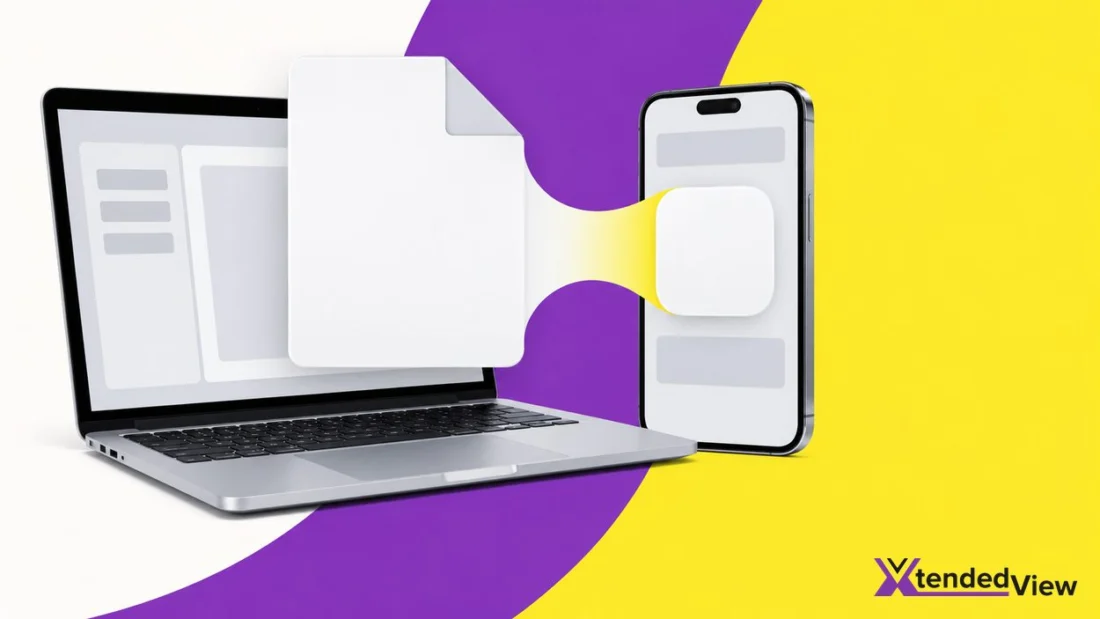
Microsoft’s specification states that executable files under the Windows family of operating systems are referred to as Portable Executable (PE) files. Google’s Android ABIs guide states that Android always uses ELF for executable binaries, such as programs and shared libraries. A program built for one binary format and operating system has to be emulated, streamed or rebuilt to work on another. The five steps below cover the six methods in the comparison table: the official Android version, Winlator, your own Windows PC over Microsoft Remote Desktop or Chrome Remote Desktop, a Cloud PC from Microsoft, and a rebuild from source.
Key Takeaways
- Android led Statcounter’s worldwide operating system share at 42.54% in September 2026, against 28.98% for Windows, yet Android always uses ELF while Windows executables are Portable Executable (PE) files, so no converter can bridge the two.
- Winlator runs Windows (x86_64) applications on Android with Wine and Box86/Box64, and Box64 needs a 64-bit little-endian Arm host.
- Windows 365 Business costs $36.00 per user per month for 2 vCPU, 8 GB, 128 GB, rising to $108.80 for 8 vCPU, 32 GB, 256 GB.
- From August 2021, new apps are required to publish with the Android App Bundle on Google Play, so rebuilding for Android means a new project, not a converted file.
- Remote Desktop needs the remote PC to run the Windows Pro edition, while Chrome Remote Desktop reaches Mac, Windows, or Linux computers and asks you to confirm continued sharing every 30 minutes when you share your computer.
Can you convert EXE to APK files?
No tool can convert EXE to APK files, because a Windows EXE and an Android APK use different binary formats and run on different operating systems. The only routes are emulating the program, streaming it, or rebuilding it from source.
An Android package is an archive file with an .apk suffix that contains the contents of an Android app required at runtime, and the Android SDK tools compile code written in Kotlin, Java or C++ into it. A Windows EXE, by contrast, is a compiled PE image for Windows.
Whatever a converter download site actually installs, it cannot be a working port of the Windows program.
Converter downloads: An EXE to APK converter cannot produce a working Android app from a Windows program. Treat any site that offers one, especially one that asks you to disable security warnings or install an APK from outside Google Play, as a likely malware source. If you already installed one, run a Play Protect scan and remove the app.
Before installing anything from outside Google Play, it helps to know whether your Android phone really needs an antivirus and which built-in protections already cover you.
Are EXE to APK converter tools safe?
Treat them as unsafe by default. Google Play Protect checks your device for potentially harmful apps from other sources, warns you about them, and may deactivate or remove harmful apps from your device. A converter that asks you to sideload its output sidesteps the check Google runs on Play Store apps before download.
EXE vs APK: How the Two File Formats Differ
Microsoft’s PE specification describes the structure of executable (image) files and object files under the Windows family of operating systems. On Android, each combination of CPU and instruction set has its own Application Binary Interface (ABI). The two files answer to different operating systems and binary formats, even when both target the same 64-bit ARM processor.
The Android operating system is a multi-user Linux system in which each app is a different user. That sandbox has no Windows API for an EXE to call, so a straight file conversion fails whatever processor the phone uses.
| Attribute | EXE (Windows) | APK (Android) |
|---|---|---|
| What the file is | Portable Executable (PE) image file | Archive file with an .apk suffix |
| Native binary format | PE | ELF |
| Operating system | Windows family of operating systems | Android, a multi-user Linux system |
| Processor targets | Machine types such as x64 (0x8664) and ARM64 (0xaa64) | One ABI per CPU and instruction set, such as arm64-v8a for 64-bit ARM |
| How it is built | Compiled for Windows | Android SDK tools compile Kotlin, Java or C++ code |
Source: Microsoft PE Format, Android Developers
Every working method therefore keeps the EXE inside a Windows environment, real or emulated, or replaces it with a native Android build.
Step 1: Look for an Official Android Version First
Android held 42.54% of worldwide operating system share in September 2026, per Statcounter, ahead of Windows at 28.98% and iOS at 19.45%. With that audience on the table, many desktop vendors also publish an Android app, so search Google Play for the program’s name and publisher before trying anything else.
View the data
- Open Google Play on your phone and search for the program by name.
- Check that the publisher name matches the company that makes the Windows version.
- If no official app exists, look for an Android app that does the same job before moving on to emulation.
The split shifts month to month, and the operating system market share statistics break it down by desktop and mobile.
Step 2: Run the EXE on Android With Winlator
Winlator is an Android application that lets you run Windows (x86_64) applications with Wine and Box86/Box64, according to its GitHub project page. It runs the original program instead of converting it, which is what many people searching for a converter want.
Box64 enables running x86_64 Linux programs, including games, on non-x86_64 Linux systems such as Arm, with a 64-bit little-endian host system required. With DynaRec for Arm, RISC-V and LoongArch platforms, Box64 achieves a speed boost 5-10x faster than the interpreter alone.
Winlator’s own tips cover the common failures: change the Box64 preset in Container Settings when you see instability, install Wine Mono from Start Menu > System Tools > Installers for applications that use .NET Framework, and enable Force Fullscreen in the shortcut settings to display low resolution games correctly.
Pro tip: Run each program from its own shortcut on the Winlator home screen. Winlator lets you define individual settings per shortcut, so a fix for one game does not break another.
Treat each program as an experiment. Winlator’s tips are written around games and .NET applications, so test the exact program you need before relying on it.
How do you run a .exe file on Android?
Install an emulator such as Winlator, copy the EXE to the phone, and run it inside the emulator. The project tells you to download and install the APK (Winlator_11.2.apk) from GitHub Releases, then launch the app and wait for the installation process to finish. Copy the EXE to your phone’s storage before you start.
Step 3: Stream a Windows PC to Android With Remote Desktop
Microsoft’s Remote Desktop support page explains that Remote Desktop lets you use your Android device to connect to a Windows PC from afar and access your apps, files, and desktop as if you were sitting in front of the remote PC. The EXE keeps running on Windows with no emulation layer in between; only the screen travels to your phone.
The catch is the edition. The PC you want to connect to must be running the Windows Pro edition of Windows, while the device you connect from can run a different operating system altogether.
- On the remote PC, turn on Remote Desktop, select Confirm, and make note of the name of the PC under PC name.
- On your phone, open the Remote Desktop app from Google Play and add the PC name of the remote PC.
- Select the PC and wait for the connection to complete.
Windows Home owners can use Chrome Remote Desktop instead. Google’s help page says you can set up remote access to your Mac, Windows, or Linux computer, then use the Chrome Remote Desktop app on a mobile device for remote access.
Google states that all remote desktop sessions are fully encrypted, and if you are sharing your computer, you will be asked to confirm that you want to continue to share your computer every 30 minutes. The EXE itself still needs a Windows host; Mac and Linux owners can reach their desktops this way but cannot run a Windows program on them without a compatibility layer such as Wine, and the Windows vs macOS statistics give a sense of how many desktop owners that leaves out.
Best for programs you already own: Remote Desktop or Chrome Remote Desktop, because the EXE never leaves the PC it was installed on. The trade-off is that the PC has to stay switched on and online.
Step 4: Use a Windows 365 Cloud PC
Microsoft’s Windows 365 Business costs $36.00 per user per month for a Cloud PC with 2 vCPU, 8 GB, 128 GB, which removes the need to leave your own PC running. Windows App connects to Windows 365 Cloud PCs and remote PCs from devices including smartphones and tablets.
View the data
The account rule matters more than the price. Signing in to Windows App requires a Microsoft work or school account provided by your administrator, and you can’t sign in to Windows App using a personal Microsoft account (MSA). That makes the Cloud PC route a fit for people whose employer or school issues them a work or school account, not for a single user trying to open one EXE.
Step 5: Rebuild the Program as an Android App
Microsoft’s .NET MAUI is a cross-platform framework for creating native mobile and desktop apps with C# and XAML that can run on Android, iOS, macOS, and Windows from a single shared code-base. If you wrote the Windows program or hold its source code, rebuilding is the only way to get a real APK.
The Android SDK tools compile your code along with any data and resource files into an APK or an Android App Bundle. From August 2021, new apps are required to publish with the Android App Bundle on Google Play, and Google Play uses the bundle to generate and serve optimized APKs for each device configuration.
- Check which framework the Windows program uses; C# projects are the closest fit for .NET MAUI.
- Move the business logic into a shared project and rebuild the interface for touch screens.
- Build an Android App Bundle when you are ready to publish on Google Play.
Without the source code, this step is off the table. Decompiling someone else’s EXE to rebuild it raises licensing problems that no file tool solves.
How to Open or Unpack an EXE File Without Running It
7-Zip is free, open source software whose supported unpacking-only formats include CAB, MSI and NSIS, which covers many Windows installers. Opening an installer this way shows the files inside it; it does not make any of them run on Android.
You can use 7-Zip on any computer, including a computer in a commercial organization, and you don’t need to register or pay for 7-Zip; the 7-Zip 26.04 download for Windows x64 (64-bit) is 1.6 MB. Right-click the installer on a Windows PC, open it with 7-Zip, and extract the contents to a folder to see the bundled program files, documentation and resources.
Which method should you use?
Winlator runs Windows (x86_64) applications on the phone itself, Remote Desktop needs a remote PC running Windows Pro, and Windows 365 Business costs $36.00 per user per month for a 2 vCPU, 8 GB, 128 GB Cloud PC. Pick the method by where you are willing to let the Windows code run.
| Method | Where the Windows code runs | What you need |
|---|---|---|
| Official Android app | Nowhere; the developer ships an Android build | An Android version on Google Play |
| Winlator | On the phone, through Wine and Box86/Box64 | A 64-bit Arm phone and an x86_64 Windows program |
| Remote Desktop | On your own Windows PC | Windows Pro on the remote PC |
| Chrome Remote Desktop | On your own Windows PC | Chrome on the PC and the mobile app |
| Windows 365 Cloud PC | On a Microsoft-hosted Cloud PC | A work or school account; $36.00 per user per month for 2 vCPU, 8 GB, 128 GB |
| Rebuild from source | Nowhere; the app becomes native Android code | The program’s source code |
Source: Winlator, Box64, Microsoft Support, Google Chrome Help, Microsoft Windows 365
Best for offline use: Winlator, for running the Windows program itself, because the program runs on the phone with no PC or subscription behind it. Performance depends on the phone and the program, so test each one before you rely on it.
Readers who need the reverse, Android apps on a computer, can start with the best Android operating systems for PC that install on desktop hardware.
Conclusion
Converting an EXE to an APK is not possible, and the search term survives mostly on converter sites that cannot deliver. Android’s 42.54% share of worldwide operating systems, per Statcounter makes Google Play the first place to check for an official Android version; after that, try Winlator, Remote Desktop or a Cloud PC in that order.
Developers who own the source code are the only readers who can ship a true APK, and .NET MAUI or the Android SDK is the route for them. Everyone else should keep the EXE where it belongs, on Windows, and bring the screen or the emulator to the phone.
Cite this page
Thakur, T. (2026, October 10). How to Convert EXE to APK Easily on Android and PC?. XtendedView. https://xtendedview.com/convert-exe-to-apk/
Thakur, Tushar. “How to Convert EXE to APK Easily on Android and PC?.” XtendedView, 10 Oct. 2026, https://xtendedview.com/convert-exe-to-apk/.
Thakur, Tushar. “How to Convert EXE to APK Easily on Android and PC?.” XtendedView, Last modified October 10, 2026. https://xtendedview.com/convert-exe-to-apk/.
Source: <a href="https://xtendedview.com/convert-exe-to-apk/">How to Convert EXE to APK Easily on Android and PC?</a>, XtendedView