

Close Menu
    Facebook X (Twitter) Instagram
    Facebook X (Twitter) Pinterest LinkedIn
    XtendedViewXtendedView
    • Home
    • Technology
      • Computer
      • Artificial Intelligence
    • Internet
      • Cybersecurity
    • Gadgets
      • Gaming
    • About
      • Our Team
    • Contact us
    XtendedViewXtendedView
    Home»Computer»How to format virus infected and unformattable Pen drives

    How to format virus infected and unformattable Pen drives

    Tushar ThakurBy Tushar ThakurJanuary 30, 2012 Computer
    Facebook Twitter Pinterest LinkedIn Telegram Tumblr
    Share
    Facebook Twitter LinkedIn Pinterest

    Pen drives are very popularly use in now a days for interchanging and data in between computers and even Tablet. So increase in use of it simply increase in their error and difficulties.
    How to format a pen drive

    • Why formatting of Any Drive fails?

    The reasons behind fail in formatting of any drive is may be either some hardware damage inside it or any file/s which are stored in the drive are being used by the same systems which we try to format it. The main reason is second one and it usually happened due to virus problems.

    • How to Format the virus infected, Unformatable Pen Drives:

    There are two methods by which we can format the pen drives forcefully.

    1. 1) By Windows formatting and using software Unlocker:

    This method is quite simple and very easy to do.

    Step 1:

    Download and Install the Unlocker software.

    Download it from here. : http://download.cnet.com/Unlocker/3000-2248_4-10493998.html

    Step2:

    Right click on the Flash drive icon which you want to format and giving error like this or any other error due to virus.
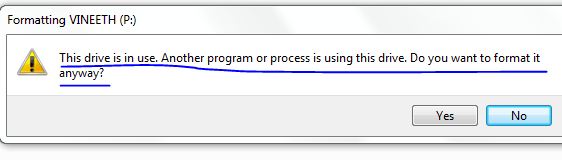
    Error in formating the pendrive

    Now click on Unlocker  and select unlock All as shown below.
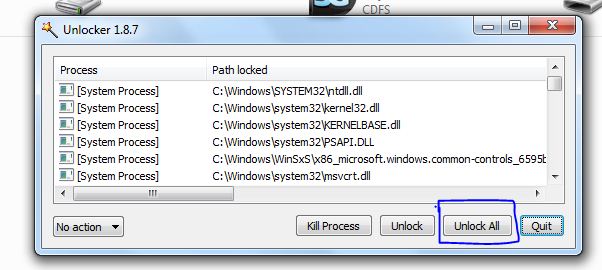
    Unlock all process to format pendrive

    It also will show the files that are under used from the same drive. In your case these files will be viruses.

    Step 3:

    After that use your normal procedure i.e. right click on the same drive and select “Format”. And it’s completed.

    1. 2)  By CMD formatting method:

    This method used Command prompt to format the Flash drive.

    Step 1:

    Open Cmd by start—Run—“cmd” or in windows 7 start—type “cmd”

    Step 2:

    Type as: format<space>”your drive letter””:” and press Enter twice.

    For example suppose my drive is F then I will type “format f:” without quote

    Step 3:

    Now cmd will ask name of the drive. Enter the correct name of drive and press enter.

    Your Pen drive is now formatted. Now no more virus in the drive.

    Share. Facebook Twitter Pinterest LinkedIn Tumblr
    Tushar Thakur
    Tushar Thakur
    • Website
    • Facebook
    • X (Twitter)
    • LinkedIn

    Tushar Thakur founded XtendedView in 2011 while studying Electronics and Instrumentation Engineering in Mumbai, and in 2013 IndiBlogger named it the best blog in its gadgets category. He has spent more than a decade building tech blogs and working on search optimisation and online marketing, and co-founded the agency WebGeeksMedia. He sets XtendedView's editorial direction and writes about Windows customisation, Android tweaks and the gadgets he tests himself.

    Related Posts

    How to Fix Mouse Lag in Windows 10

    July 12, 2025

    8 Best SpeedFan Alternatives for Computers for Windows and Mac

    September 4, 2024

    How to Make your Existing PC to Run on Windows 10 smoothly

    September 2, 2024

    How to Remove Write Protection From Micro SD Card

    April 15, 2024

    How to find the MAC (Physical) Address in Windows 8.1 or 10

    April 14, 2024

    Avast Free Vs Paid Comparison: Is it Worth Upgrading to Premium?

    April 13, 2024
    View 4 Comments

    4 Comments

    1. Deepak Kr. Das
      Deepak Kr. Das on August 19, 2012 2:33 pm

      Thanks Tushar!
      Very informative post written in an interesting manner. I ‘ve just formatted my drive using ur method and it saved me 100 INR. Thanks again man! I’ve bookmarked ur site. Can I also use this method to format Micro SD Card because it says: Fat Alloc Error, everytime I try to format it.

    2. paul
      paul on July 11, 2015 10:58 pm

      good day, i have a problem with a 32gig pen drive, i can brows the pen drive but all the folders is in funny language i dont understand, when i try to format the thing it tells me the pen drive is write protect, even in management when i try to delete the partition. in my computer it shows that the pen drive is full, i can not run scandisk on it cause i am getting the same write protect error, on the pen drive is no buttons or anything to switch off write protect it is a sealed unit, what can you sugest i can do..

    3. chris sanjiv xavier
      chris sanjiv xavier on July 13, 2015 3:40 am

      Hi , I downloaded the ‘Unlocker’ and when i tried to use it , that is after step 1 when i right clicked the pen drive folder and clicked unlocker , I got the error as follows:-

      ‘No Locking handle Found’ . Please help me out with this situation.

      regards,
      chris

    4. Aman Verma
      Aman Verma on October 9, 2016 12:27 pm

      I did the same and it displayed the below written message….What should I do now…?
      Please reply quickly….

      C:\Users\Aman>format g:
      Insert new disk for drive G:
      and press ENTER when ready…
      The type of the file system is RAW.
      The new file system is FAT.
      Verifying 0M
      The specified cluster size is too big for FAT.

      C:\Users\Aman>

    Stay In Touch
    • Facebook
    • Twitter
    • Pinterest
    • LinkedIn

    Amazon Echo vs Google Nest Statistics 2026: Key Trends & Surprising Insights

    September 26, 2026

    YouTube Influencer Marketing Statistics 2026: ROI, Trends & Growth

    September 22, 2026

    Adobe Creative Cloud Statistics 2026: Key Trends, Growth & Insights

    September 20, 2026

    Microsoft OneNote Statistics 2026: Powerful Trends

    September 18, 2026
    Recent Posts

    Amazon Echo vs Google Nest Statistics 2026: Key Trends & Surprising Insights

    September 26, 2026

    YouTube Influencer Marketing Statistics 2026: ROI, Trends & Growth

    September 22, 2026

    Adobe Creative Cloud Statistics 2026: Key Trends, Growth & Insights

    September 20, 2026

    Subscribe to Updates

    Get the latest creative news from FooBar about art, design and business.

    About

    At Xtendedview, we simplify tech and blogging for everyday users. Our goal is to share real, practical tips, while helping you avoid the mistakes we’ve already made. From gadgets to blogging hacks and money-making strategies, every article is written to actually help. Whether you're just starting out or looking to grow, we’re here to support your journey online.

    Facebook X (Twitter) Pinterest LinkedIn
    • About
    • Our Team
    • Contact us
    • Fact-Check Policy
    • Editorial Policy
    • Statistics Methodology
    • Disclaimer
    • Terms of Use
    • Privacy Policy
    © 2011 - 2026 XtendedView. All rights reserved. | Site Map

    Type above and press Enter to search. Press Esc to cancel.