


Back when Apple first launched the first Apple Watch in 2015, there was only the GPS-only Apple Watch to purchase. To get an internet connection, you had to pair the Apple Watch to your nearby iPhone via Bluetooth, and only then could the Watch gain its full functionality.
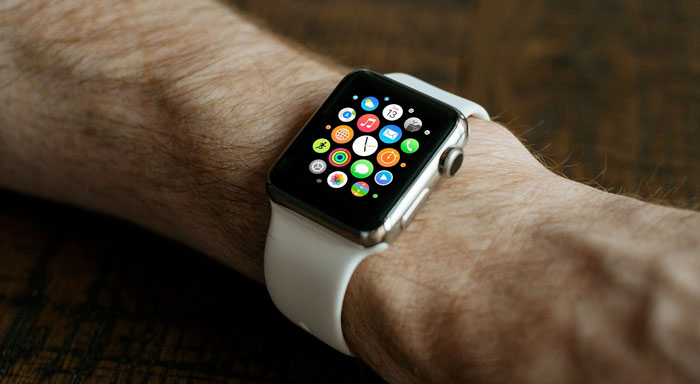
However, with the launch of Series 3 in late 2017, Apple introduced an Apple Watch with an embedded SIM card (eSIM) that allows the Watch to have cellular data connectivity, adding more versatility and freedom for the wearer.
So, how does an Apple Watch cellular work? What are the benefits compared to the GPS-only model? Here, we will answer those questions.
Is Cellular Connectivity Really That Important for Apple Watch?
An Apple Watch with cellular connectivity will cost $100 more on average compared to the same model with a GPS-only connection. On top of that, you’ll need to pay for a separate monthly data plan on top of your existing cellular data plan. So, do you actually need the cellular connectivity, considering you can get an internet connection by pairing your Apple Watch with your iPhone over Bluetooth?
The main benefit of having an Apple Watch cellular is that you can connect the Watch to the internet even when you don’t have your iPhone nearby. With a GPS-only Watch, there are some basic functionalities that work without your iPhone over Bluetooth like Apple Pay, fitness tracking, and so on, but with an Apple Watch cellular, you’ll get a lot more.
If you want to run outdoors without carrying your iPhone, for example, you can stream music from Apple Music or get direction from Maps, and you can answer voice calls (with the same number as your iPhone if you want) and send emails/iMessages.
With that being said, below we will discuss the key differences between the GPS-Only and Cellular Apple Watch.
Benefits in Functionality and Versatility
Apple Watch GPS-Only: need proximity to the iPhone for internet connectivity
Apple Watch Cellular: can use Siri (and search the internet), get Maps direction, stream Apple music, and more without any iPhone around.
The most important benefit of having an Apple Watch Cellular over the GPS-only model is versatility: you can get almost the full functionality on your Apple Watch when you don’t bring your iPhone with you (or accidentally forget your phone at home). You can also go on a run without bringing your iPhone, which is a great thing for a lot of people.
While most people tend to have their iPhones around every waking hour of the day, having an option to leave it behind is certainly an advantage. Depending on your needs, this might be an appealing benefit for you.
Battery Life: GPS-Only is The Winner
Apple Watch GPS-Only: 10 hours audio playback (internal storage), 6 hours outdoor workout
Apple Watch Cellular: 7 hours audio playback, 5 hours outdoor workout, 1.5 hours voice calls
It’s no secret that cellular connectivity tends to translate to high power consumption, so the GPS+cellular Apple Watch eats more battery power than the GPS-only model. Although it might vary depending on the model/series, both versions can go for 18 hours when it’s connected to an iPhone via Bluetooth.
The cellular Apple Watch, on the other hand, will only last for 5 hours with its own LTE connectivity (not paired with an iPhone), but if you use it for voice calls, it can only last 1.5 hours.
Although total battery life will vary depending on your use cases, a GPS-only model will last comparably longer.
Compatibility: Additional Concerns
Apple Watch GPS-Only: No carrier compatibility concerns
Apple Watch Cellular: Need to find compatible carriers depending on your location
When talking about compatibility with your Apple Watch, there are several key concerns to consider. First, you’ll need to have a compatible iPhone that can connect with the Apple Watch via Bluetooth. If you are purchasing an Apple Watch Series 5, for example, you’d need to have iPhone 6S or newer with iOS 13 or later.
If you are getting a cellular Apple Watch model, however, you’ll need to get a cellular data plan that is compatible with your Apple Watch. Here is a list from Apple listing the compatible carriers based on your location. Truphone, for example, offers Apple Watch-compatible cellular plans that cover 48 different countries, great if you are planning to do a lot of traveling with your Apple Watch cellular.
Check Whether Your Apple Watch Has Cellular Connectivity
You can easily tell whether an Apple Watch supports cellular connectivity by checking the Digital Crown. On Apple Watch Series 3, you can see a red dot on the Crown, while it’s a red outline of a circle on the Series 4 and 5 models. If it’s a plain Digital Crown, then it’s a GPS-only model. Apple uses an embedded SIM (eSIm) technology on Apple Watch cellular, so you won’t see any SIM card tray.
Setting Up Your Apple Watch Cellular
Your Apple Watch might have an eSIM inside, so it can connect to cellular connectivity. However, it won’t be connected to a cellular data plan straight out from the box.
Fortunately, setting up a cellular plan with your Apple Watch is fairly easy, and you’ll also get simple on-screen instructions you can follow right away. Although it might vary depending on your cellular providers, you can generally follow these steps to activate a data plan on your Apple Watch:
- Go to the Watch app on your iPhone, and go to the My Watch tab
- Tap the Cellular tab
- Tap on ‘Set Up Cellular’
- Follow the step-by-step instructions and select your carrier
- Voila! You should see your plan added by your carrier.
If you’re connected to the Watch’s cellular network, the cellular button on the screen (near the airplane mode button) will turn green. However, if the Watch is paired with an iPhone and is currently using the iPhone’s data plan, this button will turn white. If this icon is transparent, then you don’t have any cellular connectivity at the moment.

1 Comment
I all know about is with Apple Watch cellular and a cellular connection to the same carrier used by your iPhone, you can make calls, reply to messages, use Walkie-Talkie, stream music and podcasts, receive notifications, and more, even when you don’t have your iPhone or a Wi-Fi connection. Overall, I love your blog so thank you so much!