


Meta brought a new feature named Notes to Instagram not long ago. It simply is your old-school message bubble that stays on top of the inbox of your chosen audience for 24 hours. However, for some, it is pretty annoying that they want to turn off or mute Instagram Notes.

In this article, we will help you get rid of the Notes without having to rack your brain. We are going to give you five different methods. Choose the one that you think suits you the best.
How to Turn off or Mute Instagram Notes?
The best way we recommend is using Instagram Lite. It eliminates all the Notes. If you don’t want to see the Notes from a specific person, you can do that from the Inbox itself. We will elaborate on all four solutions below.
Also Read:-
- How to Hide Posts from Someone on Instagram?
- Best GIMP DDS Plugins: How to Install GIMP DDS Plugin?
- 12 Best Instagram Story Viewers [Anonymous and Free]
Turn off Notes Using Instagram Lite
Are you an iOS user? You should skip this step. Instagram Lite isn’t available on iPhone or iPad. The app is not supposed to use a lot of system resources like the parent application. If you have an Android phone with limited memory or a low-end processor, Instagram Lite is not going to hog like the regular app.
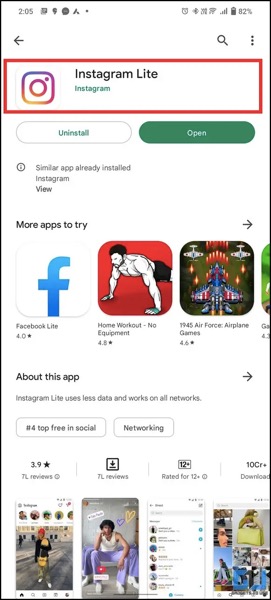
You just have to open Play Store and search for Instagram Lite. Or just use this link. Since the app weighs quite small, it doesn’t take much time to install. So, log into your account and go to the DM section. You won’t see any notes there. Nada!
Mute Specific Instagram Notes from DM Section
Do you have that friend who always has at least one active note? Are you fed up with his/her notes? Well, we will tell you how to mute the current and future postings.
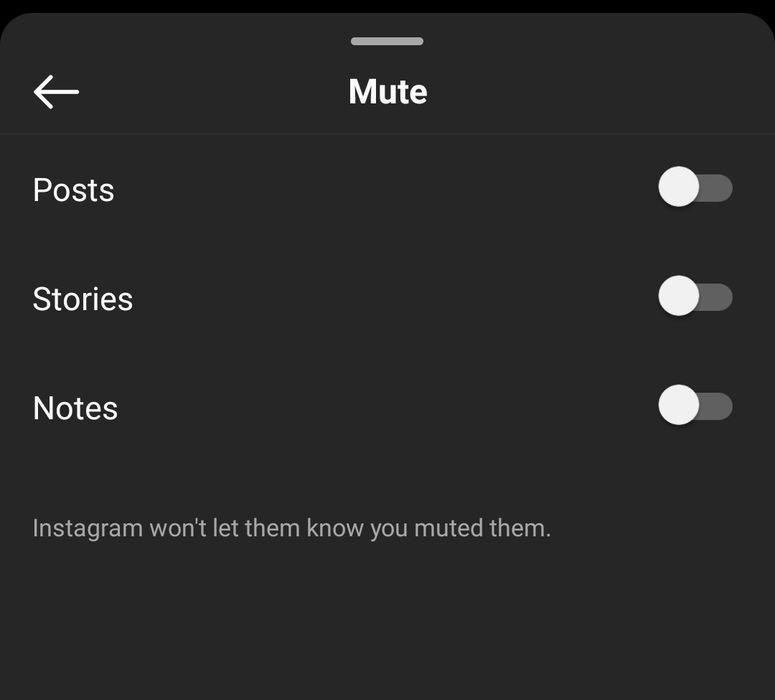
- Open Instagram (the regular app, not the Lite).
- Go to your Inbox.
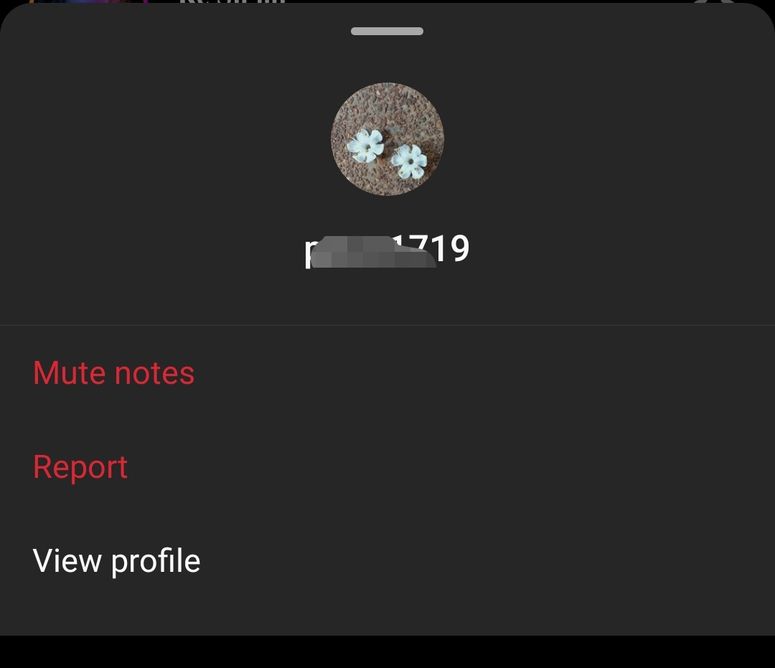
- Press and hold on to the specific note that you want to turn off.
- You will see a small window with the person’s dp and username on the top. Just below that, you get a Mute Notes option. Tap on the same.
- Instagram will ask you to confirm your selection. Select Mute Notes again.
Hurray! There you go! You will not ever see the notes from that specific account.
Get Rid of Instagram Notes from PC App
Are you using a Windows PC? Well, you don’t get Notes on Instagram’s PC app. How awesome is that? If you are the kind of person who spends long hours on your PC, you should install the app.
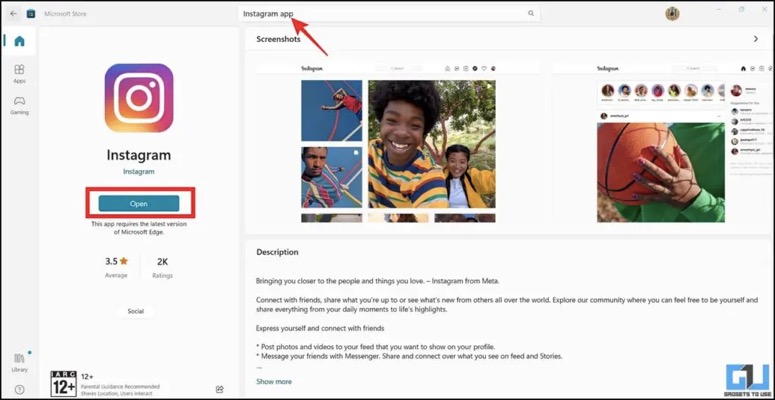
- Open the Microsoft store from your computer.
- As is the case with any app installation, search for the name. Here it’s Instagram.
- Don’t forget to hit the Install button.
- Once the installation finishes, click Open.
- Log into your account and go to the Inbox. Yaay! There are no Notes.
We know some of you are not comfortable using Instagram on a computer. Well, we have got a few more solutions to turn off Instagram Notes.
Mute Instagram Notes from the Profile Settings
So, you have got three methods to evade Notes on Instagram. Here, we are going to give you another option to do the same.
- Open Instagram and go to the profile whose Notes you want to mute.
- Can you see a Following ∨ button? Just tap on that.
- You will get around five options. Choose Mute.
- On the next screen, you need to select Notes.
That’s it! You have just muted Notes from that specific account. For verification, you can go check the Inbox.
Remove Instagram Notes by Using an Old Version Instagram
Meta officially announced the arrival of Notes on Instagram in December last year. However, people have been using the feature for a few months by then. Here, you are going to use an old version (before the rollout of Notes).
You should use a version that was released before July 2022. Android users can visit this webpage to get all the old APKs of the app.
Frequently Asked Questions
Unfortunately, you can’t mute everyone’s Notes in a blink. No option is available for that! However, you can use Instagram Lite to not see anyone’s note.
To unmute someone’s note, you need to visit their profile. Tap on the Following button. Then, choose Unmute and then select Notes. That’s all.
You know what? There is no flipping of a switch which will get you the Notes feature. All you have to do is update to the latest version of Instagram. Then, go to Inbox. You can compose your notes and see others’ there.
It’s because Notes is a new feature. Provided you are using a new version, they have made it available for you. If you don’t want Instagram Notes, you can use the PC or Lite app.
You can’t disable the feature just like that. However, on the PC app and the Lite version, you won’t get this feature. Moreover, you can also mute the notes of people on an individual level.
The same way you mute someone. Go to their profile, hit the Following button, choose Mute, and then Notes. You can do this by long-pressing on their note from the Inbox as well.
Instagram Notes is a text-based status-like feature that helps you post 60 characters that stay on top of your followers’ inboxes for 24 hours.
Also Read:-
- A Step-by-Step Guide on Using Videos on Instagram
- Can You See who Viewed a Facebook Video?
- Best Facebook Location Tracker
Conclusion
We hope you now know how to mute Instagram Notes. You have got five methods, of which, the effective way is using Instagram Lite. However, you will miss out on many features of that version. If you don’t want to have the Notes but other features on the regular app, you need to go for the mute option. Know any other ways? Don’t hesitate to leave a comment below.