


Is it possible to run Android OS for PC? Yeah, it’s possible. While running Android on computers is a sheer surprise to many, people like you look for the perfect version to install. As you may have noticed that now you can run android apps natively in Windows 11. Unfortunately not every system can run Windows 11.
In this article, you will get more than a dozen operating systems for your desktop or laptop, built on top of Android. Each one differs in features and facilities. So go through them with your eyes wide-open and decide which one suits you the best.
Download Best Android OS for PC
Oh, are you still hesitant? What you need is a doubt clearing session. Don’t worry! We have given that at the end of this article. If you are dubious about installing any of the operating systems mentioned here, skip to the FAQ and come back later.
And yeah, here’s what you want.
● PrimeOS (Version- 7)
Are you looking for a clean, but pleasing-to-eyes Android version for your computer? Then, this is it. PrimeOS, despite being the port of a mobile OS, gives you features like a start menu, taskbar, and action centre. Moreover, you can always minimise, restore, maximise, and close the app just like you do on a PC.
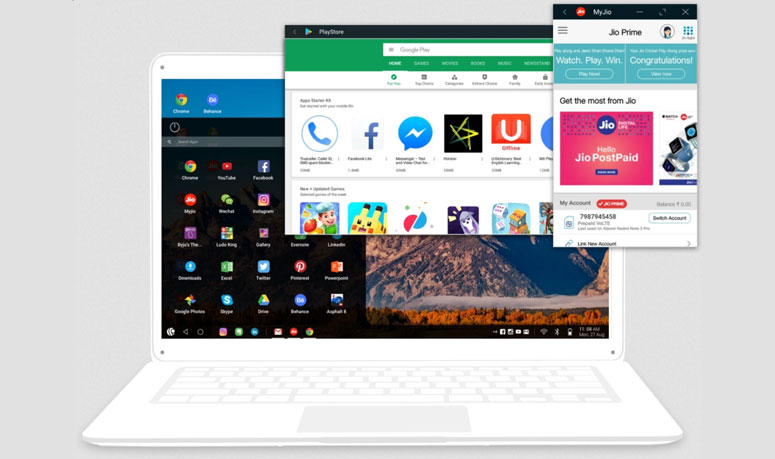
It supports almost all Android games so that you can get yourself immersed using a keyboard and mouse. The astonishing feature is the keyboard shortcuts (like Alt+ F4, Alt+ Tab, and Win key+ D). There are both 32 and 64-bit versions available.
● Android x86 (Version- 8.1)
You know what? Android x86 is the purest of all. However, everything comes with a price, don’t they? Comes with almost zero customisation, it won’t hurt your expectations. You get the Play Store to grab all your favourite apps.
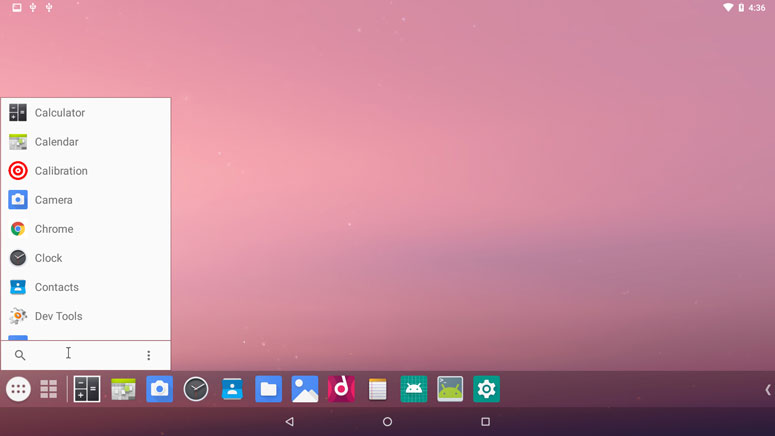
Moreover, multi-window support reminds you it’s on a computer you’re running Android. We have chosen this here simply because it doesn’t come with any bloatware that you despise. Android x86 features only the stock apps. Meaning, you will have to install a few basic applications if you plan to keep on using Android for your computer.
● BlissOS (Version- 11)
Some of you are disappointed. We know! Going through the two options given above, you still haven’t hit the jackpot. Why? Maybe you want the latest Android version. And, here it comes. BlissOS even has an experimental Android 12-based version available on their site.
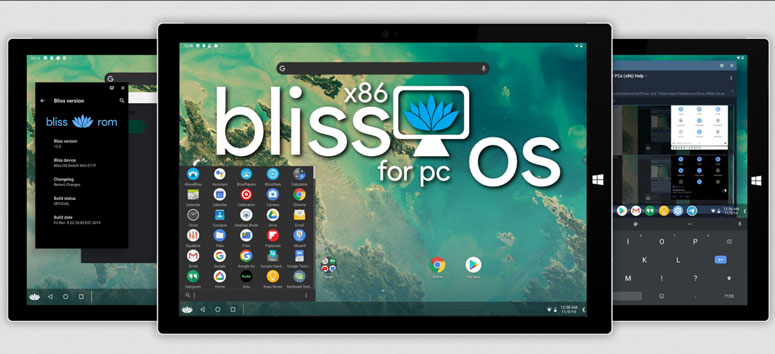
Talking about the features, it has two modes; desktop and tablet. If you have a touch-screen computer, you can opt for the second. The developers even provided us with an option to mix the two. You can finetune battery consumption with features given inside the OS.
Caution:- Some users say the OS may fail to boot over UEFI firmware. Turning on the Legacy Mode is going to help you out in this crisis.
● PhoenixOS (Version- 7.1)
Let us be honest with you here. We are not a huge fan of PhoenixOS. Then, why did we include it in the first place, you may ask! That’s because we have come to know many people use the OS and are fans of it.
What are the advantages? Well, you get a game assistant. Comes with a free MS Office suite, PhoenixOS allows you to restore, maximise, or minimise apps as you use a PC. Even if you don’t have a wireless connection, it can connect you to the internet through a LAN.
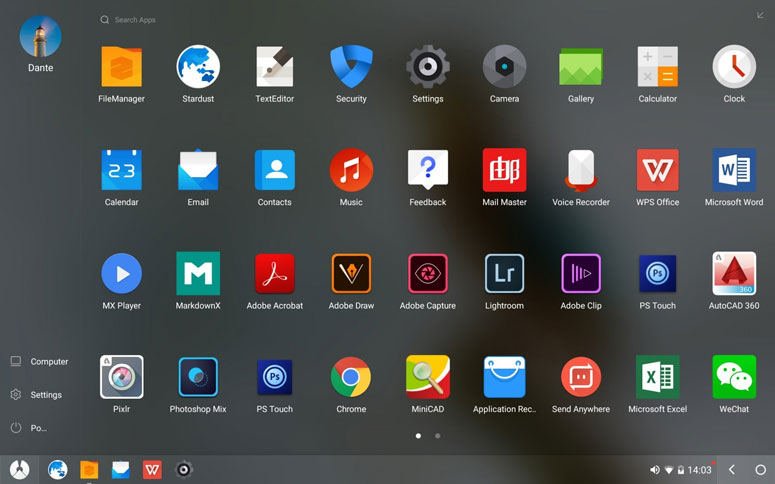
So, what makes us dislike this? The intermittent ads and non-essential bloatware.
● OpenthOS (Version- 6)
You will get almost all the features of an ideal Android OS on a PC. However, you are going to miss the Play Store. Yeah, OpenthOS doesn’t come with the default app store, so you will have to depend on third-party APK files. Better yet, install APKUpdater that acts as an app store.
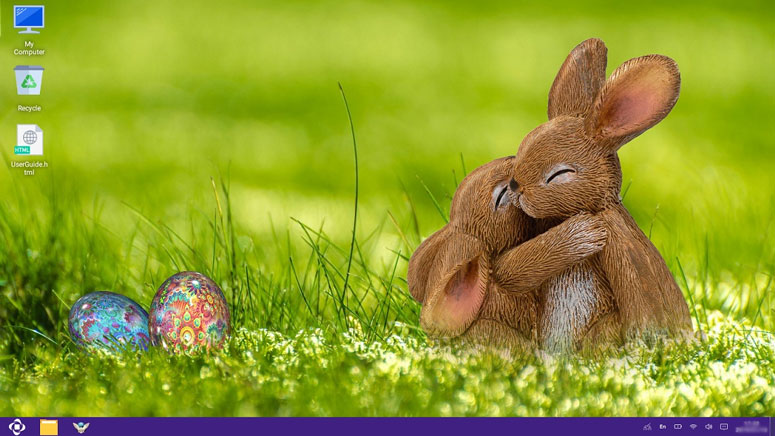
The interface is not perfect. Still, you get all the notifications on the right, which resembles the action centre on Windows 10. Everything else is the same as that of other entries in this article. Before you jump into downloading the ISO file, you should know that the OS won’t give you updates anymore.
● FydeOS
Skip to the next Android OS if you want a 32-bit version. FydeOS only supports 64-bit architecture. And, it is available exclusively for Intel computers. Moreover, you should know that FydeOS is not a full-fledged Android OS for PC, rather it’s a ChromiumOS fork.
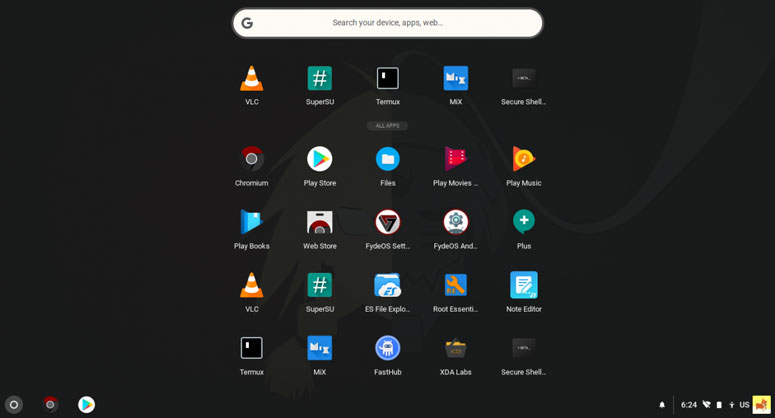
You need a Google account (obvious) and have to register with their website. What impressed us is the booting time. The latest version took less than 20 seconds in our testing. To be able to install apps from APK files, you have to open the Start bar and accept their License& terms.
● ChromeOS
You know Google’s Chromebook uses ChromeOS as the primary operating system, don’t you? Even though it’s not a complete Android experience, we can take it as a close contender. The tricky part is the installation as there are no official ways to get ChromeOS for a computer.
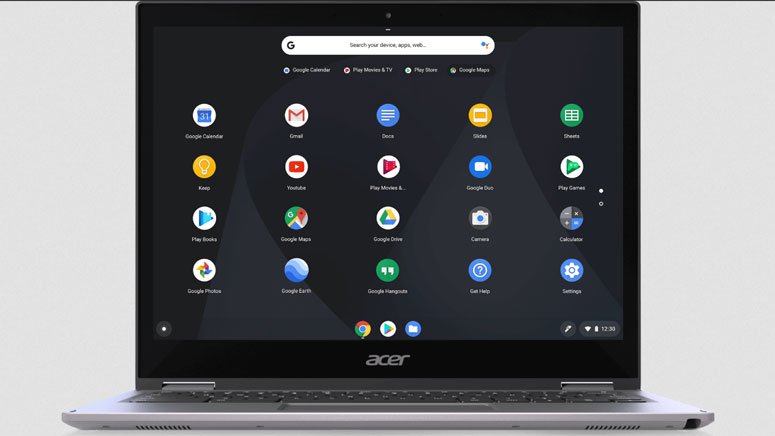
The best thing you will experience is faster boot times and performance. Unlike Windows or even Android, it’s not going to bother you with occasional lags and hiccups. To help you with the installation, we have found the easiest way on the web (which you can read here).
We are not giving the download link for obvious reasons. Check out the link given below to get a complete picture of the whole process.
● RemixOS (Version- 6)
Let’s get this out first. The developers have stalled this project. That means you are not going to get any updates and the latest they can offer is Android Marshmallow. If you are okay with these limitations, you can download RemixOS. It’s the most popular Android operating system available for PC. The author still remembers the day he installed it.
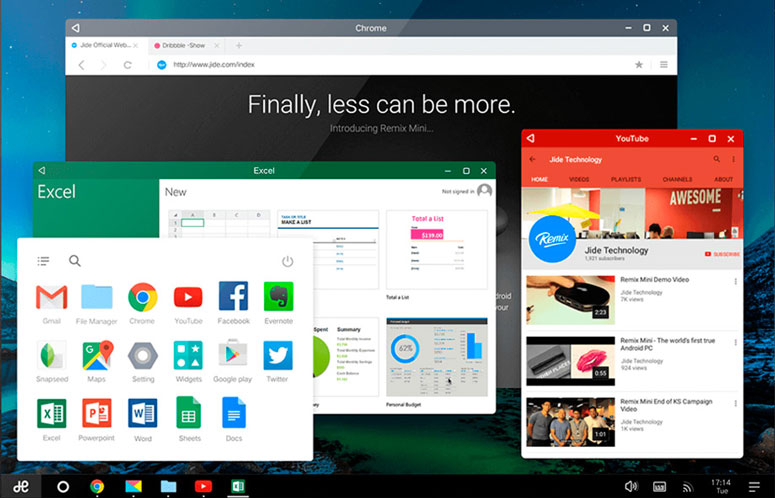
RemixOS became famous at once due to its resemblances with Windows 10. There are both 32 and 64-bit versions available. You can either install this on the hard disk or use a bootable USB drive. The installation is not going to create any hassle.
● Bluestacks
We know Bluestacks doesn’t need an introduction. Everyone who searched for a way to run Android apps on a computer must have stumbled upon this tool. Built for Windows and Mac, it’s the most popular emulator available right now. The installation procedure is the same as any other program. Please note that this is not an OS but it is an emulator.
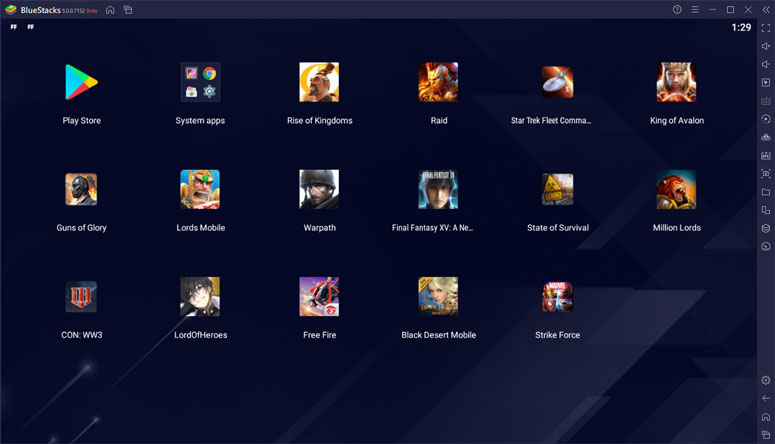
First, you have to check with the official site for the system requirements. In case your computer doesn’t meet the criteria, chances are the performance will take a toll. If you have the demanded configuration, you can enjoy all the Android apps right from the official Play Store.
● LDPlayer
Are you looking forward to enjoying Android games on a big screen? Do you think Bluestacks is way too resource hungry? Well, what you need in this case is LDPlayer. It’s made with gamers in mind. Based on Android 7.1 Nougat, it has got features like multi-instance, good keyboard mapping controls, high FPS, macros, and graphical support.
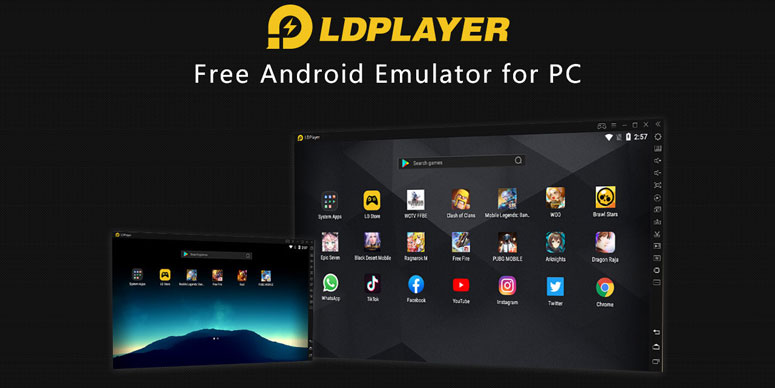
That doesn’t mean it is incapable of running other applications. You can use LDPlayer to use almost all the popular ones. With more than 4 million daily users (as per the official website), LDPlayer goes distros on par with Bluestacks. Nonetheless, it’s not available for both Linux and macOS.
Download LDPlayer => Click Here
● Anbox
Anbox stands for Android in a box. Most of the choices we have above are for Windows computers. What if you are a Linux user and you want to run Android apps just from the desktop? That’s what Anbox does. It supports almost all the popular distros (Debian, Ubuntu, Fedora, Arch Linux, Mentoo, Linux Mint, and more).
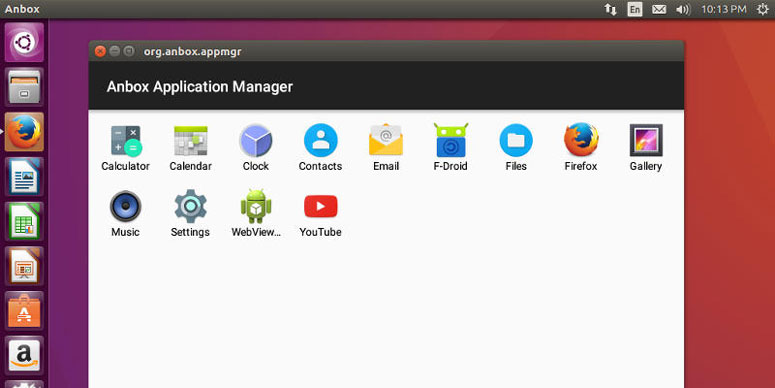
You can see Anbox as a Bluestacks alternative. Before you jump into using it, make sure you have Snapd installed on your computer (entering sudo apt install snapd will do the trick). Want an extensive guide on using Anbox? Click here.
● Samsung Dex
Samsung’s Dex isn’t a typical Android OS for PC thing. You have to purchase $150 hardware to convert your Samsung phone into a desktop CPU. We don’t recommend this unless you have spare monitors and peripherals lying around. Connecting your daily drivers with Dex is going to be a menace.
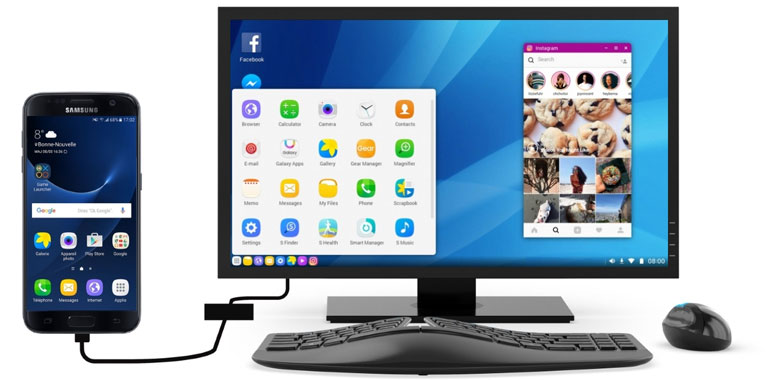
You get almost all the features of a computer including USB support, HDMI, and ethernet ports. Are you looking for a program, not any hardware? Well, you must skip this entry right here then. Or do you have a spare Google Nexus or Pixel device? Have a look at our next choice.
● Maru
Going by the functions, this is the perfect predecessor to Samsung Dex. Using a phone as a central processing unit to a monitor is not a novice idea, thanks to the developers of Maru. You don’t need a separate peripheral here. However, you will have to go for a fresh firmware installation.
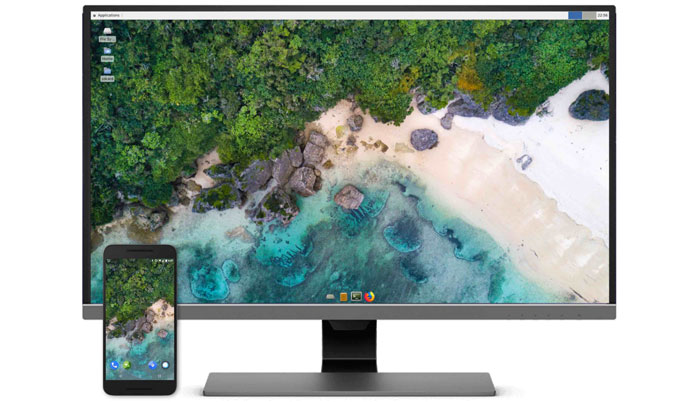
Once you install their firmware on the phone and connect the phone to a monitor via HDMI, the OS is ready to run. In case you are unfamiliar with the way how ROM installations go, you shouldn’t try this. The downside is it works only with Pixel and Nexus.
● NoxPlayer
We are back to emulators again. Don’t want to get into an emulator? Return to the first half of this article. That’s where all the best Android operating systems for computers lie.
NoxPlayer is available for both Windows and Mac. The apps run on an Android Nougat environment. Unlike other emulators, this one offers a macro recorder, using which you can record recurring complex operations to then run it with a single click.
● Genymotion
Last but not least is Genymotion. As most of you know, it’s another Android Emulator. It offers two versions; cloud and desktop. Based on your needs, you can go with either of them.
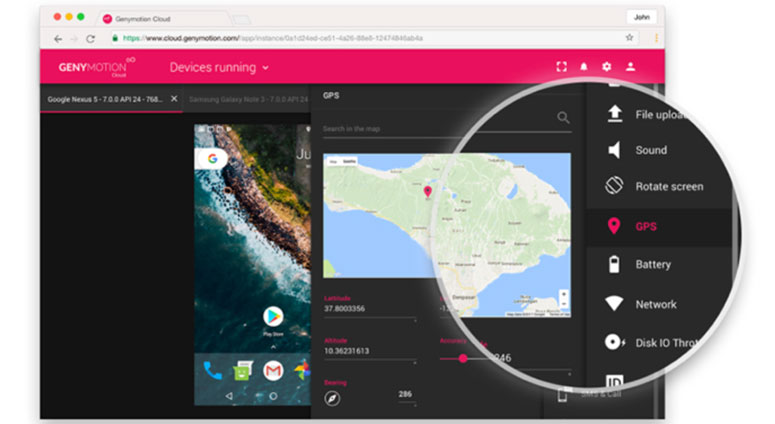
When you look to widen the features, you may have to consider in-app purchases. Moreover, Genymotion offers you a unique feature to run apps on different devices, without owning them in effect.
FAQ; Busting the Myths
1. Is there any Android OS for PC?
Yes, Of course, there are some like PrimeOS, Android x86, BlissOS etc…
2. What’s the best Android OS for PC?
That we can’t say! All of the entries we have got here carry their pros and cons. Hence, it all comes down to your preferences.
3. Is Android OS good for PCs?
When you do it in the right way, no Android OS is going to hurt your PC. Plus, it’s cool to enjoy the Android experience on a computer, isn’t it?
4. What is an Android OS for PC?
Simply put, it’s the version of the popular mobile operating system, intended to run on a computer. You can run it using three ways (fresh install, boot from USB, or by creating a Virtual Machine)
5. Why do you use an Android OS on a computer?
One may use it for multiple reasons. From having Android apps experience to faster boot times, it can be anything.
Final Verdict
Looking for a full-fledged Android operating system for computers? You should go with the first eight on our list. Want the latest version? The only choice is BlissOS. Samsung Dex and Maru suit only a small percentage of people (find them under respective subheads). Anbox is an emulator for Linux while Bluestacks, LDPlayer, BigNox, Genymotion are Windows/ macOS counterparts (if you are only looking to run Android apps, not the entire operating system).
We hope we cleared all your doubts. You now have fifteen Android OS for PC under your sleeves. As given earlier, opting for the best is a personal choice. Check them out and select what’s best for you. And, don’t forget to leave your valuable feedback in the comment section down below.


11 Comments
I have checked your recent article about themes for Windows 11. That was awesome. I have commented on that also. I checked this article. I have a shock to see I can install Android on my PC. I will definitely try this.
Yes, that is right Armando. You can install Android on your PC. Surely try on a spare PC.
Hey Tushar,
I have an old PC that was running on Windows XP but now it has so many issues of slowing down. can I try to install any one of the OS on that?
Yes, definitely Annie. You can do that. Please let me know how it goes.
I think not all of these are OS that you can install on a PC right? Because I have been using Bluestacks and you have listed it here as well. According to my knowledge, it is not an OS.
Yes, the post having all kinds of solutions to run android apps/games on your system.
Nice article Tushar.
I am not that Geeky to install a new OS on my computer LOL. But it’s always nice to learn tech from this blog. ????
Thank you for your nice comment Kenneth. ????
Do I need to create a system restore point before installing this OS on my PC?
No Alex. This is not a software installation. This is a complete new OS installation.
Please don’t try this on your main system.
So with the advent of Windows 11, I have two good computers that will be outdated and I am currently building my Windows 11 pc. My old computer lost its OS due to a bad SSD. I want to use Android OS’s on these but am concerned about setting up items that usually have Windows Drivers? Is it possible to set these up in Android? Also which OS would work for using Steam? These computers are both 1150 socket Intel with Intel graphics on cpu and one has a nvidia video card. Entirely tired of shoveling money to Microsoft. I have boxes of games and OS disc’s that are out of date.